

At PayBee, we offer one connected view of every guest. We ensure that charity event registration is effortless through a central guest list that is connected to registration, check-in, tables, purchases, donations, and post-event follow-up. Nonprofit guest management is available to staff and volunteers who can access important information without having to go through multiple spreadsheets and systems.
Adding guests to PayBee is simple. You can add them through the portal under the ‘Management’ tab, or you can email us with a spreadsheet containing your existing guests, and we can import them for you. Guests are also added when they purchase event tickets through your link or QR code so that you can make amendments where necessary.
If it has not been turned on, you will receive this notification when you try to add guests to your event. It’s a very easy fix, as all you need to do is toggle the guest information button in the screenshot above.
You can also go to ‘Guest Information’ under ‘Ticketing Settings’ and choose ‘Add Guest Info Option’. This will then bring up a screen where you can add the name of your required information, the type of information it is, and whether or not it is required or if it can be added by an admin. There is also space for you to add a text description to help your guests understand why this is being asked when they buy their tickets.
Once the ticket has been created, the guest and ticket will remain on your guest list, which is fully exportable if needed. This also allows you to add unnamed or incomplete guests to your list while waiting for further information.
You can also use this page to send reminder emails, email invites, and even track RSVPs so that you know who is coming and who isn’t.
Note: You can import your tickets from previous events through spreadsheets so that you can maintain consistent pricing and information across platforms.
Once you select this, add the name of the primary guest (usually the person who bought the ticket), and then you can add their email and payment records if needed.
After that, you will have the option to choose whether it is a single guest or a group, and it will give you the option to add the total number of guests coming under that ticket.
Once you choose your group and the number of tickets they have, you can then add their names to the list. There will also be an option for you to use their email, no email, or the email address associated with the primary guest.
When all of the information has been entered, you will end up with a page that looks a little like this. It shows all of the guests listed under the primary as well as their relevant information.
Yes, you can import existing guest lists. You will need to use the Guest List Import spreadsheet that we provide and then submit the list to PayBee at least one week before the event. We will then ensure that the list is fully imported to your campaign so that you can assign table numbers and any pertinent information. However, we can assign bid paddles and tables if you request it.
When you create your tickets, you will find the option to enable group tickets towards the bottom of the ‘Basic Details’ tab. This allows you to choose how many individual tickets are included in a group, ready for when you add them later (as per the how-to above), so that you have full control over your group ticket management.
You can assign tables and paddles through the platform and decide which information to collect. This includes meal choices, which can be asked about using the ‘Additional Donor Details’ section when creating your ticket. You can ask them to choose from a series of meals and also make a point of getting them to note any allergies or intolerances they might have.
You can also use these sections to ask custom questions that relate to your campaign and cause to help you get more information about what they will enjoy at the event and how they feel about the cause.
No, guests cannot update their own information. Only the admins for the campaign and event organisers are able to do this through the platform. Guests will need to contact the organisers if they want to make any changes.
Table assignments are found under the ‘Ticketing’ section, and you have the option to bulk import the information or add tables yourself. You can add the starting and ending table numbers, the number of seats, categories, and determine if guests will be assigned specific seats at the event.
Once this has been done, you will be able to see all of your tables and seats, allowing you to manage the table and assign guests to each seat. It removes the need for over-the-top table assignment software by making the process easy and accessible.
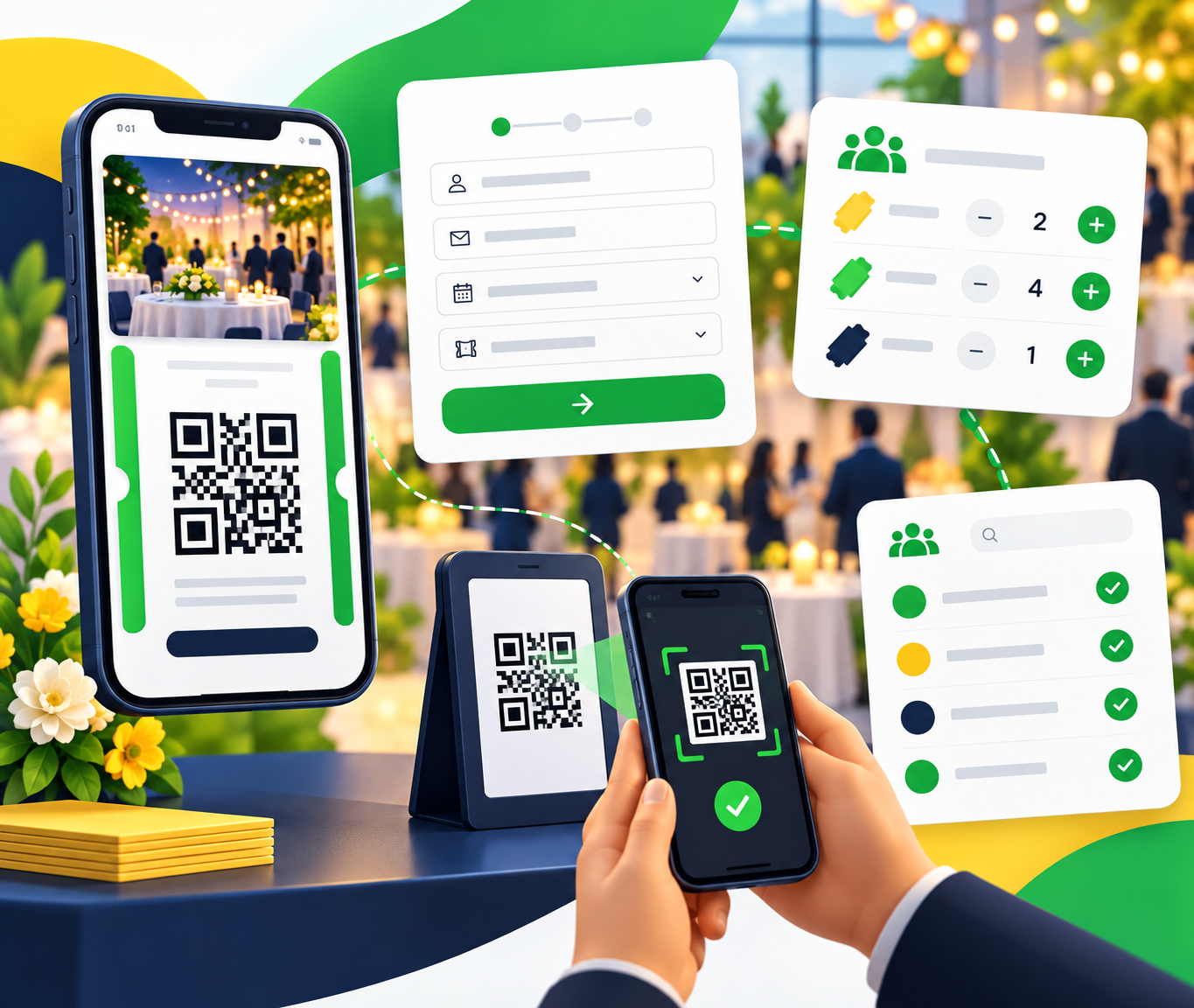
Event-day check-in is done through the PayBee app and uses QR code or ticket scanning. Once this is done, the guests who have checked in will show up under ‘Tickets and Guests’ on the platform page. Mobile check-in makes the nonprofit event check-in experience much easier to manage and ensures guests get in quickly and that you have less to worry about.
All donations, pledges, purchases, and balances are connected to guest profiles via their email address. This is then linked to their tickets, paddles and carts so that you can keep track of them. If any of your guests are registered with the same email address, their connections will be merged and can only be separated if they use individual emails.
This also means that you and your volunteers will be able to look up a guest using their email address to see their current balances, purchases, and general connections. This also includes outstanding balances, which can be viewed on the portal under ‘Unsettled Donations’.
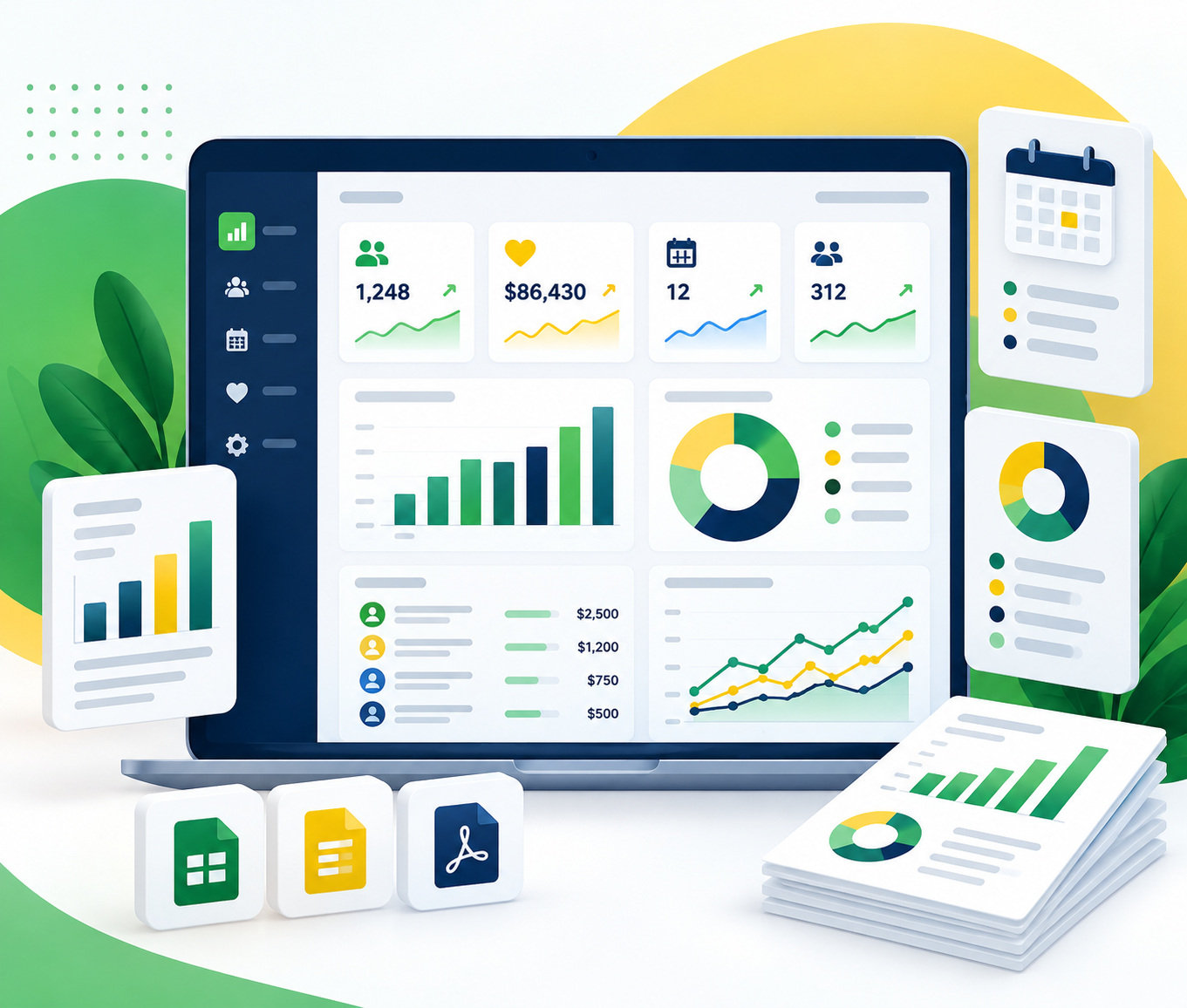
There are plenty of reporting features available with PayBee. You can track donors, matching donations, transactions, recurring giving, pending donations, and more. It offers you a detailed view of everything you have raised, where it came from, and how the donation was made. In addition to tracking funds, you can also export all of your reports and analytics.
Any information regarding analytics, tickets, and guests can easily be exported at any time without barriers. That way, your information always remains yours.
Additionally, PayBee offers post-event follow-ups in the form of automated tax receipts and thank-yous that let guests feel appreciated after an event, which is part of what makes PayBee all-in-one gala guest management software.
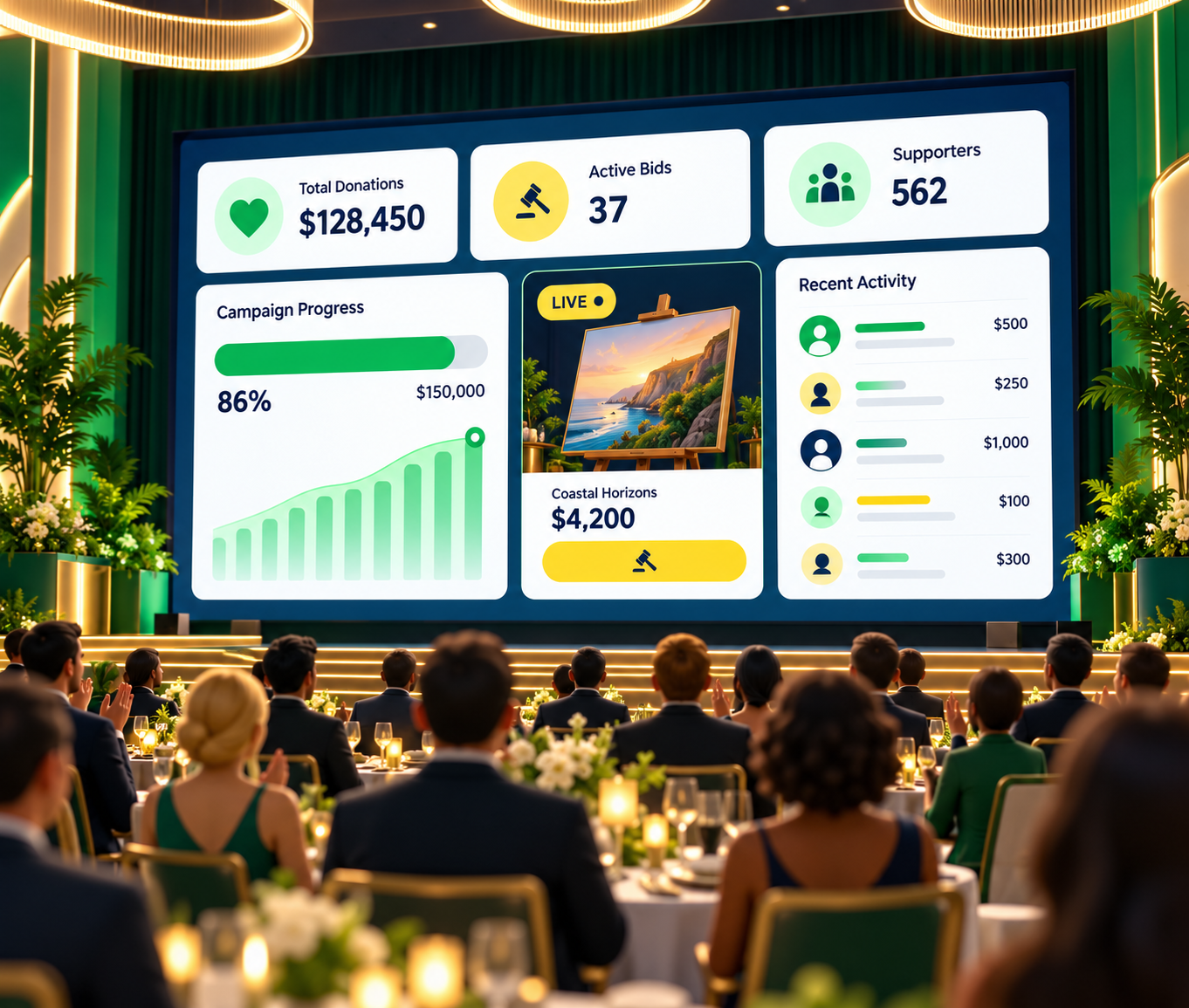
Volunteers can see guest lists and registrations, table status, guest activity, and any donations, bids, or pledges made to the organisation during the event. It is up to you how much power your volunteers receive, but they tend to get a good overview of the event.
You can add as many guests as there are tickets available. This means that if you have 200 tickets for your nonprofit fundraising event, you can add up to 200 guests. Since PayBee offers unlimited campaigns and donors, there is no need to worry about ticket caps.
No, there are no additional fees for adding guests with PayBee. Everything is covered by the plan that you choose, and any and all fees are made clear when you start your plan. PayBee remains a transparent platform that is proudly free from hidden fees.
With PayBee, guest management has never been simpler, and you have all the tools you need to create and manage an unforgettable event. We understand how important your fundraising event guest list is, which is why we offer such extensive features to help you manage even the smallest details. We offer one connected view of every guest so that you can keep your focus.