
Locate guests without a paper list
Keep carts ready for checkout
See how this feature can simplify your next fundraiser.


See how this feature can simplify your next fundraiser.
Invite volunteers using the email addresses they will sign in with, confirm that each person can open the right event, and rehearse the handoff from check-in to fundraising and closing guest carts.

Have an administrator add the people staffing check-in, fundraising, and checkout to the organization’s volunteer list. Ask each person to download the latest PayBee app and register with the same email you invited. Give them a few minutes to verify the invitation and choose the correct event. Assign practice tasks for each station, such as finding a guest by name and opening a cart, so access or menu questions surface before doors open.

Open the event in the app and select Check In. A volunteer can scan a guest’s ticket QR code or search for the guest by name or email. When people arrive under a group purchase, review the matching entries and mark the guests who are present. If your event assigns paddles or seating, verify the record before handing out the physical number. Decide ahead of time who handles walk-ins and guest substitutions.
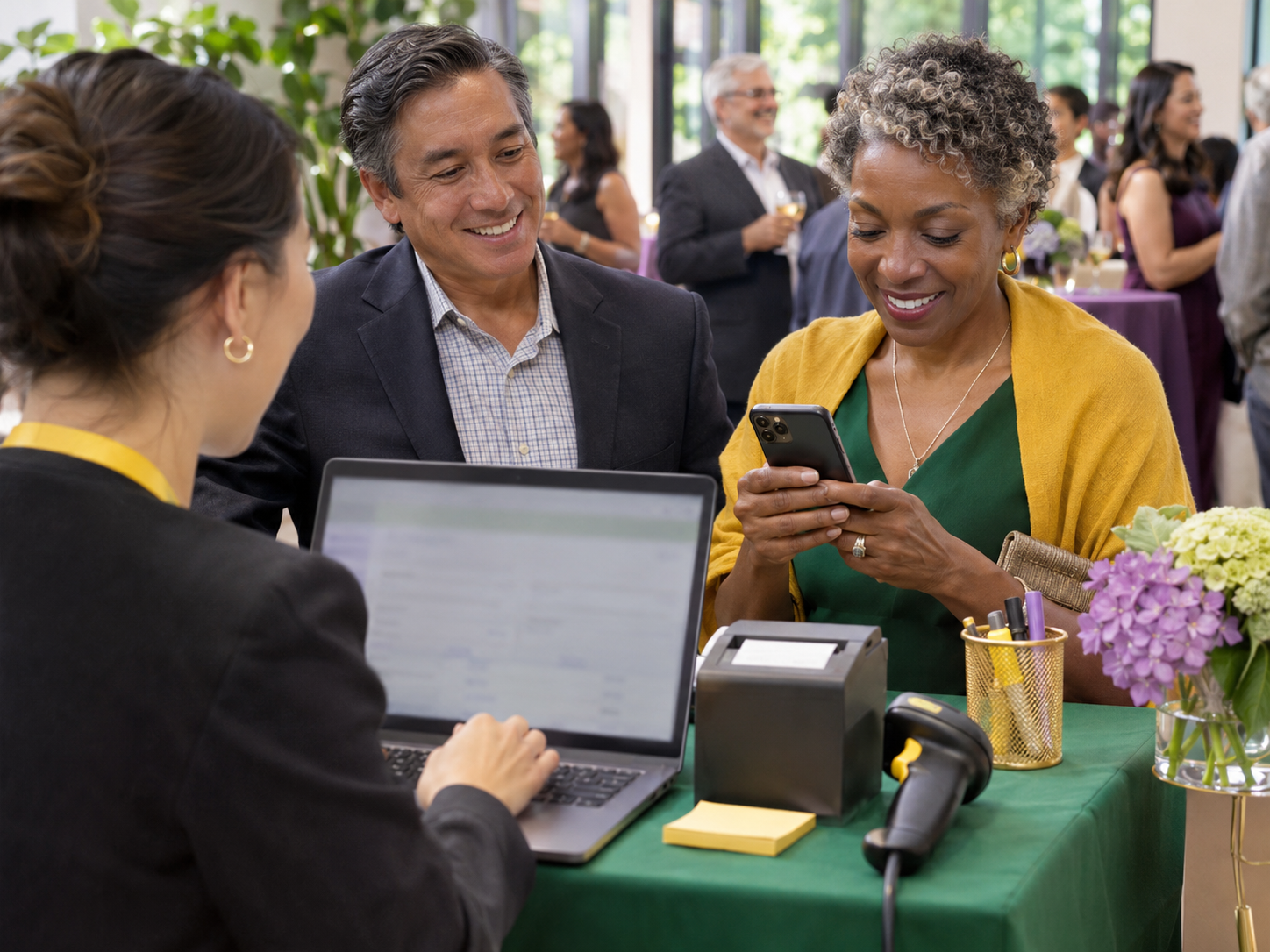
Use the event’s bid and pledge actions to add a pledge or winning item to a guest’s cart. For a group of pledges at one giving level, enter each paddle in the multiple-entry workflow if your event supports it. When guests are ready to pay, open checkout by paddle or use Donor Lookup to find the right cart. Review the items and total with the guest before completing any payment.
Ready to turn these steps into a smoother workflow?
The mobile app helps an event team carry out the jobs an organizer has set up in PayBee. A door volunteer confirms a guest’s arrival. A runner or clerk records the correct paddle and contribution during the program. At checkout, someone reviews the resulting cart with the supporter. Assign a lead at each station so volunteers have a clear point of contact for guest changes or a disputed amount. Before doors open, look at the actual event menu on a volunteer device. Available actions depend on how the event is configured.
Bring these capabilities together in one connected platform.
Grant access using an email address the volunteer can use on event day. Have them confirm their invitation and sign in on the actual device they will bring. PayBee’s primary account email cannot serve as a volunteer email. After the event, review the volunteer list and remove access for people who no longer need it.

When a sponsor purchases a table, people may arrive separately and give the sponsor’s name at the door. Check the group’s confirmed guests and open spots before entering a guest or checking them in. If the app prompts for a real email because the record has a placeholder, ask the guest for the correct address.

Select the campaign and item or gift level before entering paddle numbers. A second volunteer can read back paper records while the app operator checks each saved entry. At events with a live audience monitor, follow the live-activity workflow designated for the event so the clerk’s entries reach the right display.

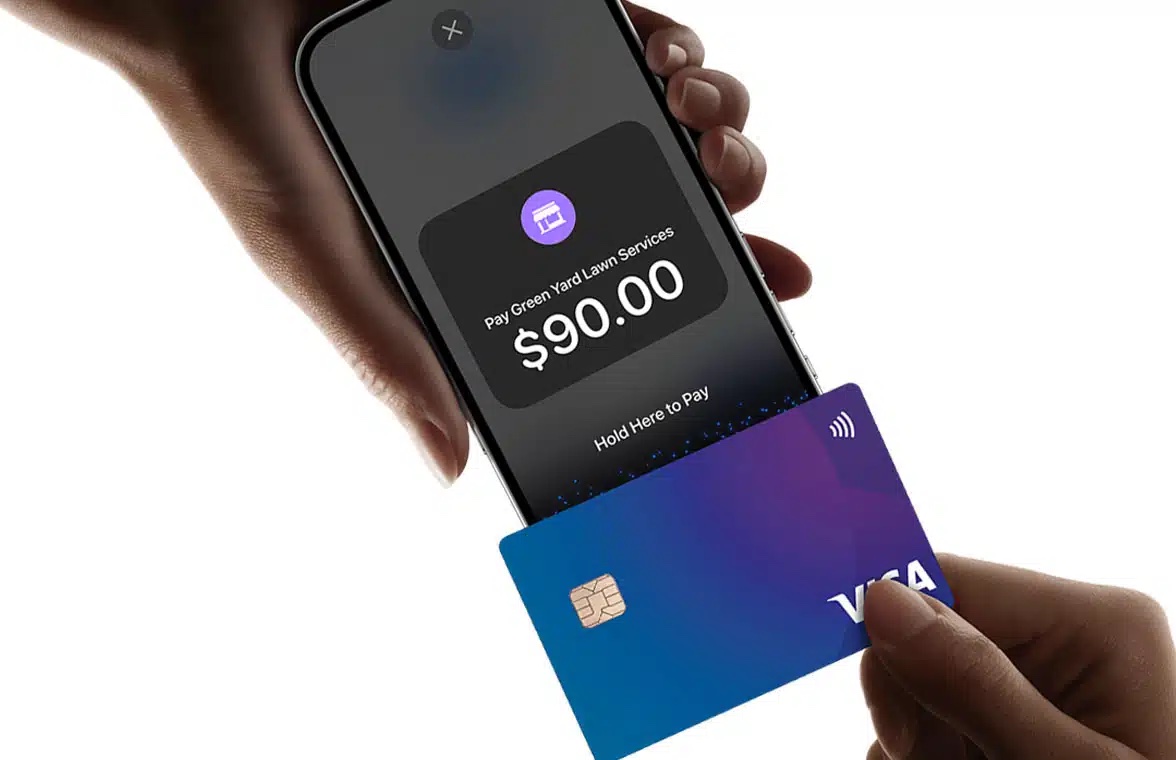
Look up the guest by paddle or identify them in Donor Lookup. Confirm the item, amount, and donor record before processing payment. If using a supported reader or Tap to Pay, test the chosen setup with the event team beforehand. Have a clear way to escalate disputed items or unresolved carts.
Put these tools to work for your fundraising team.
| Capability | How PayBee helps |
|---|
Explore how PayBee can support your full fundraising workflow.
Bring your check-in setup, fundraising plans, and checkout station layout to a PayBee demo. Walk through which devices and event actions each person will need. If your program uses paddles, a card reader, or a live fundraising display, make those part of the rehearsal so volunteers know where their work goes.
Book a PayBee DemoQuestions, answered
Still deciding? See the platform in action or start building today.