
Reach people by email and text
Tell winners what happens next
See how this feature can simplify your next fundraiser.


See how this feature can simplify your next fundraiser.
Set bidder contact fields and winner instructions before the auction starts. Then monitor bids and close the auction when the committee has checked the results. Review pending transactions for winners who still need help.
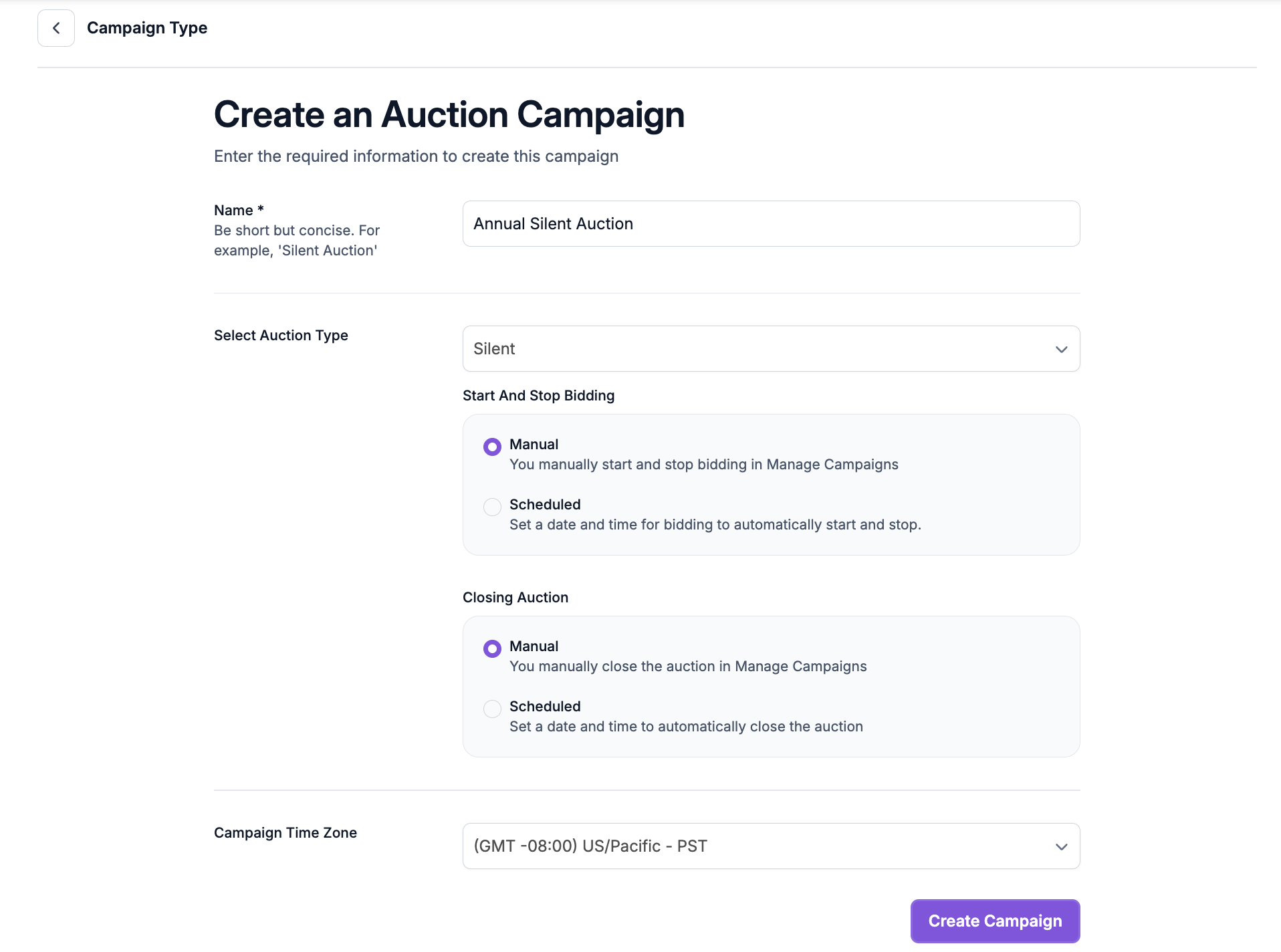
Open your silent auction campaign and review its Donor Details settings. If you want PayBee to send text notifications, configure the campaign to ask for a phone number. Tell bidders how those details will be used. Prepare Winner Instructions with the pickup location, timing, or delivery information winners will need. Use the same wording on your event signs so people get consistent instructions from staff and their auction email.

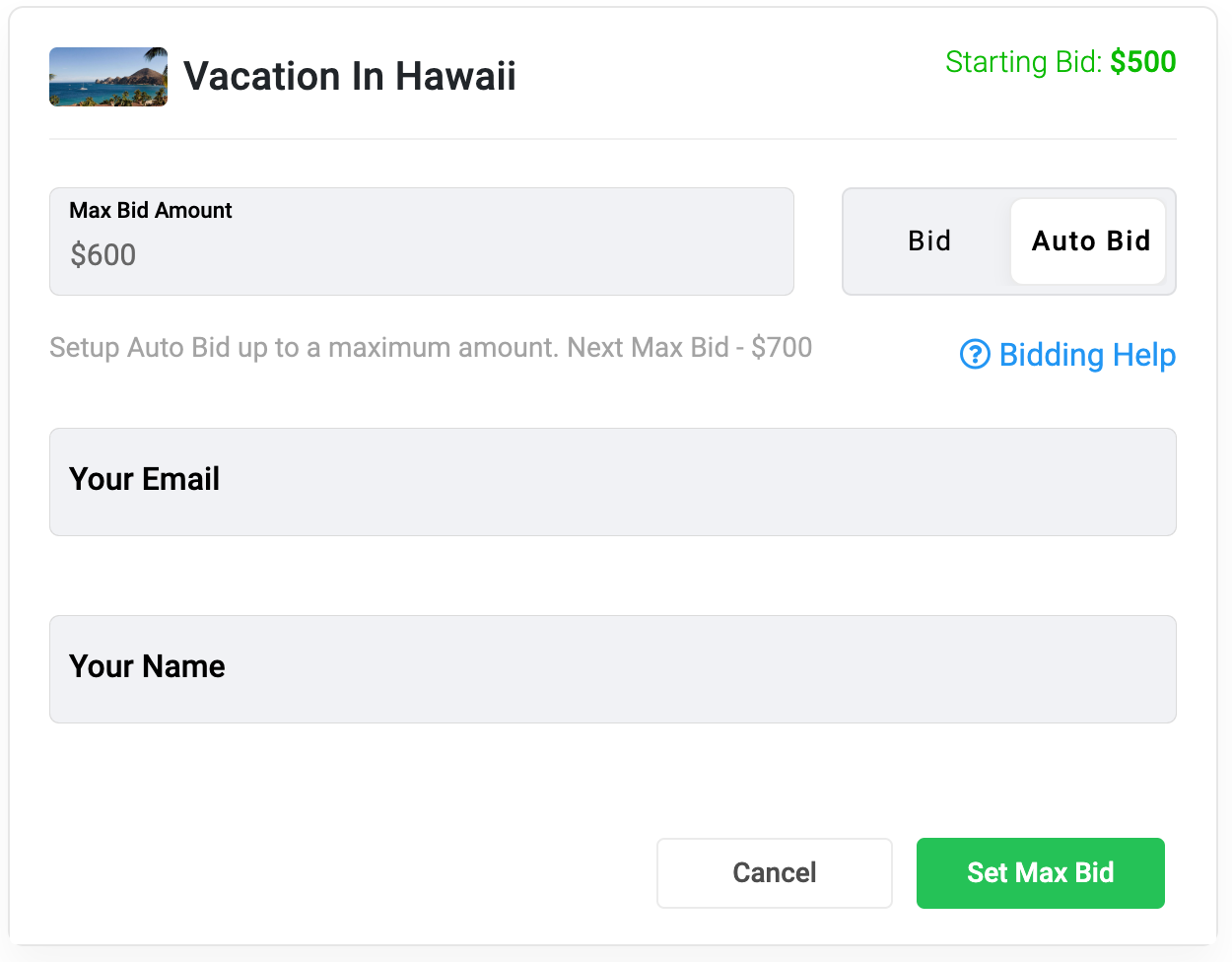
Open Manage > Auctions and select the right campaign. Review the latest bidding activity and the item quantities. If a bidder loses their eligible place, PayBee sends an outbid alert with a way back to the listing. Remember that with a multi-quantity item, a bidder may still be in a winning position even after someone places a higher bid. Give volunteers a clear answer for anyone asking how to check their position.

Review the auction before using End Auction. Pausing bidding stops new bids while your team checks results. Ending the auction chooses winners, adds the items to their carts, and sends notification links. After close, check the Paid and Pending tabs. Use the applicable pending or event report to review outstanding payments and send payment reminders as needed. Confirm pickup details before the auction team releases items.
Ready to turn these steps into a smoother workflow?
Outbid messages help supporters return to an item while bidding is still open. When staff end the auction or its scheduled close runs, winner messages lead people to the payment step. An item with multiple units can have several winning bidders, so a higher bid only creates an outbid alert when someone falls outside the available places. Keep the timing and contact settings in mind when planning event announcements and payment follow-up.
Bring these capabilities together in one connected platform.
When a supporter is outbid, PayBee can send an email and, if they provided their phone number, a text. The notification points them to the relevant item so they can check the current bid and decide whether to participate again. Explain how alerts work in your bidder instructions.

PayBee counts eligible bidders against the available quantities. For example, on an item with three units, a bidder can move from first to second while remaining eligible. An outbid message is tied to falling outside the available winning positions. Check quantities when staff review activity for similar items.
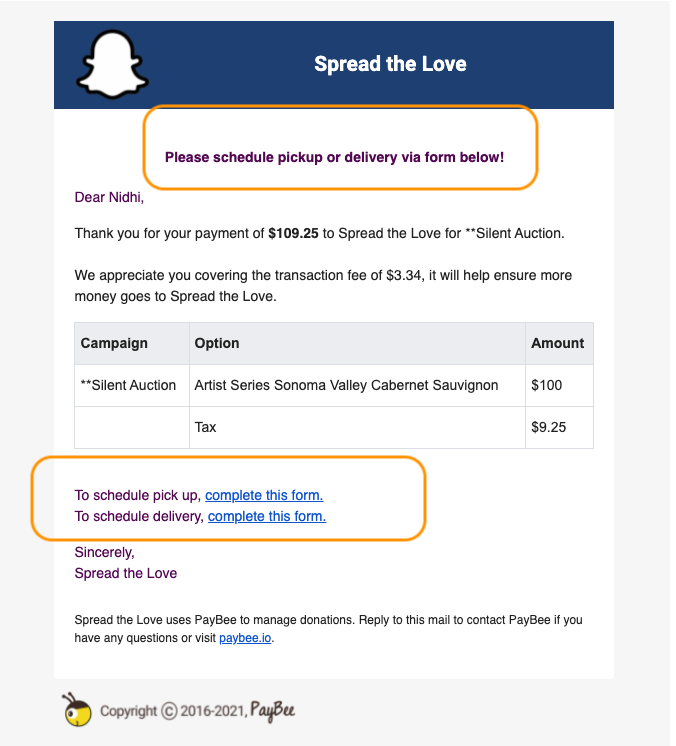
Set Winner Instructions in the auction configuration. Use them to tell winners where to collect items or how to contact your team about delivery. PayBee includes these instructions with the winner notification and payment confirmation. Preview the message with your auction team before using it for a live event.

Review pending auction transactions after completing the close. Go to the All Pending report or the relevant event report for documented payment reminder workflows. Review the winner’s cart before following up so your message refers to the correct items, amounts, and any pickup arrangements your staff have made.
Put these tools to work for your fundraising team.
| Capability | How PayBee helps |
|---|
Explore how PayBee can support your full fundraising workflow.
Bring your bidding schedule and the information winners will need at pickup. In a PayBee demo, review the bidder contact settings, the distinction between pausing and closing, and the reports your team can use to follow up on unpaid auction items.
Book a PayBee DemoQuestions, answered
Still deciding? See the platform in action or start building today.