
Verify the bidder’s email
Separate bidding from charging
See how this feature can simplify your next fundraiser.


See how this feature can simplify your next fundraiser.
Configure the requirement in your silent auction, explain it to supporters, and check the donor-facing bid flow. After closing, review winning carts and process eligible payments through the correct PayBee view.
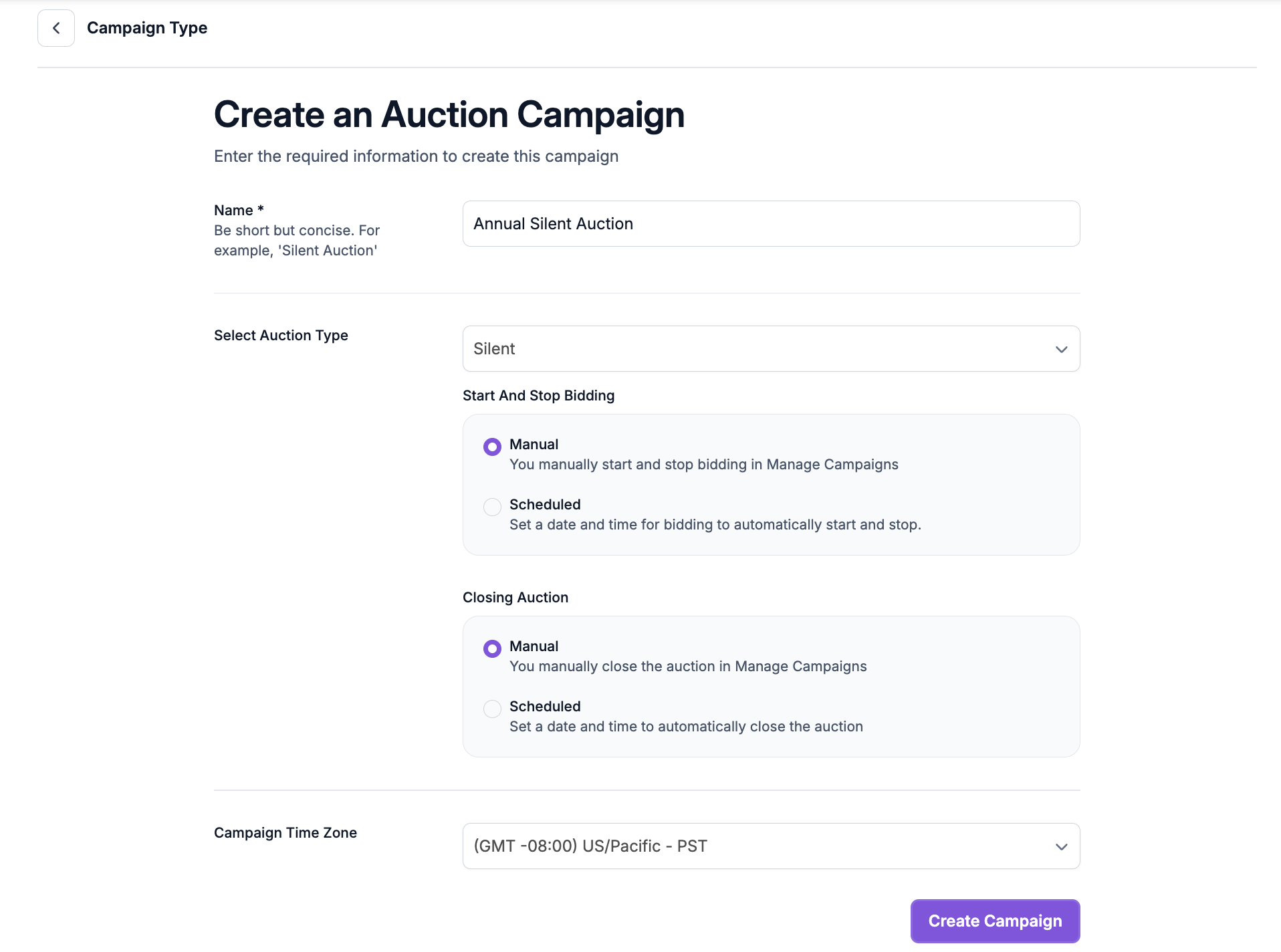
Edit the silent auction and open Auction Settings. Under Bidder Details, enable the setting that requires donors to save payment information to bid. PayBee also enables the bidder login requirement with this choice. Before sharing the auction, tell supporters to have access to the email they intend to use and explain when an organization can charge a winning amount. Brief event volunteers on the expected bidder flow.
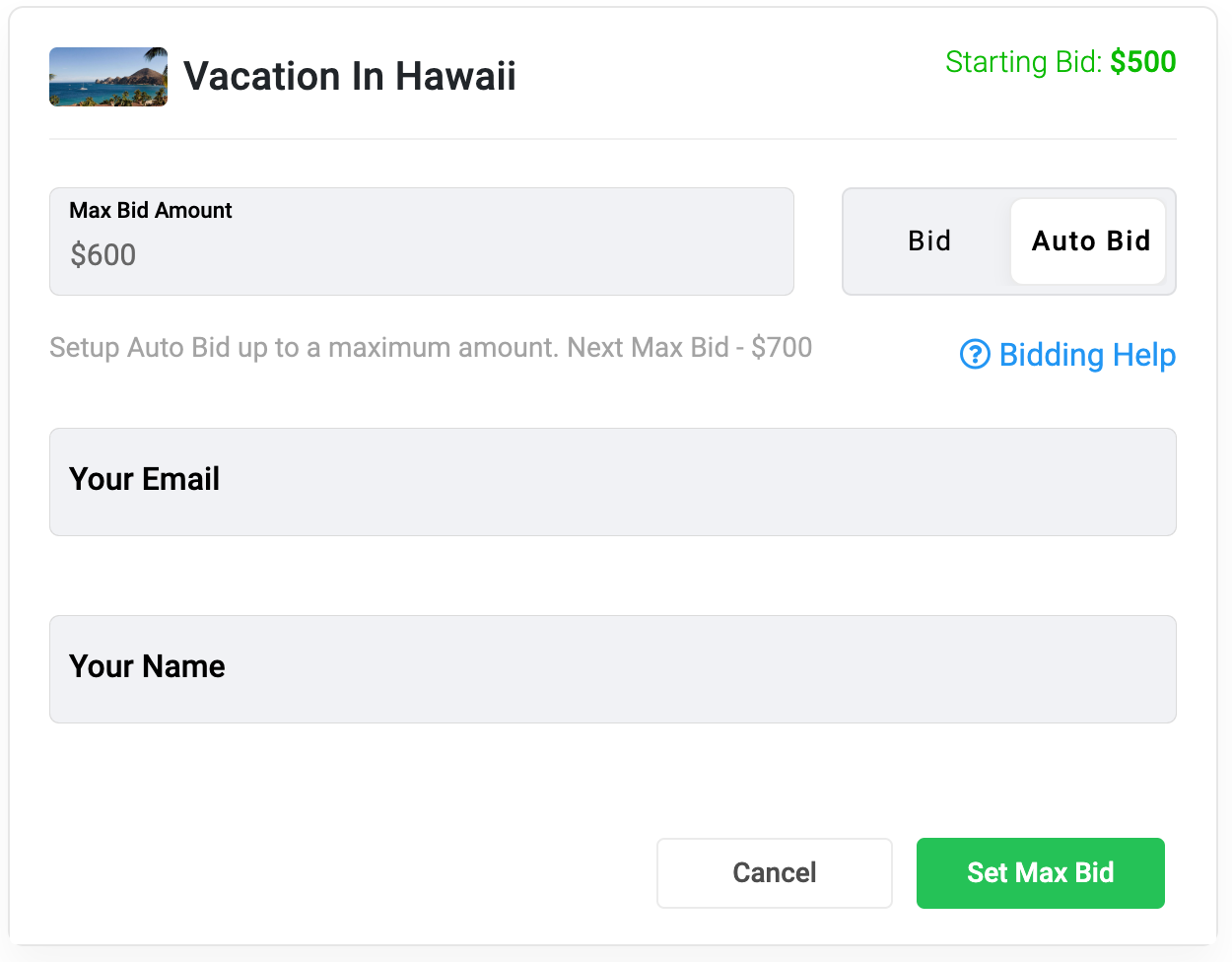
When a bidder attempts a bid, PayBee asks them to verify their email using a one-time code. The bidder can select an existing saved method or add a supported one, then complete the bid. PayBee sends a confirmation after the bid and payment method are accepted. If the bidder asks for help, point them to the email verification and payment screens instead of collecting payment details in messages.

After the auction closes, select the campaign under Manage > Auctions and open Pending. An authorized administrator can use Bulk Checkout for eligible winners who saved payment information through bidding. Review the winners and amounts before processing. For cards saved through the in-person event workflow, use the applicable event report. Follow up with any supporter whose balance remains pending after checkout.
Ready to turn these steps into a smoother workflow?
Saving a payment method before bidding is an optional silent auction setting. With it enabled, bidders verify their email and select or add a method during the bid process. Once bidding ends and winners are chosen, the recorded method can support administrator-initiated checkout. In-person event check-in can also save a guest’s card through its own workflow. Keep the auction and event paths clear so your team reviews transactions in the right place.
Bring these capabilities together in one connected platform.
Turn on the save-payment setting when your silent auction requires it and use your bidder instructions to explain why. The login requirement is enabled with it. Confirm what bidders see before you circulate the auction link, especially if some supporters will be joining on their phones at the event.

PayBee sends a one-time code to the bidder’s email. Once verified, the bidder can choose an existing saved method or add one. The documented donor options include a credit or debit card, bank account, Apple Pay, or Google Pay. The accepted bid and saved method are confirmed by email.

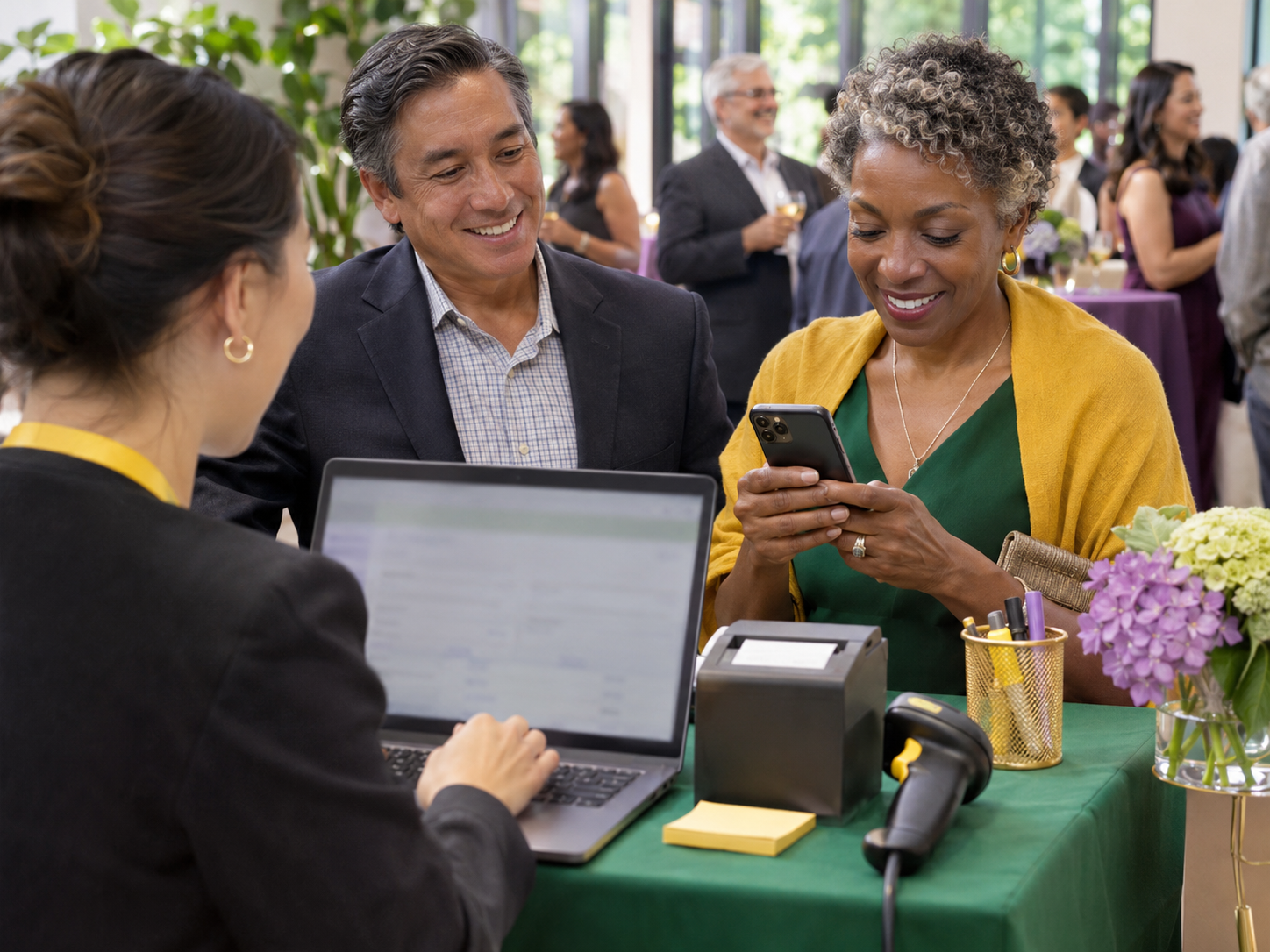
For an in-person event, authorized PayBee volunteers can save a guest’s card in the check-in workflow using manual entry or a supported reader. The phone’s Tap to Pay feature is intended for taking payments and does not save a card at check-in. Train volunteers on the approach your event uses.
Close the auction to select winners and add their items to carts. For methods saved during bidding, go to the auction’s Pending view and use Bulk Checkout. For methods saved through the event, use the attendee Bulk Checkout flow in the In Person Event Report. Review remaining pending transactions afterward.
Put these tools to work for your fundraising team.
| Capability | How PayBee helps |
|---|
Explore how PayBee can support your full fundraising workflow.
Show us how supporters will join your silent auction and how your staff plan to handle payments after it closes. In a PayBee demo, review the bidder’s payment setup, the volunteer options for event check-in, and the pending transactions your finance team will review.
Book a PayBee DemoQuestions, answered
Still deciding? See the platform in action or start building today.