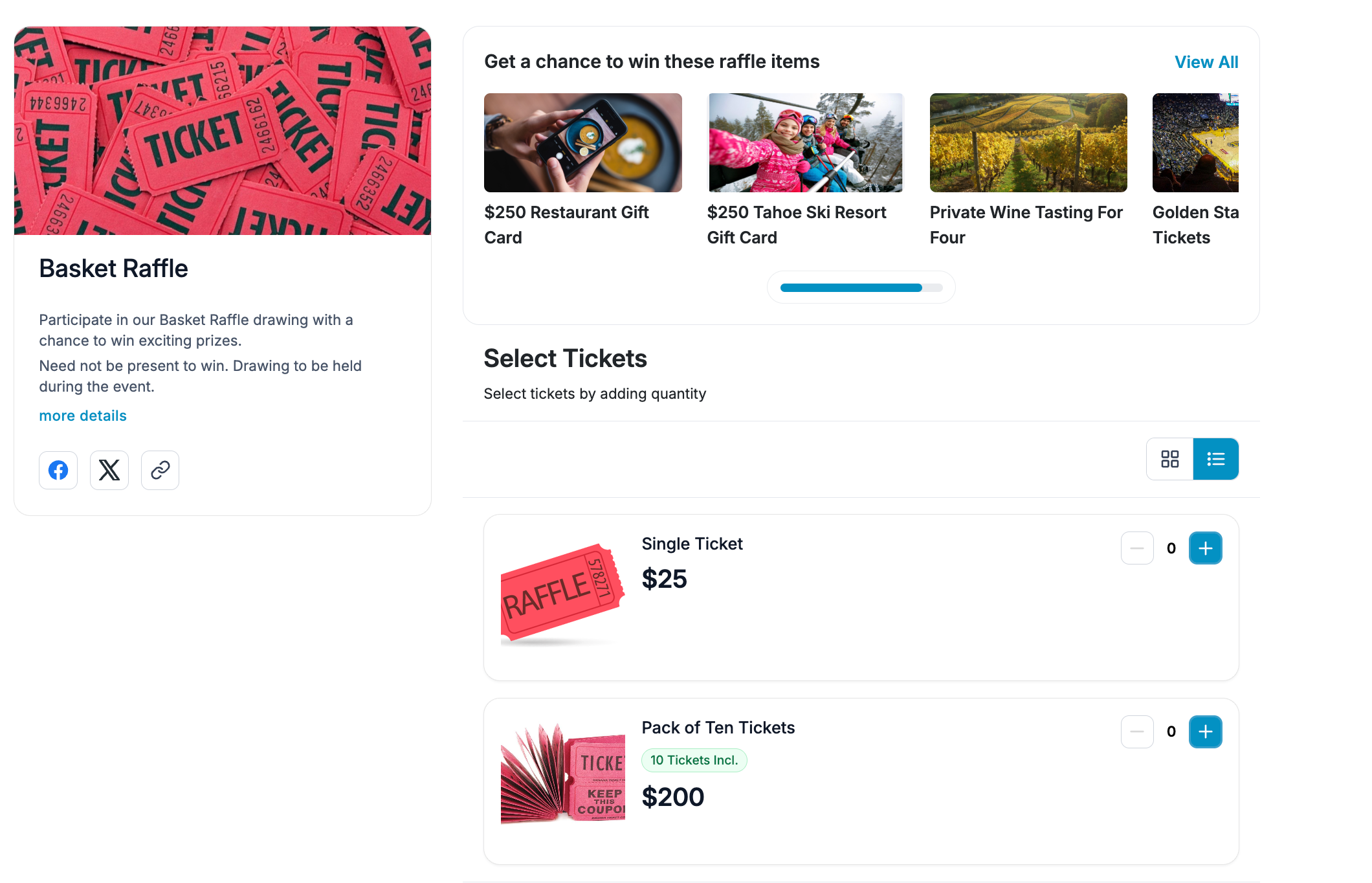
Give Buyers a Choice of Prizes
Review What Guests Bought
See how this feature can simplify your next fundraiser.


See how this feature can simplify your next fundraiser.
Set up the campaign as a raffle or as simple event-day ticketing. Share the options with guests and prepare volunteers to take sales on site. Then review purchases and draw winners if you’re running a virtual-ticket raffle.
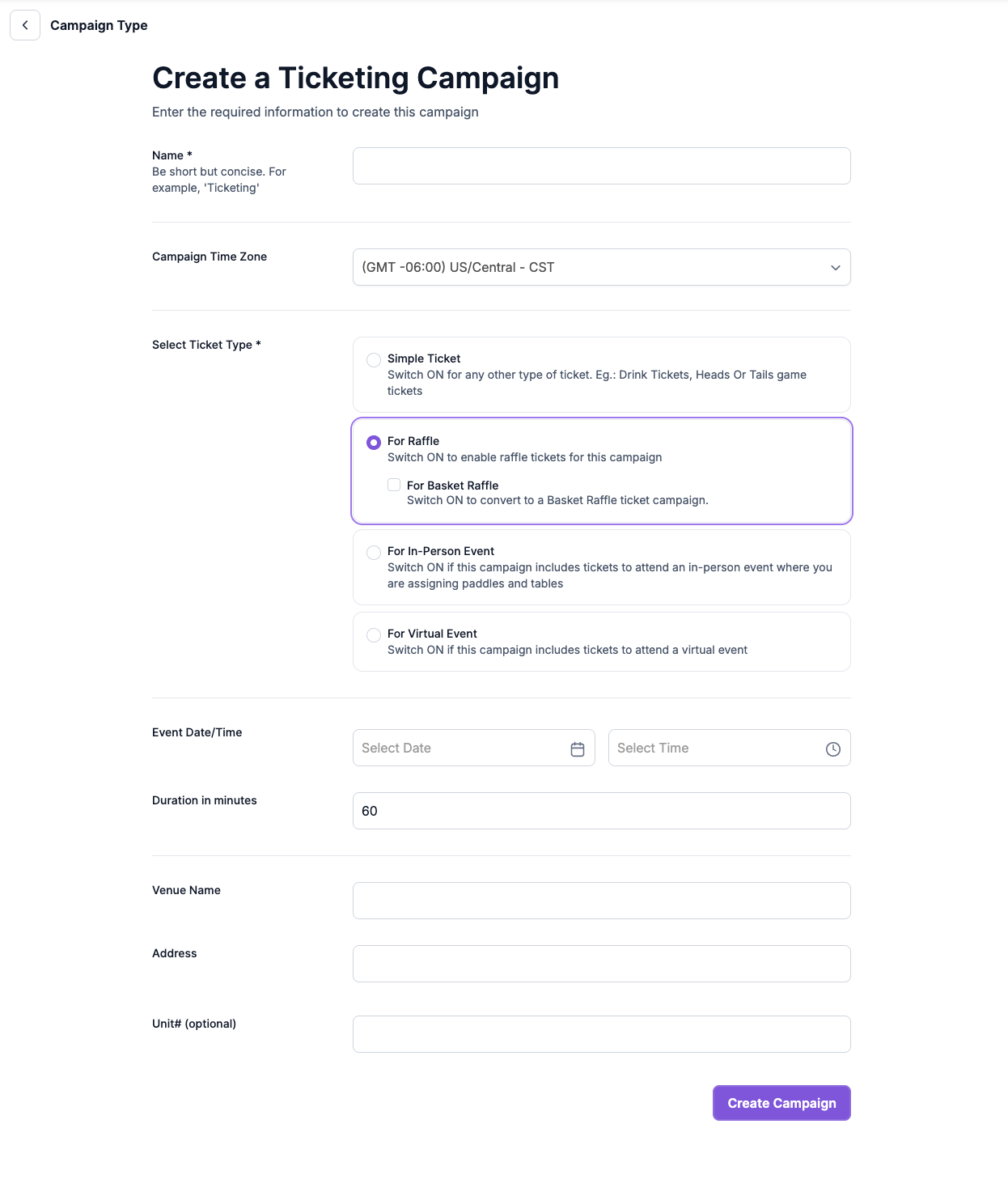
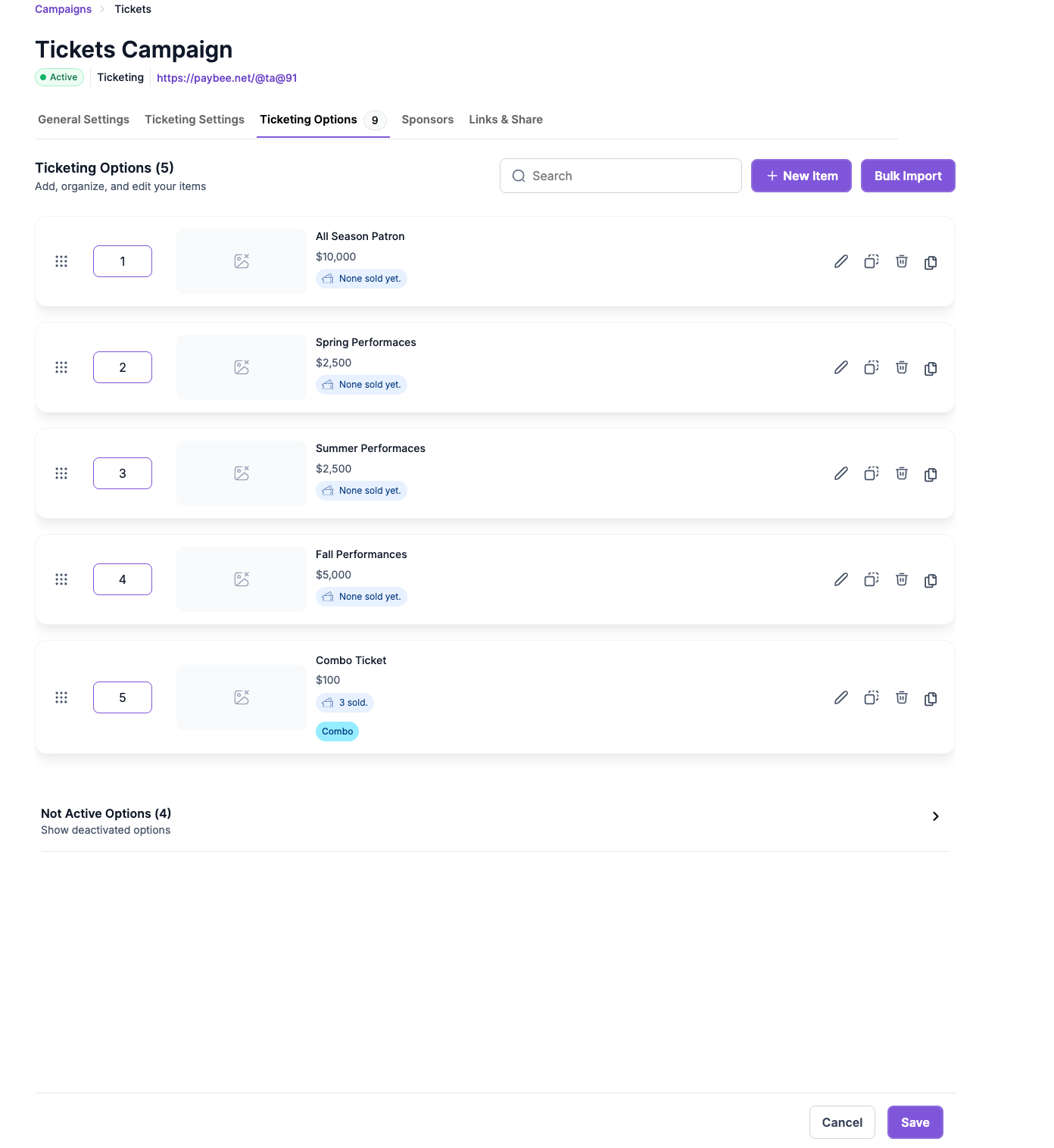
Go to Campaigns, select New Campaign, and choose Ticketing. Choose Raffle if guests are buying entries into a drawing, or Simple Ticket for items such as food or drink tickets. Set up the choices in Ticketing Options. If you offer a ten-entry raffle pack, enable Group Ticket and set the count multiplier to ten so a purchase includes the right number of entries. You can also set launch and end times for an individual ticket option.
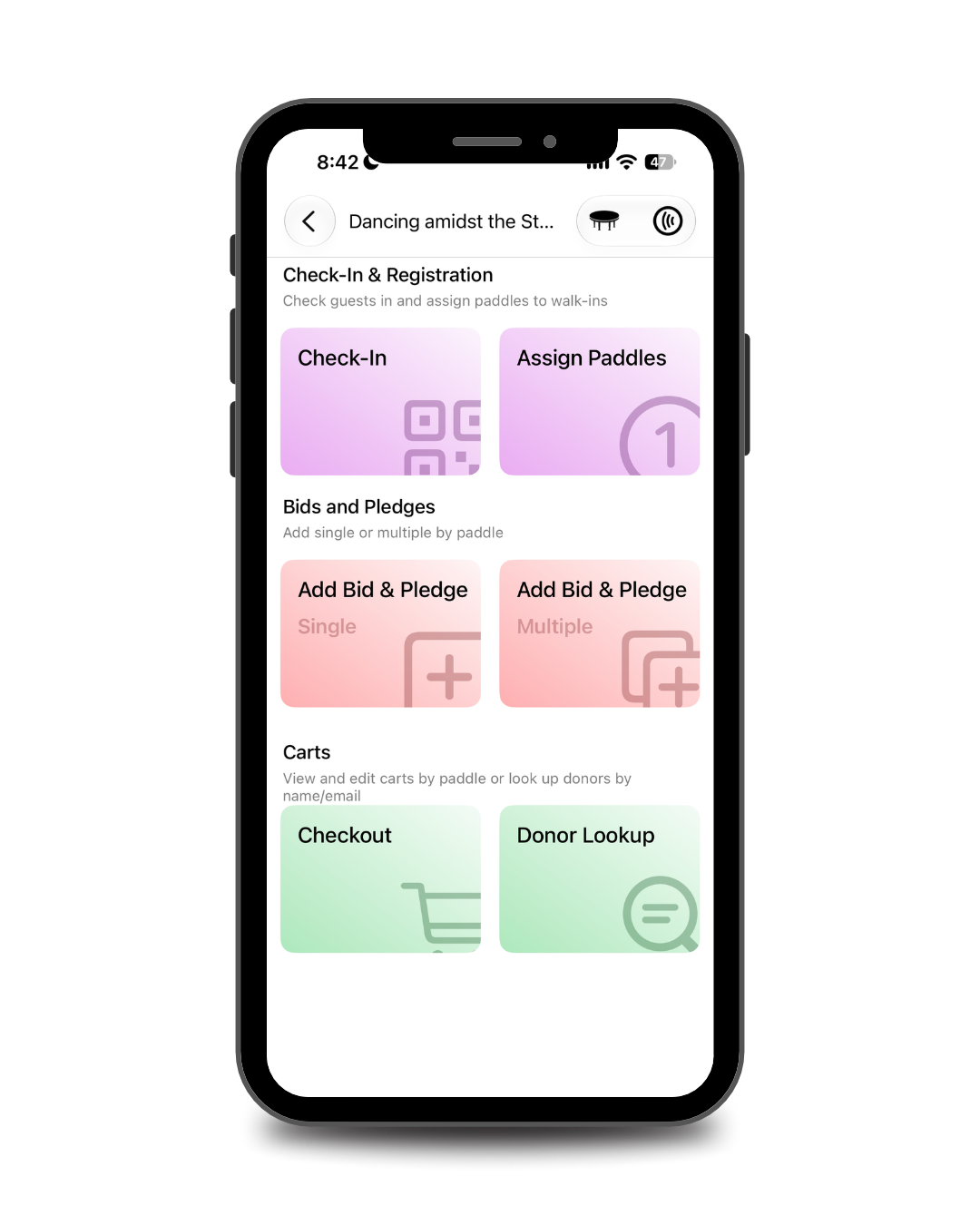
Share the campaign link before your fundraiser and print its QR code for signs or table cards. Guests can scan the code and purchase from their phones. At a staffed booth, a volunteer can open the event in the PayBee app, look up the donor, select the campaign and ticket option, and add the quantity to the donor’s cart. The volunteer can take payment at the booth or save the cart for the guest to pay later.
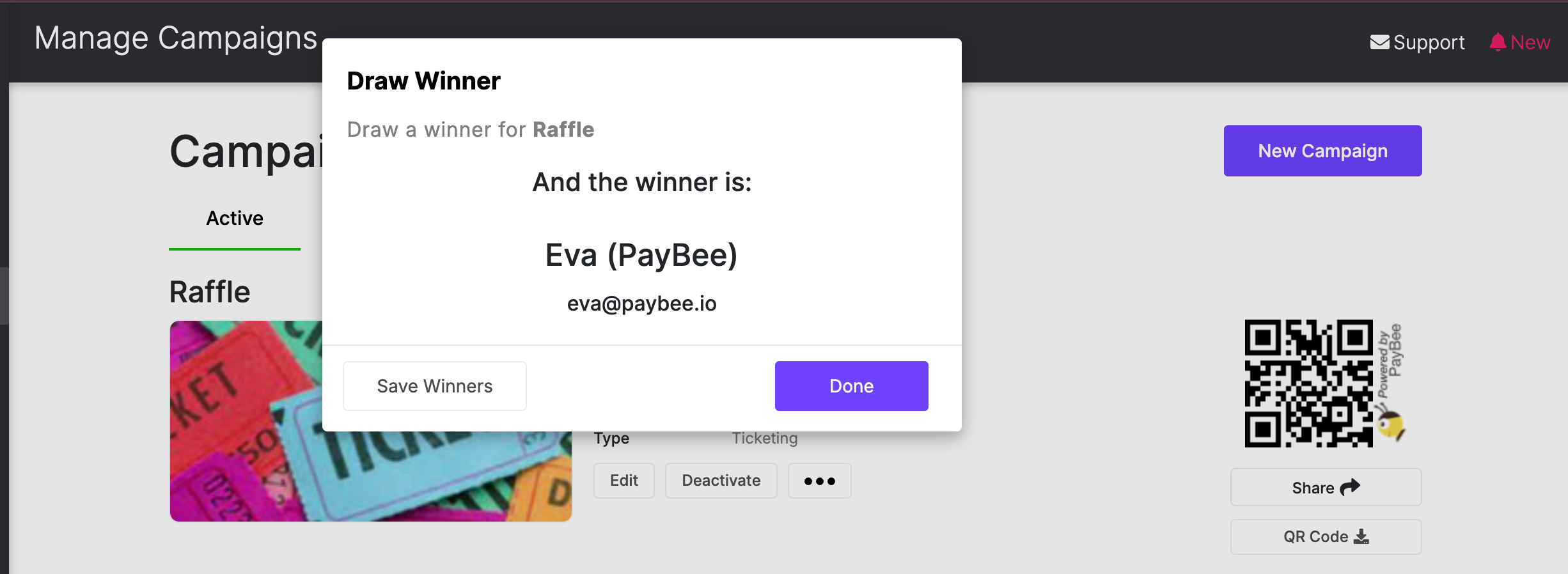
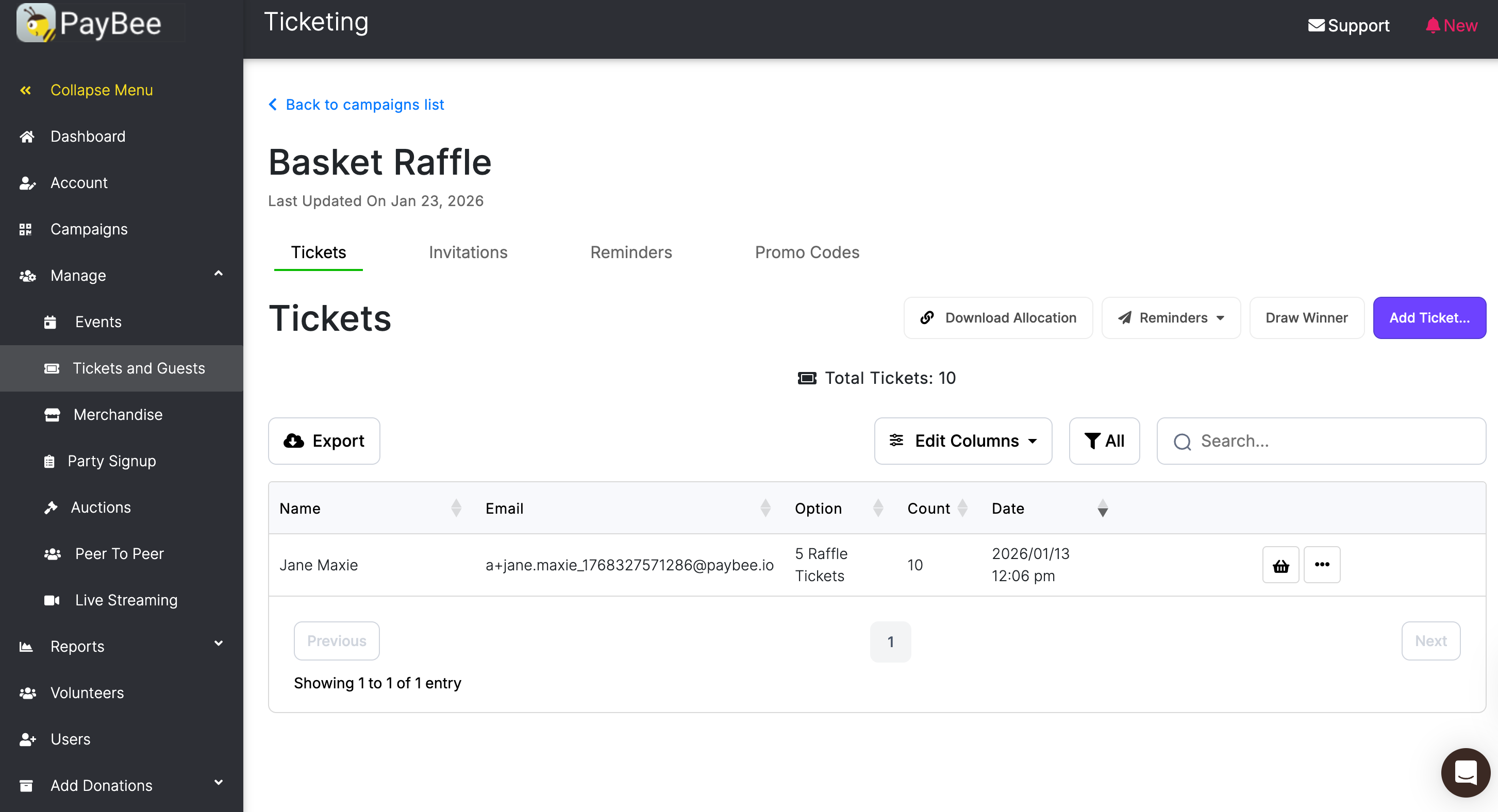
Open Manage, then Tickets and Guests, and select your campaign to check what buyers purchased. For a basket raffle, open an individual purchase to check its allocations or download the full allocation spreadsheet. When you’re ready to draw from virtual tickets, use Draw Winner from Campaigns or from Tickets and Guests. PayBee shows the winner’s name so your team can announce it. You can save the result of a single-winner raffle or the winners of a basket raffle.
Ready to turn these steps into a smoother workflow?
At a school fundraiser, families may buy game tickets online, pick up food tickets at a booth, or add raffle entries during the program. PayBee lets your team handle those sales alongside the other campaigns you use at the event. When a volunteer adds a purchase to a donor’s event cart, the guest can pay the balance together with other items already there, such as a pledge or auction purchase. Afterward, your team can use the campaign’s ticket list to check purchases and the completed transaction report to review payments.
Bring these capabilities together in one connected platform.
Give guests a single-entry option and a larger pack if you want to offer both. The group multiplier controls how many entries come with one pack. Ticket options also support a minimum and maximum quantity per transaction and an inventory setting. Set those limits separately so your purchase options reflect what you intend to sell.
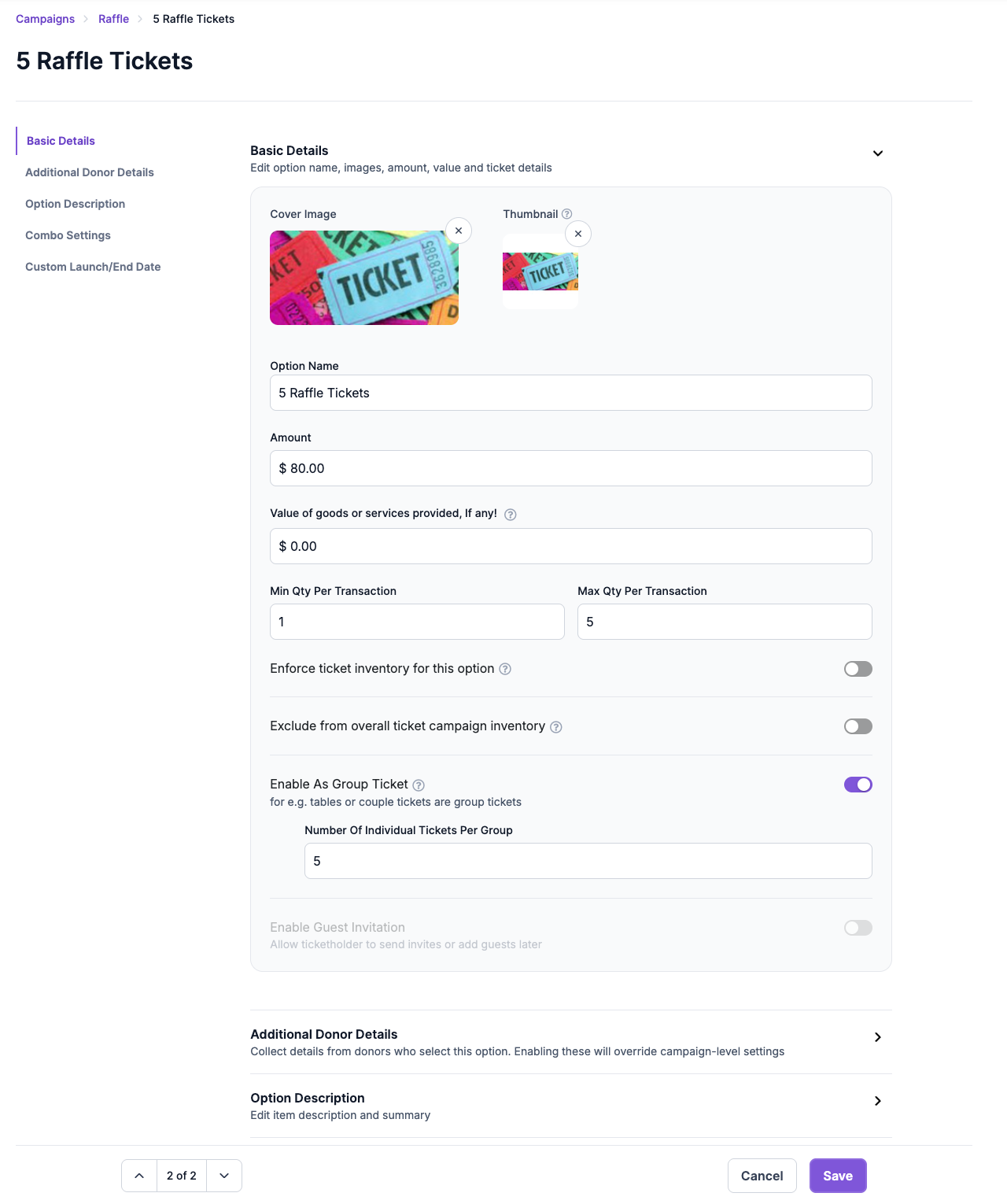
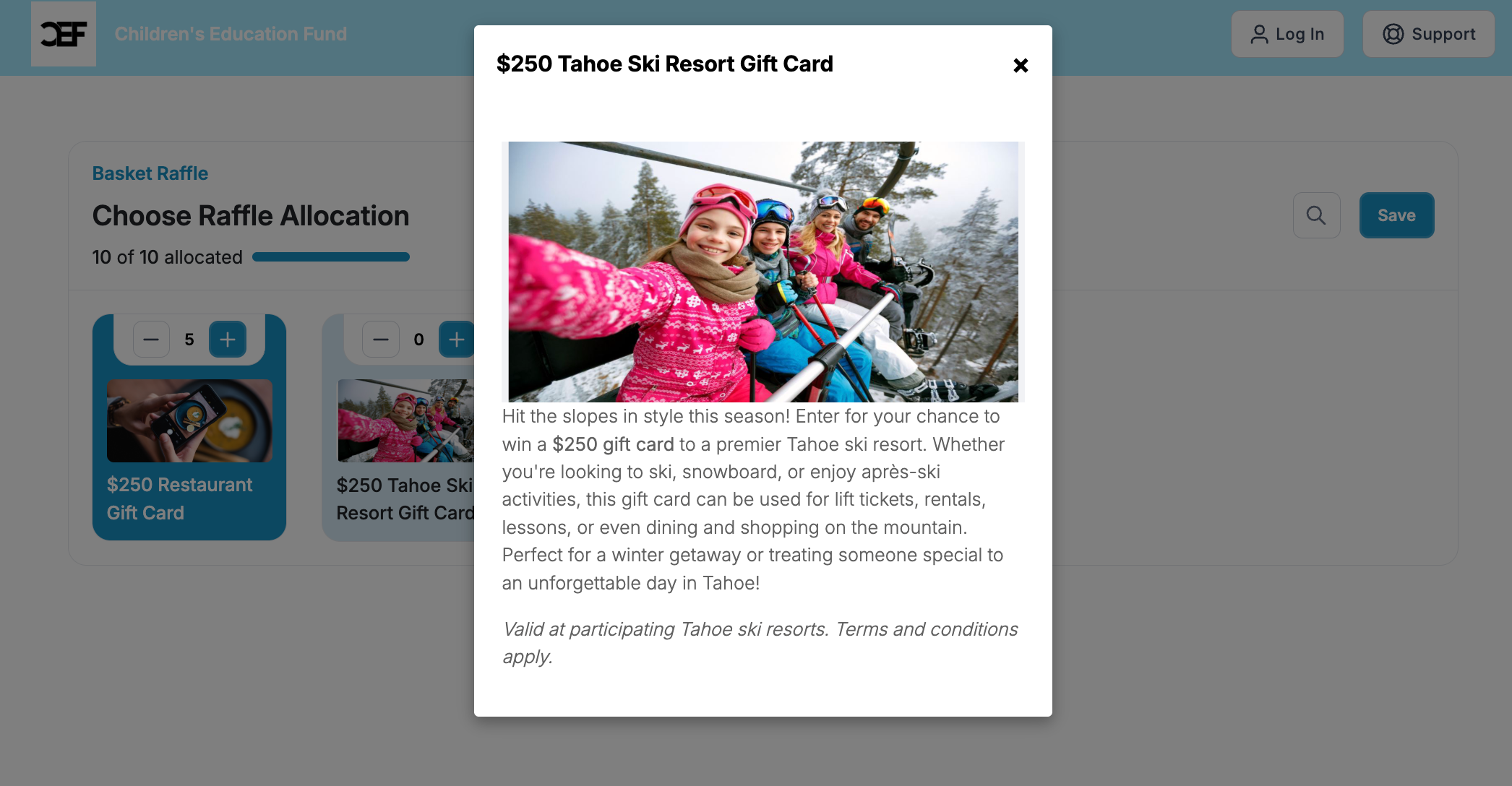
Enable Basket Raffle and add each prize with its own title, image, and description. Guests can browse before they buy, then allocate their tickets after purchase. Someone might enter all their tickets for a weekend getaway or split them across several prizes. The purchase confirmation gives buyers a link they can use to revisit their allocations until your organization closes them.
Use a combo ticket when a sponsor or guest should get several items from one purchase. An event package can include admission, drink tickets, and a defined number of raffle entries. In the combo settings, select the options to include and the quantity of each. Those options can come from the same ticketing campaign or other campaigns.
For a guest asking where their entries went, find the basket raffle purchase in Tickets and Guests and open its allocation details. Use Download Allocation when your team needs the whole list. The spreadsheet puts each prize on its own sheet so volunteers can review entries for a specific basket without reading through every purchase.
Put these tools to work for your fundraising team.
| Capability | How PayBee helps |
|---|
Explore how PayBee can support your full fundraising workflow.
Bring your ticket options and prize list to a PayBee demo. Walk through how guests buy from a link or at the venue, how volunteers add sales to a cart, and how your team can review basket entries and draw winners when the fundraiser is over.
Schedule a PayBee DemoQuestions, answered
Still deciding? See the platform in action or start building today.