
Keep Public Sales Separate
Follow Invitations Through Check-In
See how this feature can simplify your next fundraiser.


See how this feature can simplify your next fundraiser.
Enable invitation-only access for the ticket campaign, invite the supporters who should receive it, and review their accepted registrations before the event.
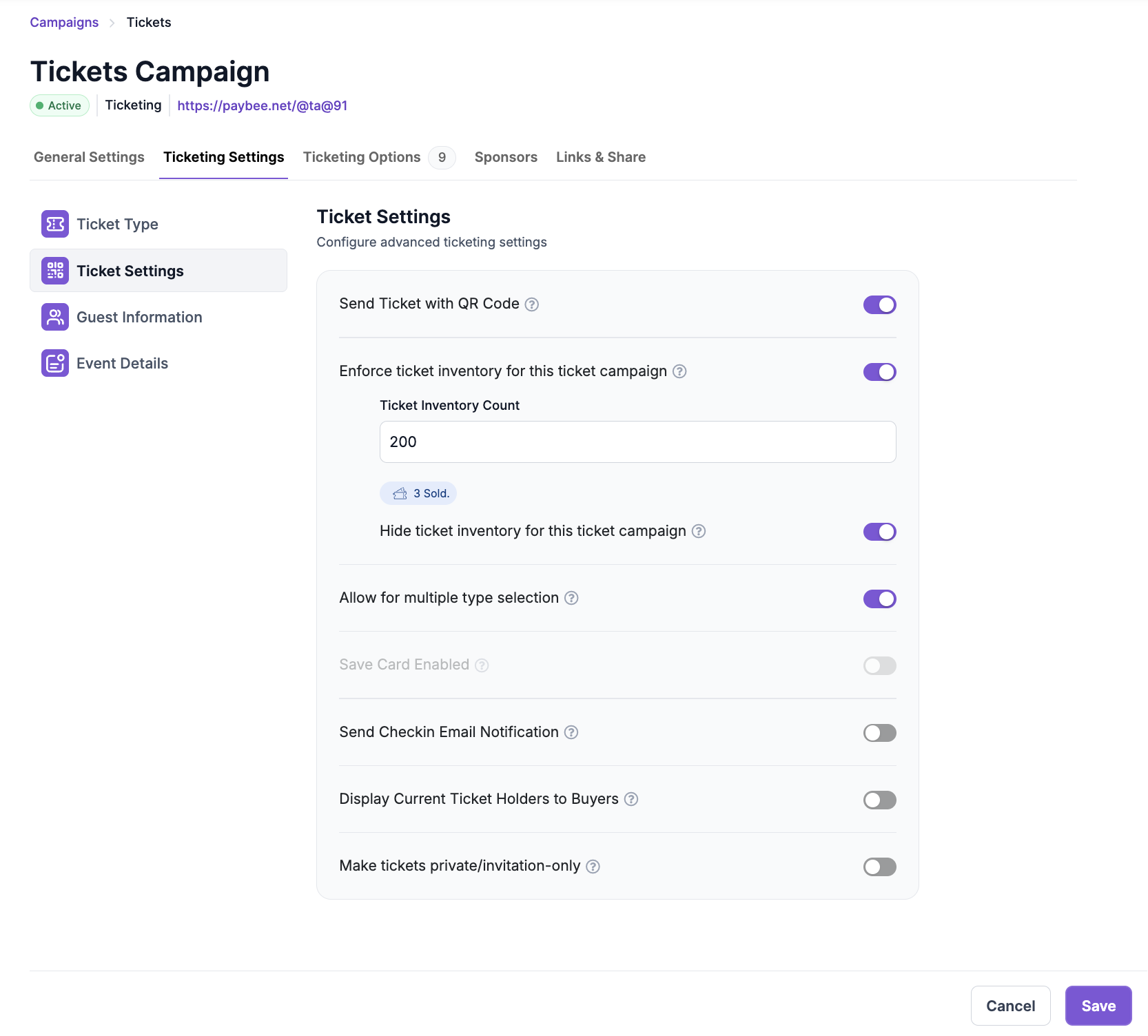
Create or edit the ticket campaign that should be private. In Ticketing Settings, enable Make tickets private/invitation-only. Review the ticket options, price, and guest information before sending invitations. If your event also sells tickets to the public, keep that offer in a separate campaign and connect it to the event as appropriate.
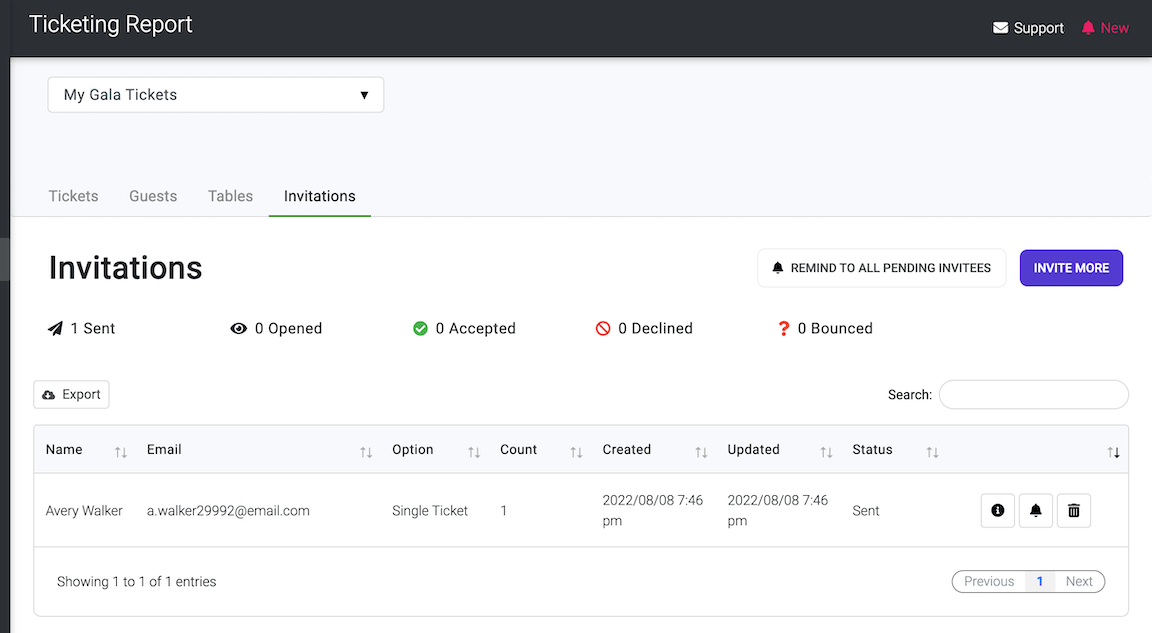
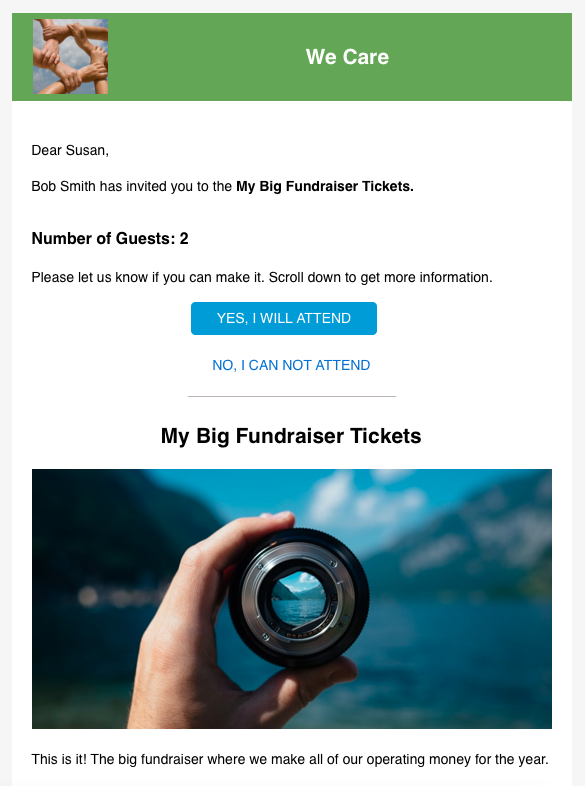
Open Manage > Tickets & Guests, select the private campaign, and go to Invitations. Use Invite More to select the options each recipient should have access to. Try a test invitation with a staff email address and review the experience from that inbox before sending the real invitation list.
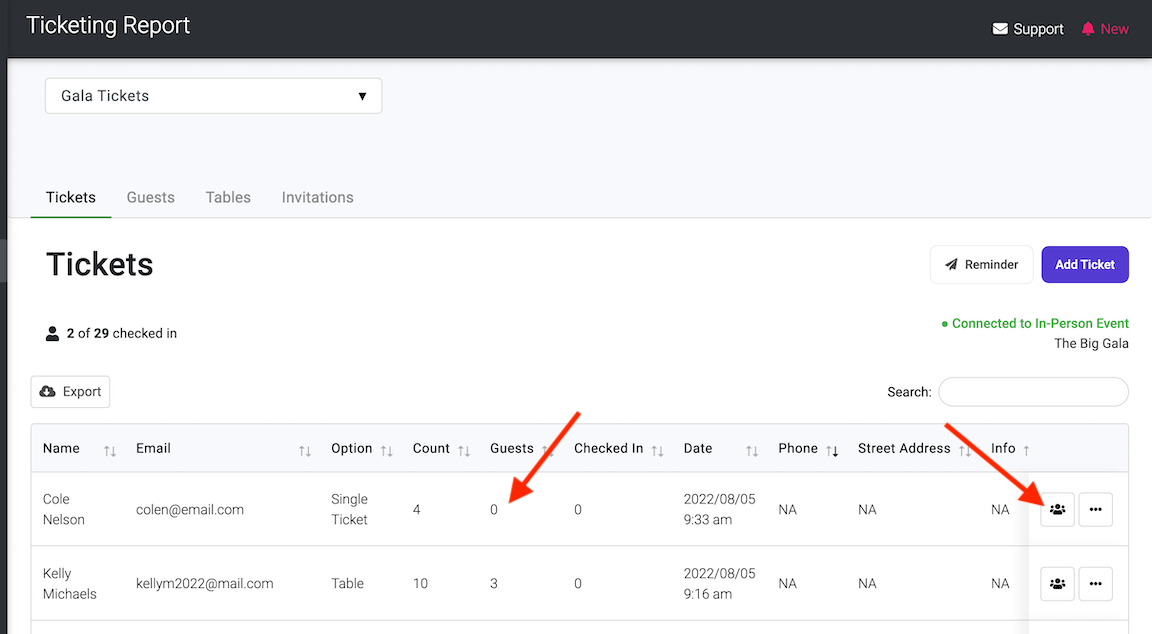
Review accepted invitations and check the names and guest details that arrived with those registrations. Connect an in-person ticket campaign to the event so staff can assign tables or paddles where applicable. Use reminders for incomplete guest details and keep check-in volunteers informed about what to look for.
Ready to turn these steps into a smoother workflow?
The access setting controls the ticket campaign. Manage > Tickets & Guests is where staff send invitations and work with guest records. If you are hosting an in-person event, connect the eligible ticket campaign to that event so its registered guests appear with the other attendees your team needs to check in.
Bring these capabilities together in one connected platform.
The invitation-only switch applies to the ticketing campaign. Build separate campaigns for private and public access when both are needed. Use clear campaign names for staff and keep the audience-facing instructions concise, so recipients know which event and ticket offer they have received.

Manage > Tickets & Guests provides an Invitations tab for potential purchasers. Choose the ticket options you intend to offer before sending. Staff may also invite guests to available spots on an existing ticket through the guest workflow, which serves a different purpose after a ticket has been purchased.
Configure guest information and optional fields in the campaign before registration. A group ticket can support multiple guests when set up with the correct group size. Use the guest settings to capture useful details such as names and meal selections, and follow up with the purchaser if their guest list is incomplete.
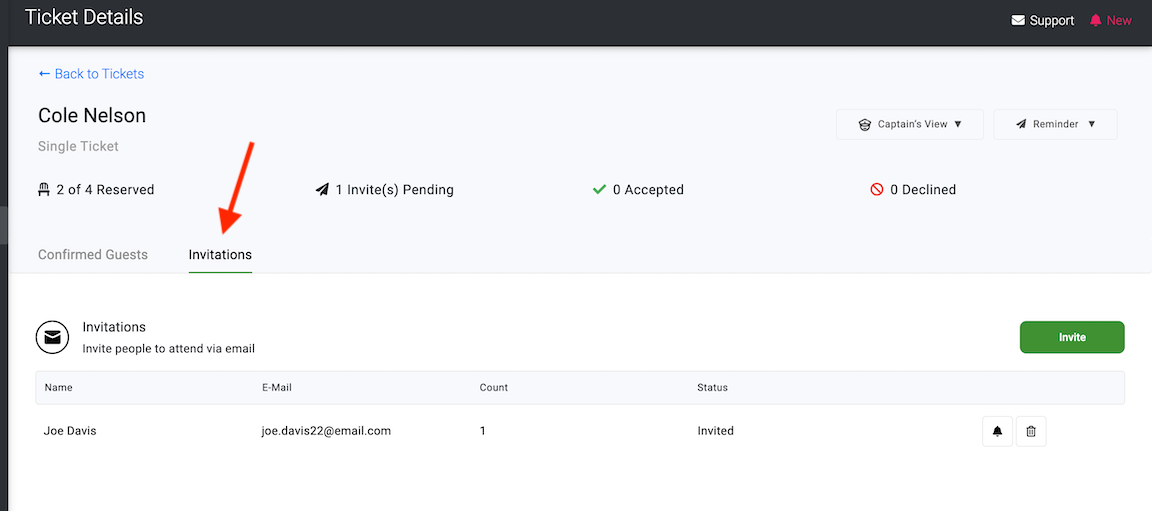
Link the campaign to the in-person event so the registered guests appear as attendees. Review assignments and incomplete entries before doors open. At check-in, a volunteer can look up a registered guest or use the applicable ticket scan workflow when the guest has their electronic ticket.

Put these tools to work for your fundraising team.
| Capability | How PayBee helps |
|---|
Explore how PayBee can support your full fundraising workflow.
Bring the audiences you want to invite and the seating or check-in details your team needs. Walk through a private campaign and the guest records it creates.
Request a PayBee DemoQuestions, answered
Still deciding? See the platform in action or start building today.