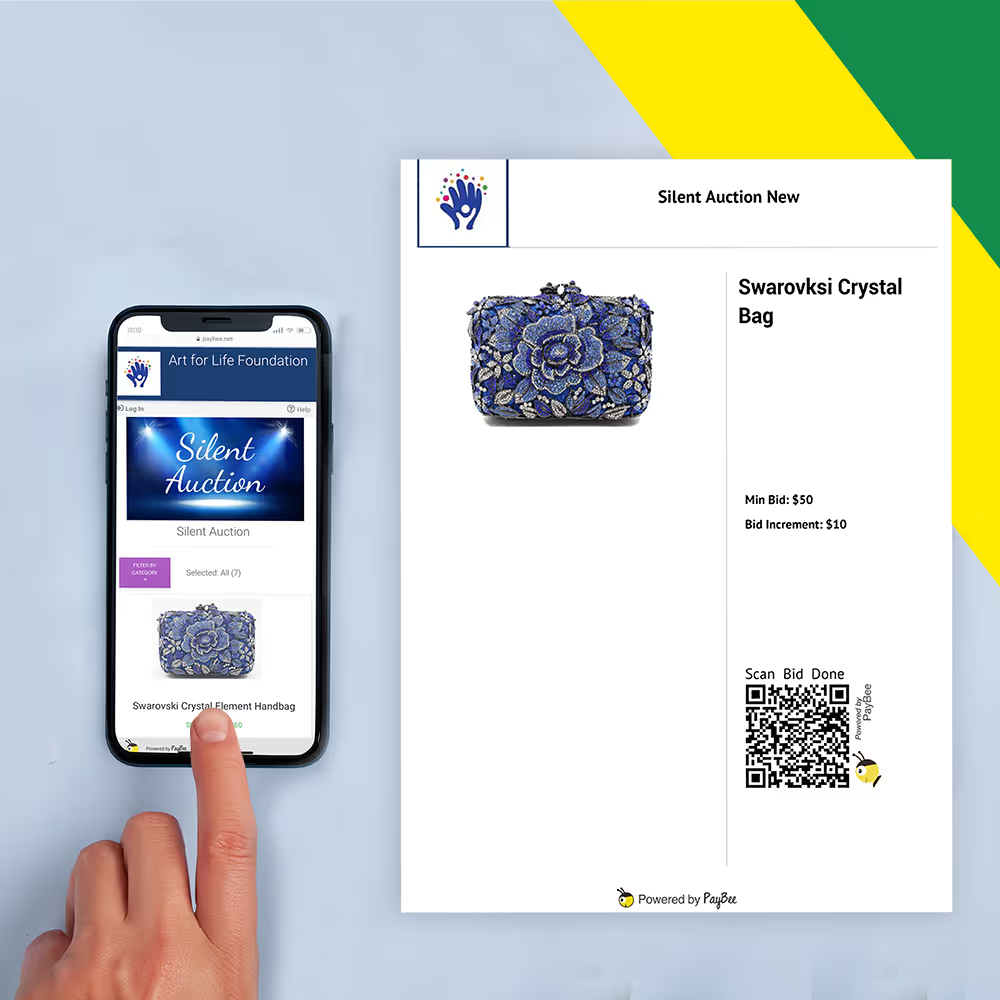
Download the sheets together
Plan how awards reach checkout
See how this feature can simplify your next fundraiser.


See how this feature can simplify your next fundraiser.
Check the catalog before generating the PDF. Choose the format for the way guests will bid, test the printed sheets, and brief the volunteers who will handle winners at the end.
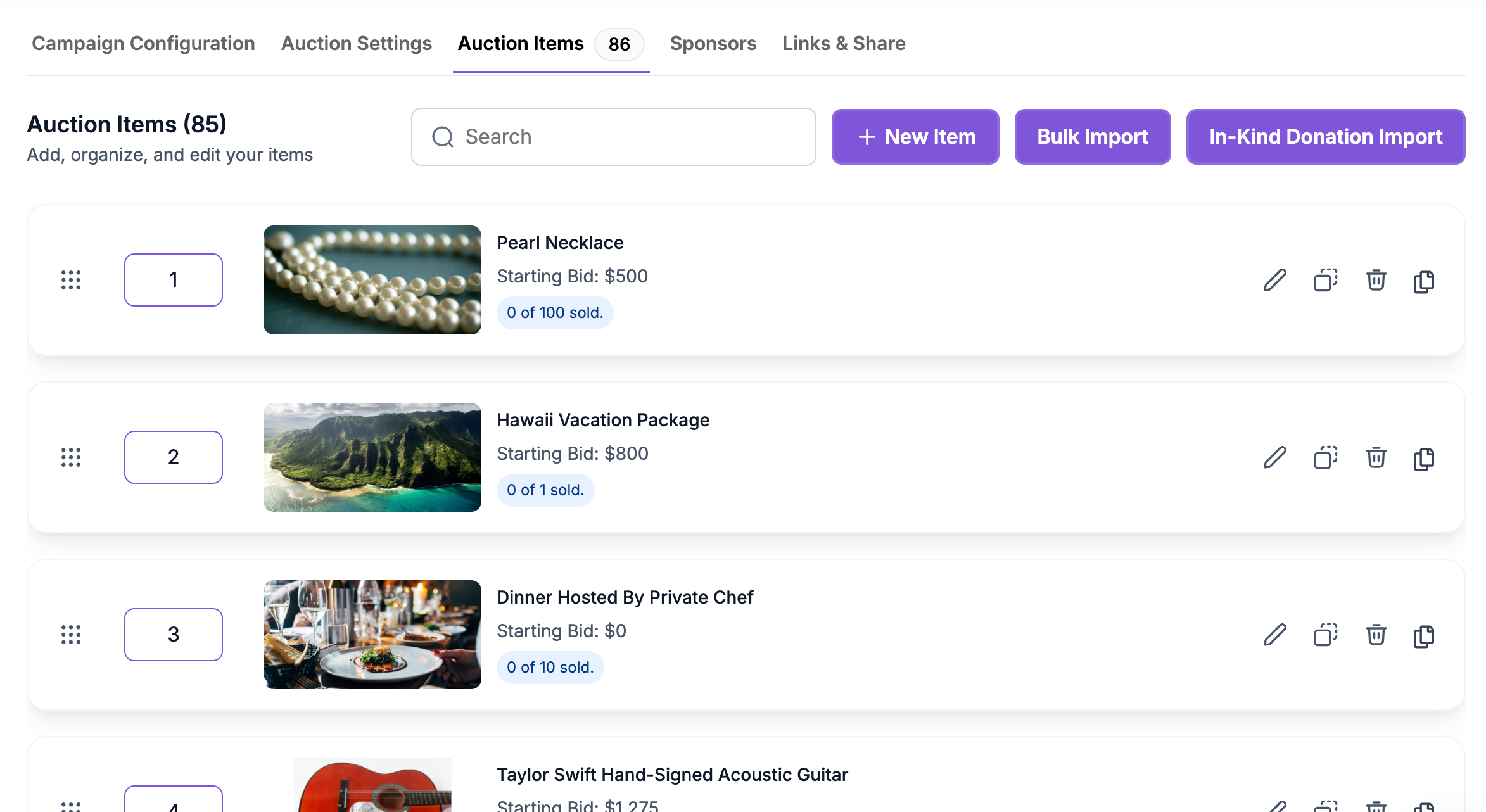
Open your silent auction campaign and review each item’s name, description, and bidding details. Where item codes matter to your team, enter them and confirm they are visible where intended. Before generating the sheets, check the item list for similar-looking packages and make sure each one has a title volunteers and guests can recognize. Update the catalog before printing so the sheets reflect the version you plan to use.
Go to Manage > Auctions and select the campaign. Open Downloads and choose the traditional bid sheets or their QR-enabled version. The preview contains one sheet for each item. Download the PDF and print a sample. If it uses a QR code, scan it with a phone and confirm it opens the intended item. Check the sheet under the lighting you expect at the venue.

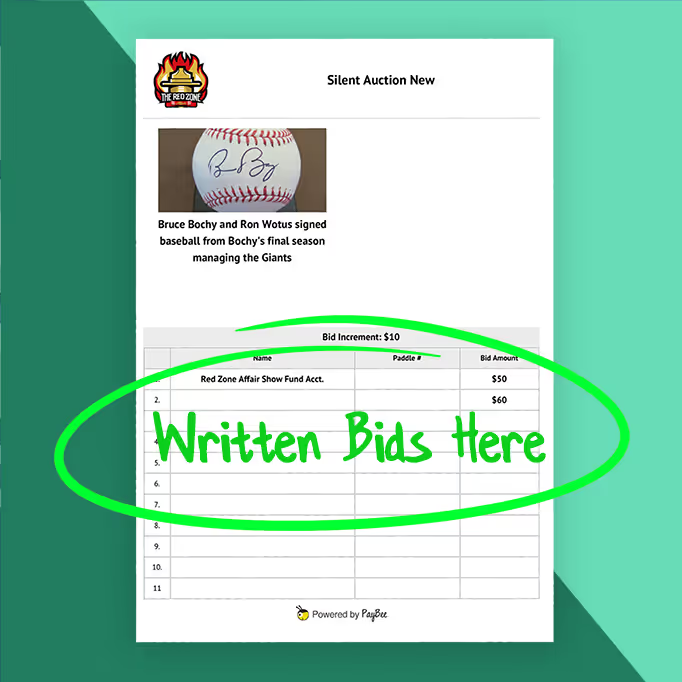
With traditional sheets, review handwritten entries and have the team add each winning item to the appropriate guest’s cart through PayBee. With QR-enabled sheets, guests place bids on the PayBee item page, and staff close the online auction to select winners. Review the winning carts and payment status before the pickup team distributes items or contacts winners who were not in the room.
Ready to turn these steps into a smoother workflow?
A printed sheet is a way to identify the item and tell guests how to bid. Choose the traditional PDF when guests are writing bids by hand. With QR-enabled displays, the code links directly to an online item page, which is useful if you are running a hybrid auction or want guests to bid on their phones. Decide how the auction will close before printing directions or assigning volunteers to the item tables.
Bring these capabilities together in one connected platform.
The traditional bid sheet leaves room for handwritten bids. Use it when donors are bidding on paper and staff can review the entries before awarding the item. Assign a team member to confirm the winning amount and bidder before someone adds the item to the correct cart.

Print a QR-enabled bid sheet to help guests reach the corresponding item. A guest can scan the code with a phone camera and open the PayBee item page to bid or buy where available. Check the code on each sample before posting signs, especially when similar items are displayed side by side.
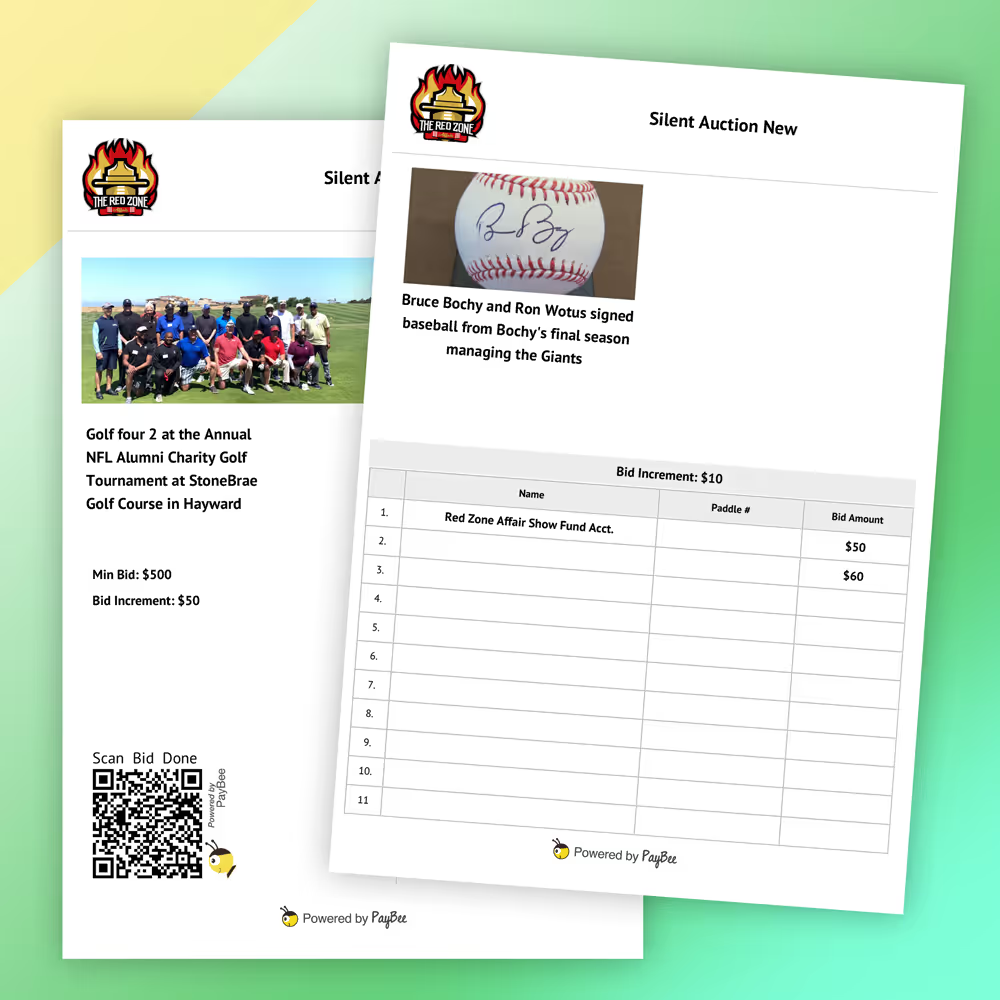
Download the combined PDF from the auction’s Downloads menu. Check the titles, codes, and prices against the catalog. If your team changes an item after printing, regenerate the affected sheet or batch and replace old copies. Keep the final PDF accessible so a volunteer can reprint a damaged sheet.
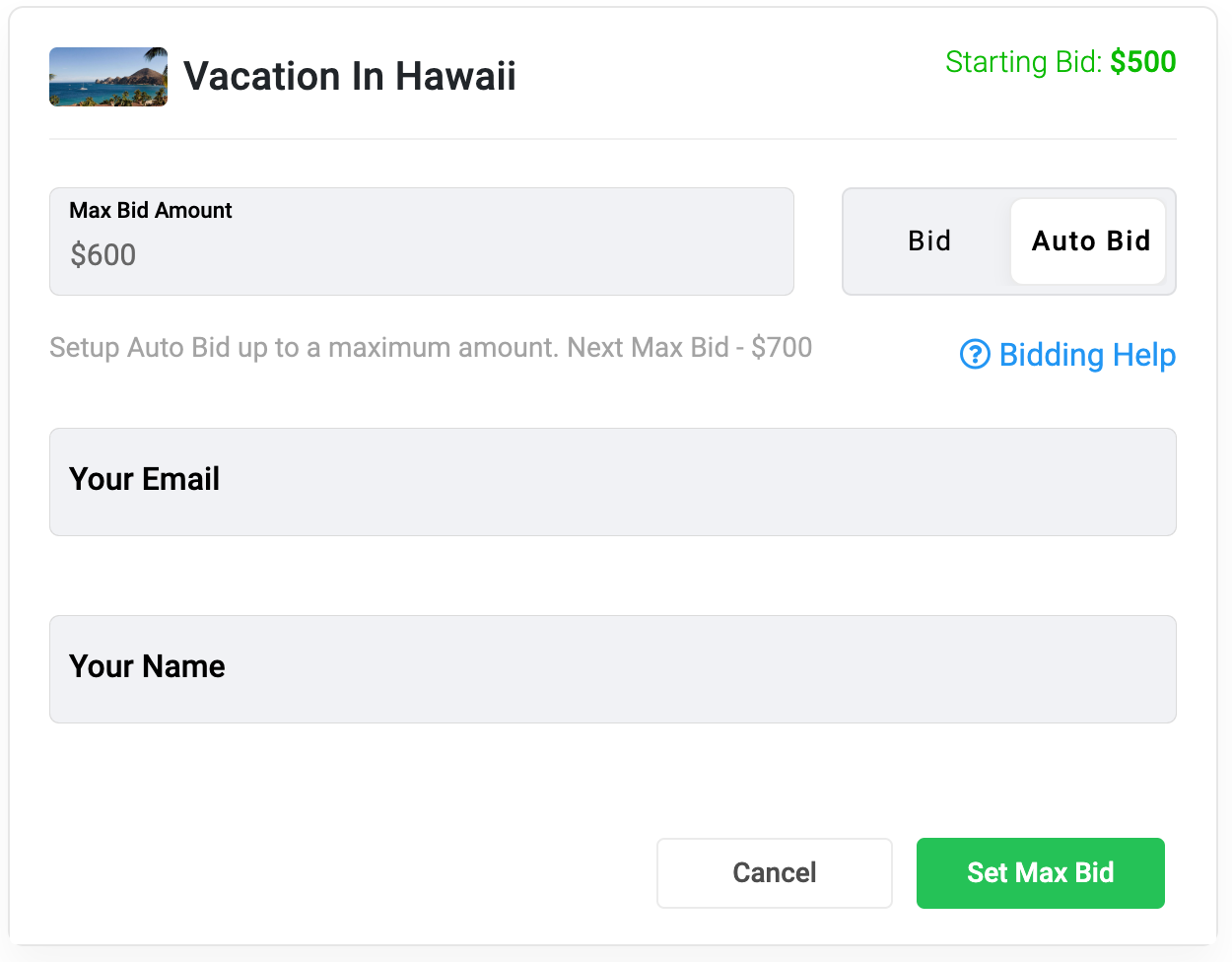
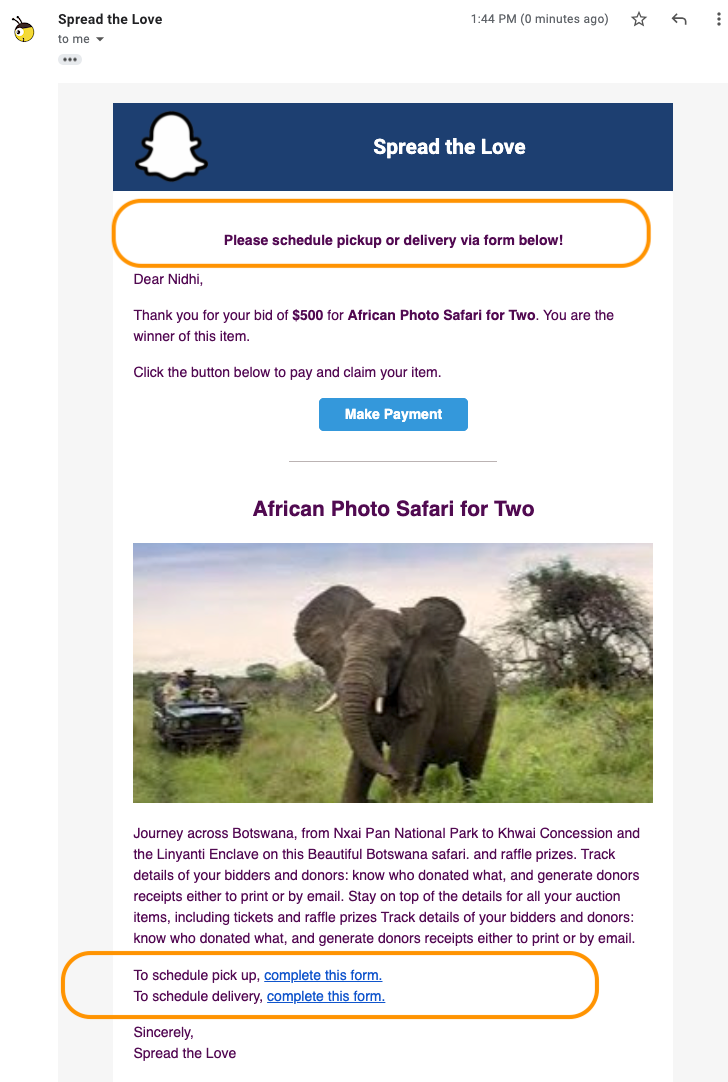
With handwritten bids, staff must add the items to winners’ carts after checking the bid records. With QR bidding, the bid is already in PayBee. When staff end the online auction, PayBee places winning items in carts and sends notifications. Review the resulting list before coordinating checkout and pickup.
Put these tools to work for your fundraising team.
| Capability | How PayBee helps |
|---|
Explore how PayBee can support your full fundraising workflow.
Bring a sample item and tell us whether your guests will bid on paper or use their phones. In a demo, review the two PDF options, test an item QR code, and walk through the closing steps your volunteers will need to follow.
Book a PayBee DemoQuestions, answered
Still deciding? See the platform in action or start building today.