
Pick a starting view
Review total progress by fundraiser
See how this feature can simplify your next fundraiser.


See how this feature can simplify your next fundraiser.
Enable teams on the campaign, decide who can create them, and add any teams you want available at launch. Champions join or create a fundraiser through the campaign, and supporters can follow progress on the leaderboard.

Open the Peer to Peer campaign and enable teams. Add the teams you plan to offer and set their names, goals, descriptions, or images. Decide whether champions can create a team while they sign up. If a team needs an enrollment cap, set a maximum at the campaign level or give that team its own limit. Choose understandable team names and keep them consistent in event materials.
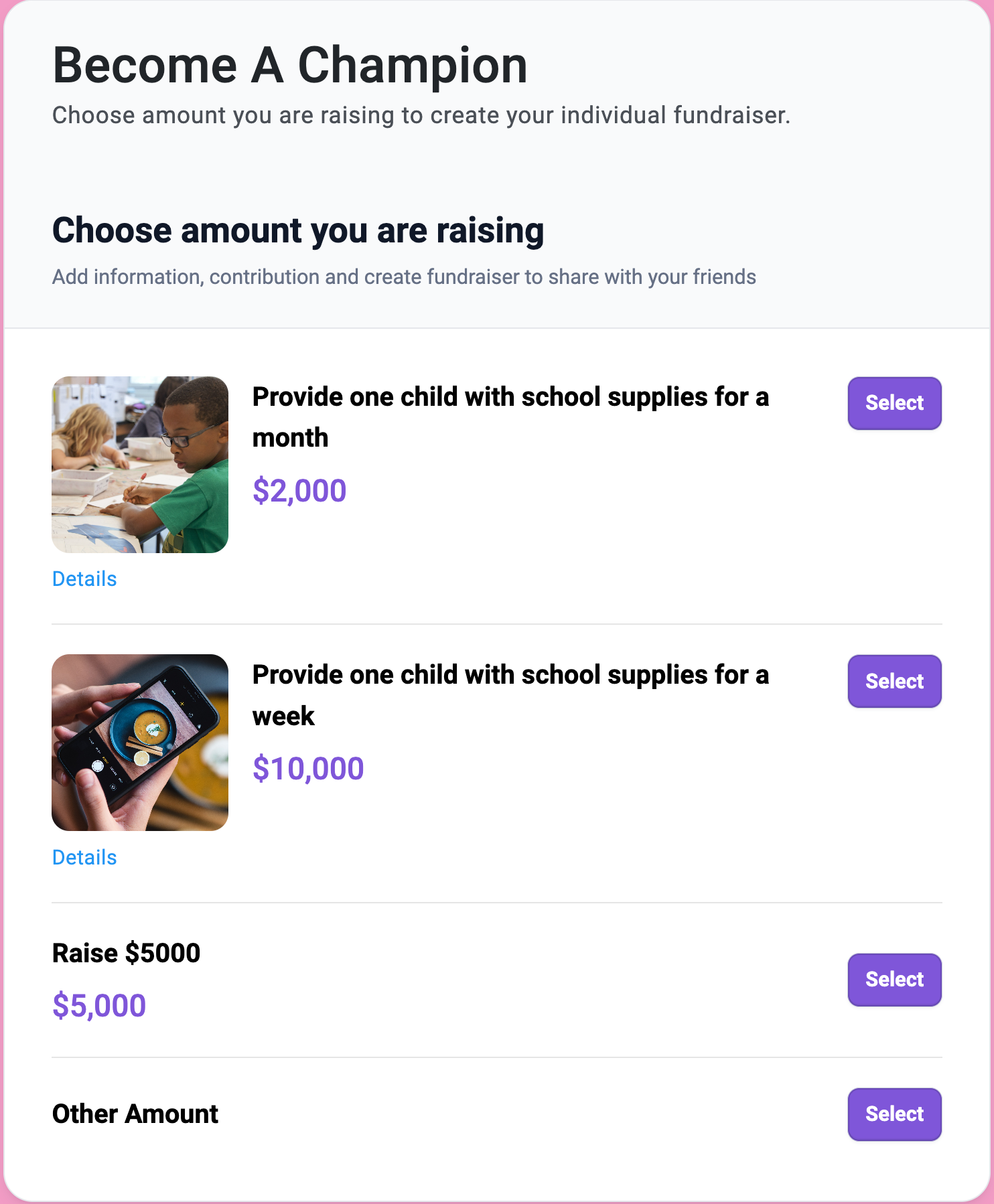
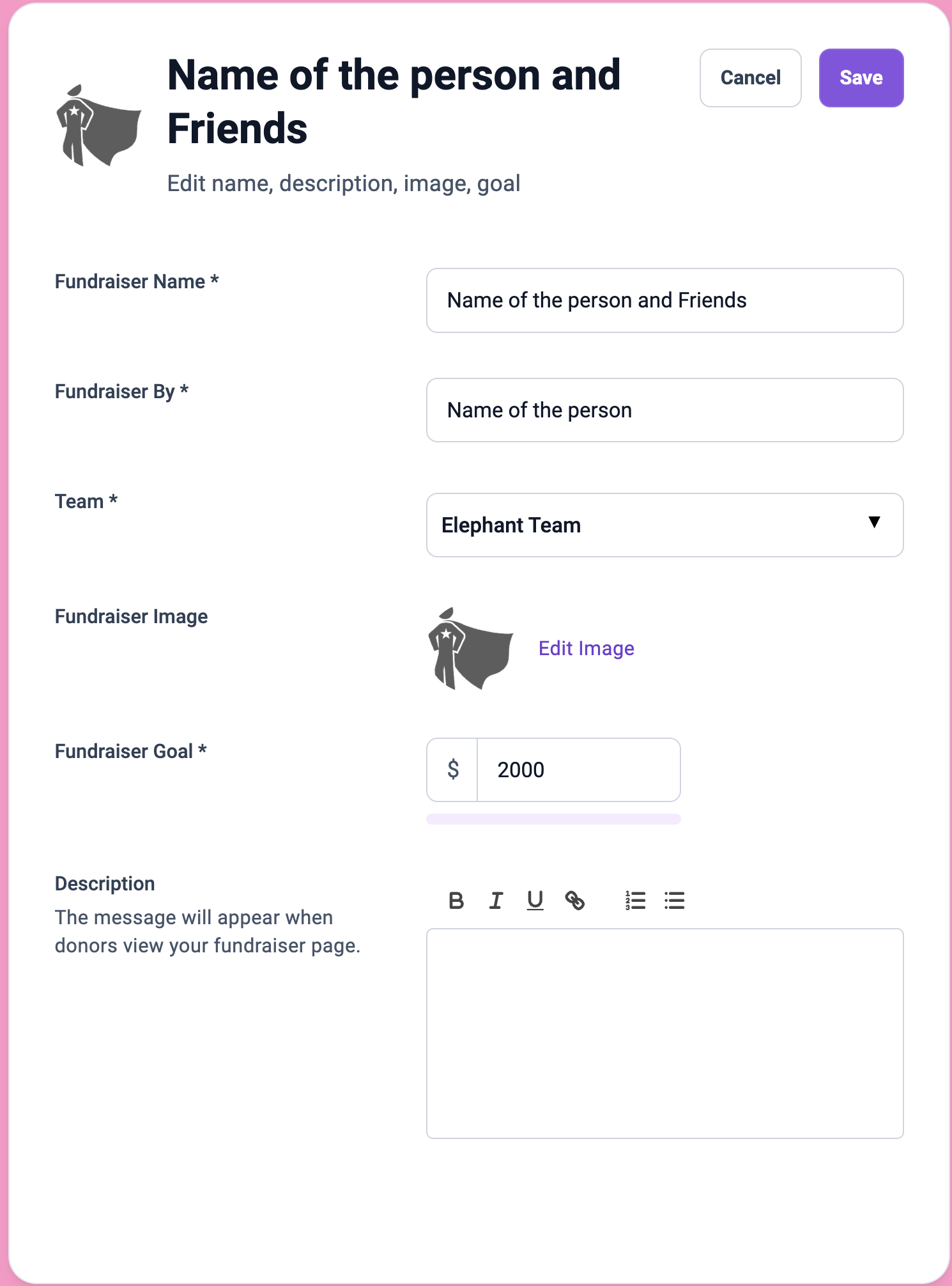
Champions select a team while setting up their own fundraiser. If you let participants create teams, they can choose between an existing team and one they create during signup. Staff can add a fundraiser on a champion’s behalf or import several from the template. Include the name, email, goal, and team when teams are enabled. Share the fundraiser’s donor-facing link with its champion.
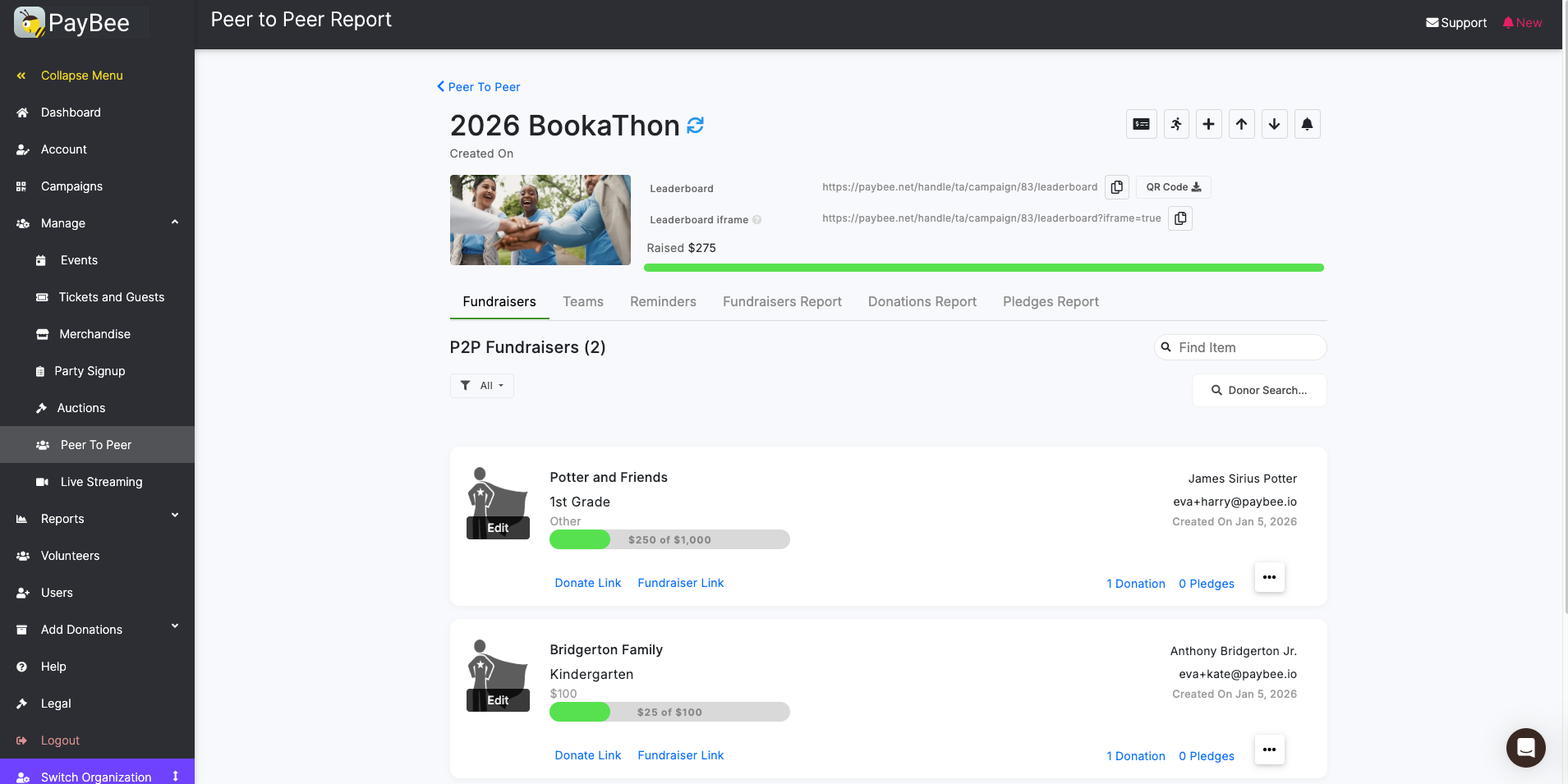
Choose whether donors start on the Teams or Fundraisers tab. Open the leaderboard as a supporter to make sure the starting view fits your event. Check that the team names are recognizable and the links open the expected fundraiser. Share the campaign using its link or QR code. During the challenge, check the Fundraisers tab for progress and view team activity under Teams.
Ready to turn these steps into a smoother workflow?
A team can bring together a classroom, a running club, or volunteers supporting the same cause. Each champion has an individual fundraiser, while the leaderboard lets supporters browse the campaign by team or by person. Administrators can control which view opens first and choose whether participants can form their own teams. In Manage > Peer to Peer, individual records show the current total, goal, and team, with donation details available when staff need to answer a question.
Bring these capabilities together in one connected platform.
Add official teams in advance when membership follows your event roster. For an open community challenge, allow champions to create a team when they sign up or join one already listed. Apply a maximum team size if space is limited or the event rules call for similarly sized groups.

Enable the Teams default if supporters should begin by finding their group. Leave Fundraisers as the default if you want people to start with the individuals taking part. Review the page from a phone before you share it so a supporter can identify the right row and link.
Manage > Peer to Peer provides a fundraiser link for the champion’s view and a donate link for the supporter’s view. Use the donate link in a team email or message so donors land on the intended fundraiser. You can also share the overall campaign QR code at your event.
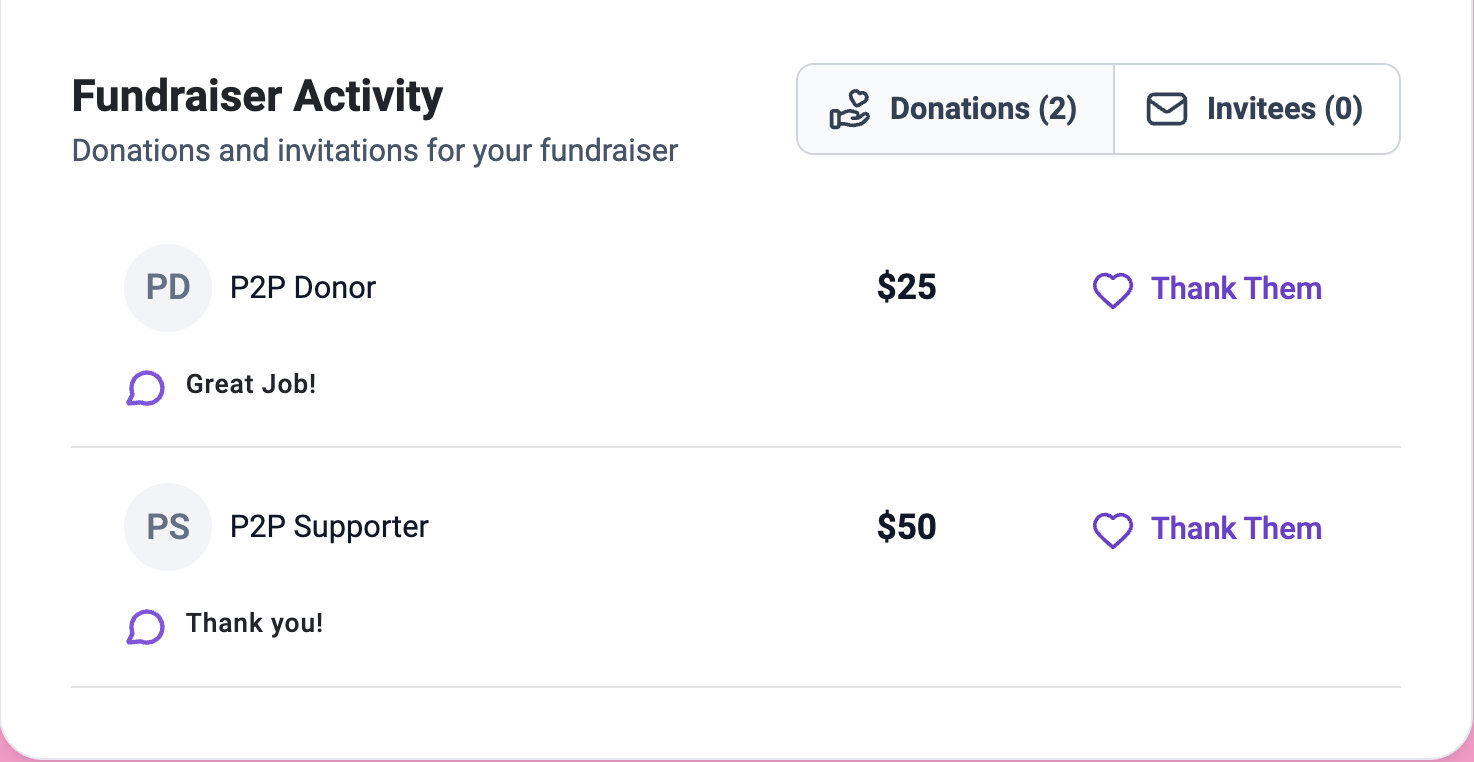
Open a fundraiser to see donor amounts, dates, and totals, or export its transactions. If you receive a contribution offline, use Add Donation to record it. The fundraiser menu also supports moving transactions to another fundraiser when a contribution was assigned to the wrong person.

Put these tools to work for your fundraising team.
| Capability | How PayBee helps |
|---|
Explore how PayBee can support your full fundraising workflow.
Bring a sample event roster and decide whether teams should be open to champion signups. During a demo, compare the Teams and Fundraisers views, review the links champions share, and walk through the contribution records staff can use to answer questions during the campaign.
Book a PayBee DemoQuestions, answered
Still deciding? See the platform in action or start building today.