
Make Team Progress Visible
Track Gifts by Fundraiser
See how this feature can simplify your next fundraiser.


See how this feature can simplify your next fundraiser.
Create the campaign and choose how people will give. Invite supporters to set up their own fundraisers, then use the campaign dashboard to track progress and review contributions as they come in.
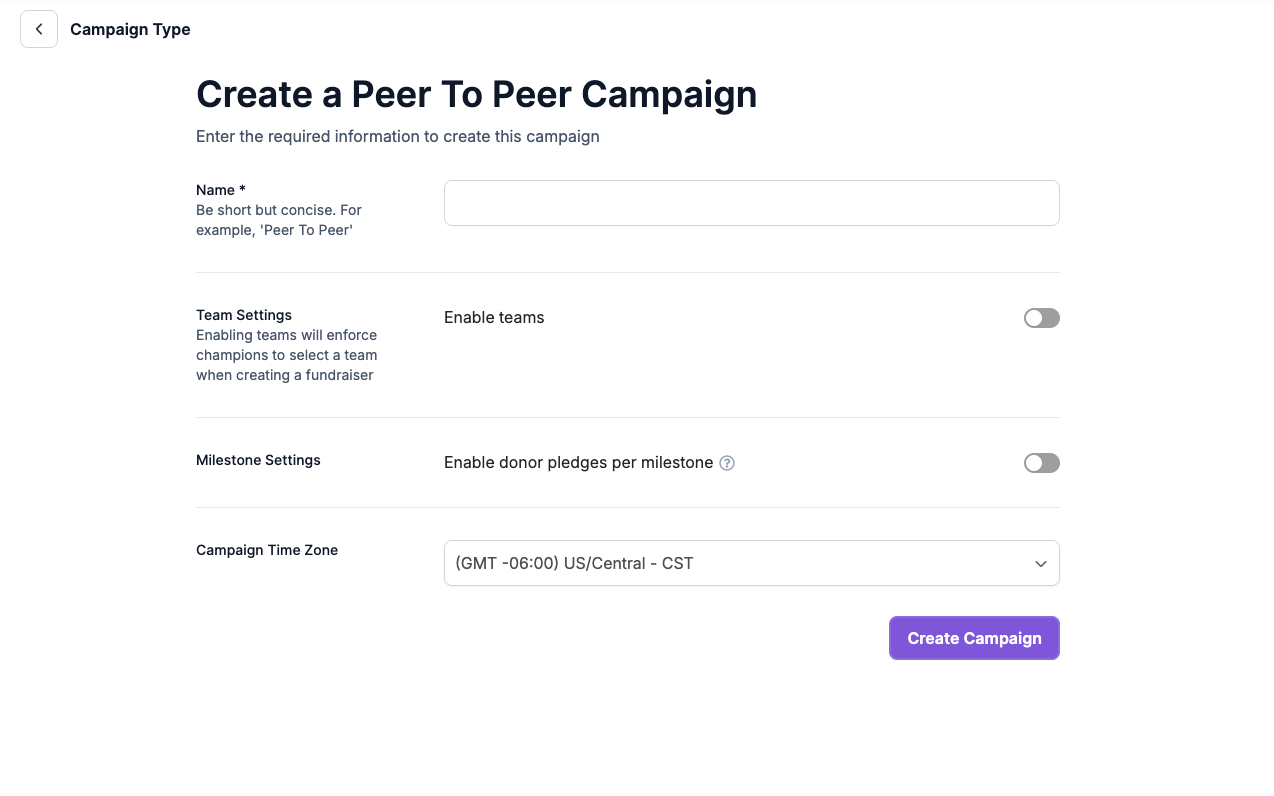
In PayBee, open Campaigns, choose New Campaign, and select Peer to Peer. Name the campaign and set its time zone. Decide whether participants will fundraise individually or select a team. You can suggest fundraising goals so supporters have a starting point when they create their pages. For a walkathon or readathon, decide up front whether you’ll collect regular donations or use milestone pledges. With regular donations, you can offer fixed amounts or percentages of a fundraiser’s goal.
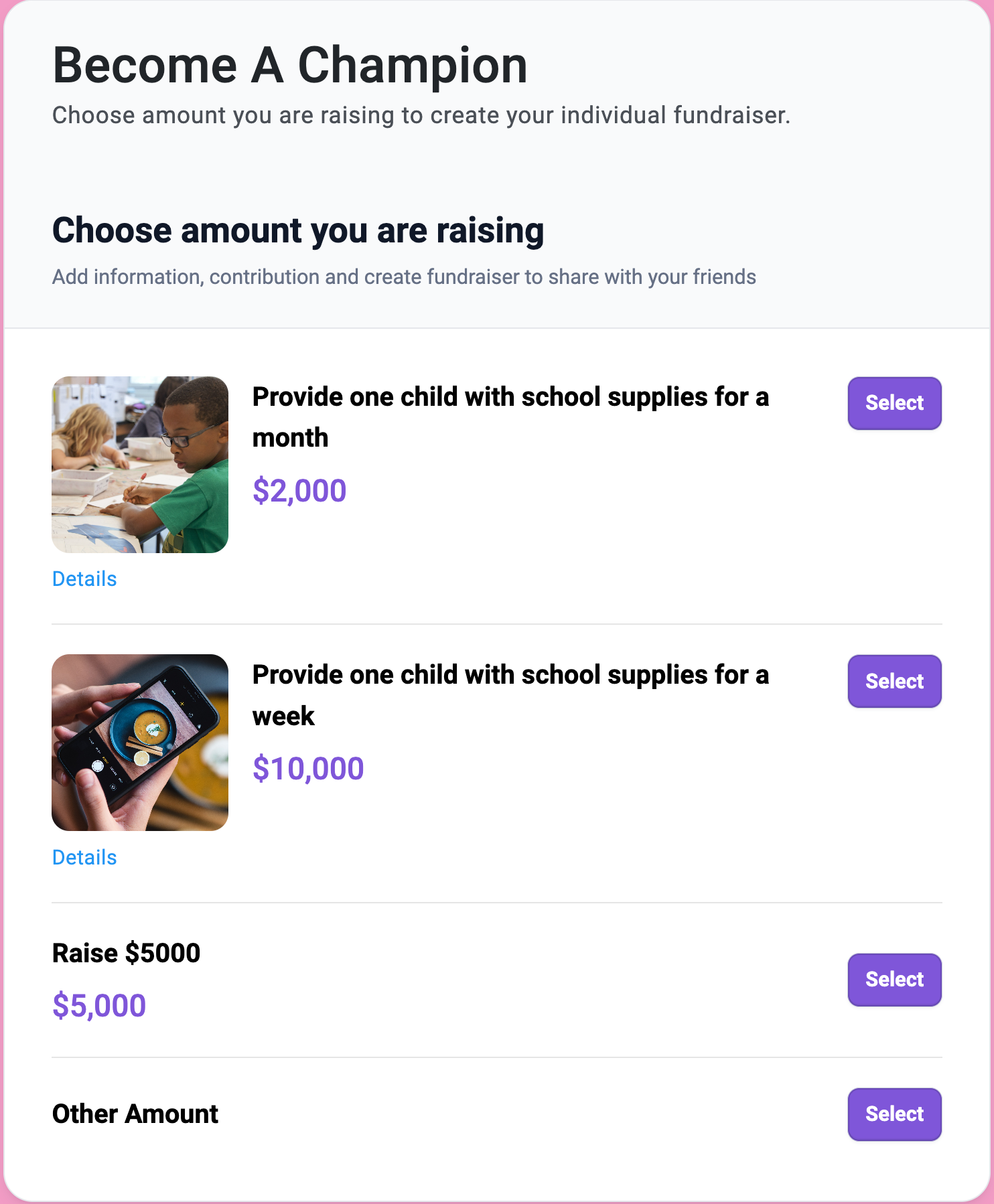
Share the campaign leaderboard link or its signup QR code. From there, a supporter can start a personal fundraiser, pick a goal, enter their details, and select a team if you’ve enabled teams. They can personalize the page with an image and description and return to it from their confirmation email. For a group you’ve already recruited, your team can create fundraisers on their behalf or import a prepared list using PayBee’s template.
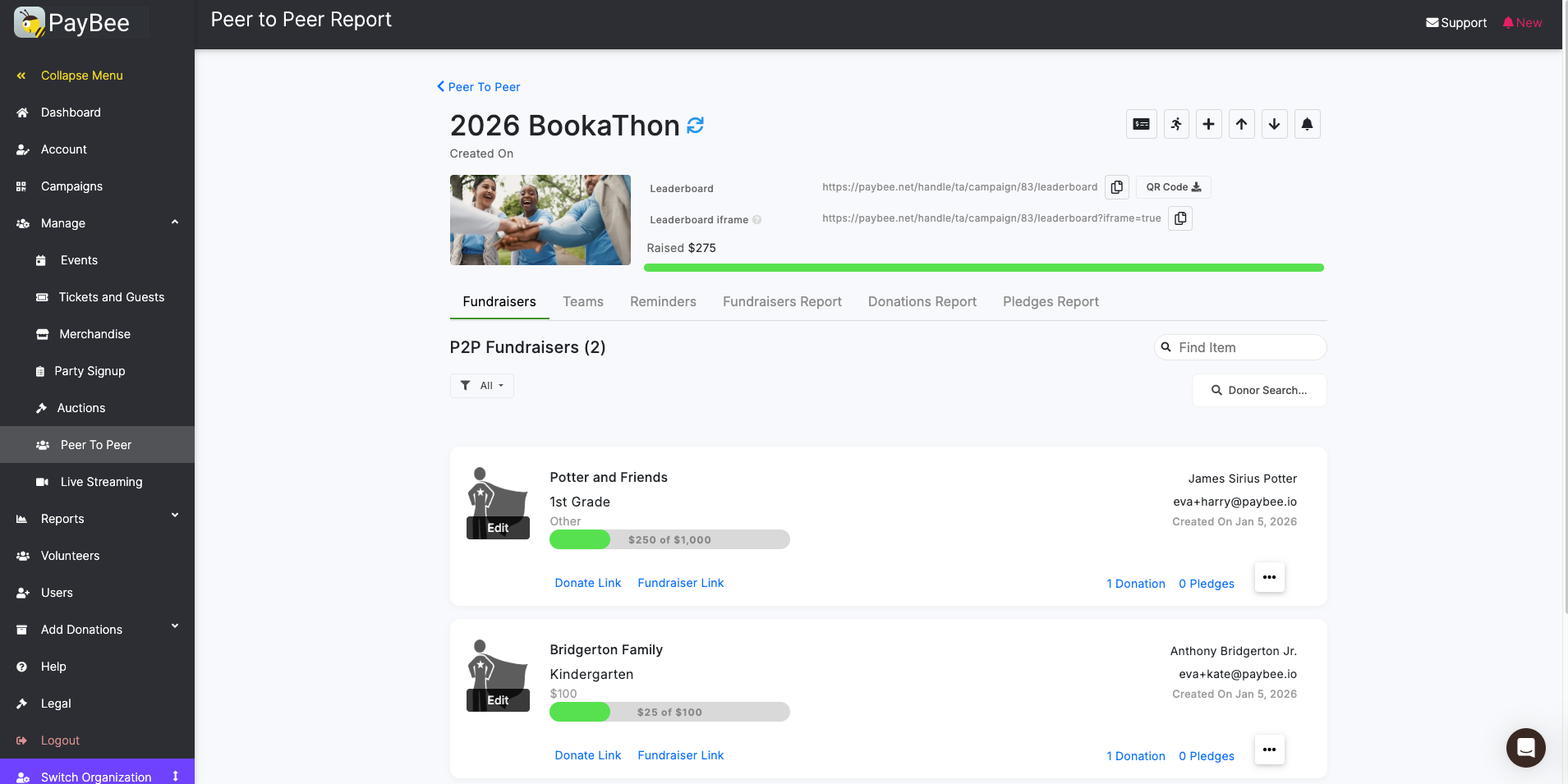
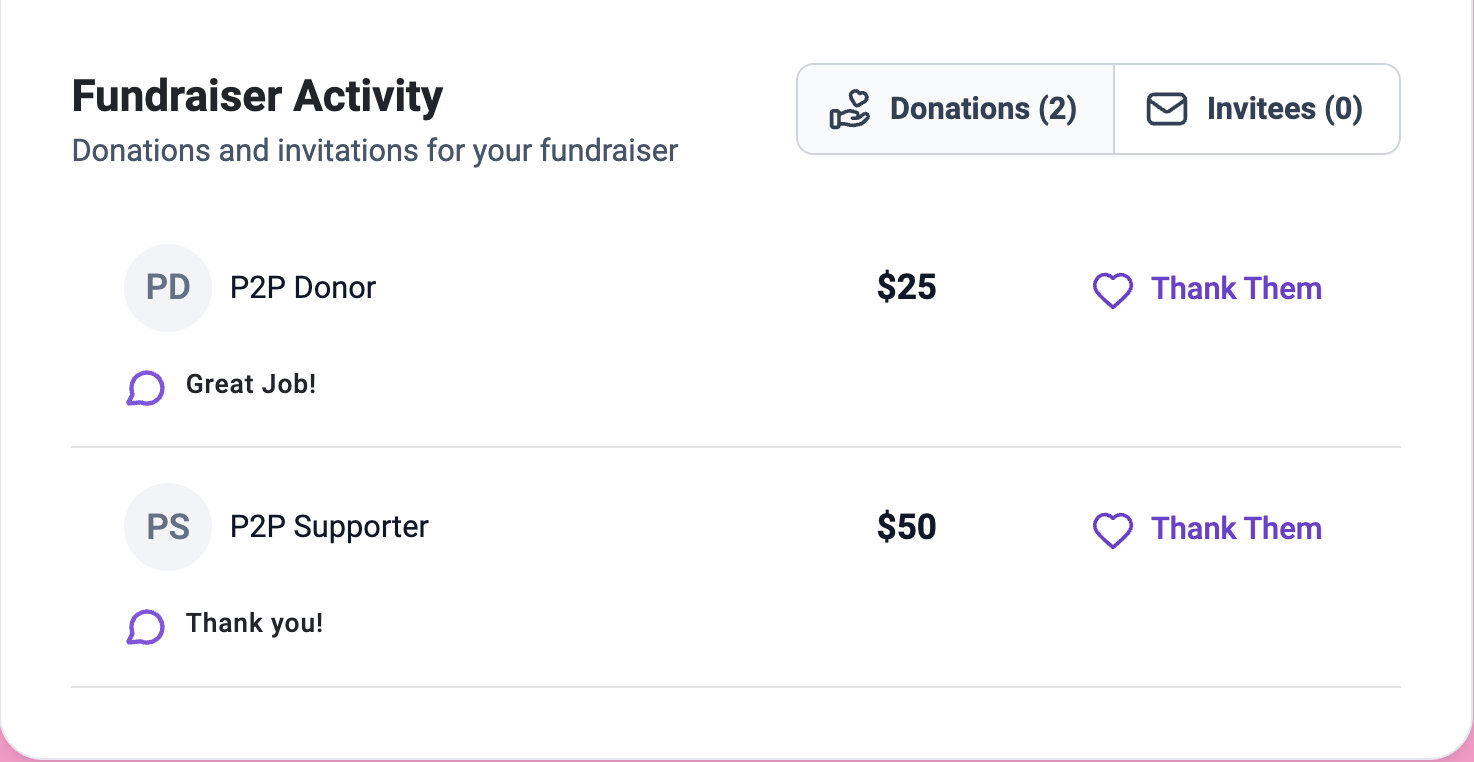
In PayBee’s Manage menu, open Peer to Peer and select your campaign. The Fundraisers tab lists each fundraiser’s goal and the amount raised. Open View Donations for a fundraiser to see the donors, amounts, and dates. If your organization received a gift outside PayBee, add it from that fundraiser’s action menu. You can also export the associated transactions for follow-up. For a campaign with teams enabled, open the Teams tab to review how participants are grouped.
Ready to turn these steps into a smoother workflow?
A school readathon may have dozens of family pages, each with its own goal and story. PayBee keeps those pages under the school’s peer-to-peer campaign. Individual fundraisers help families share why they’re participating, while the public leaderboard gives donors a place to find a fundraiser and check its progress. Your staff can open each fundraiser’s donor-facing page or champion view from the management area. When it’s time to reconcile giving, use fundraiser-level donation records for individual follow-up and the Campaigns report for transactions associated with the campaign.
Bring these capabilities together in one connected platform.
Supporters can edit their fundraiser name, goal, image, and description. A parent might explain why a classroom program matters to their family, or a volunteer might dedicate a walk to someone they know. Once the page is ready, the supporter can email an invitation, copy the link, share it on Facebook or X, or print a fundraiser card with a QR code.
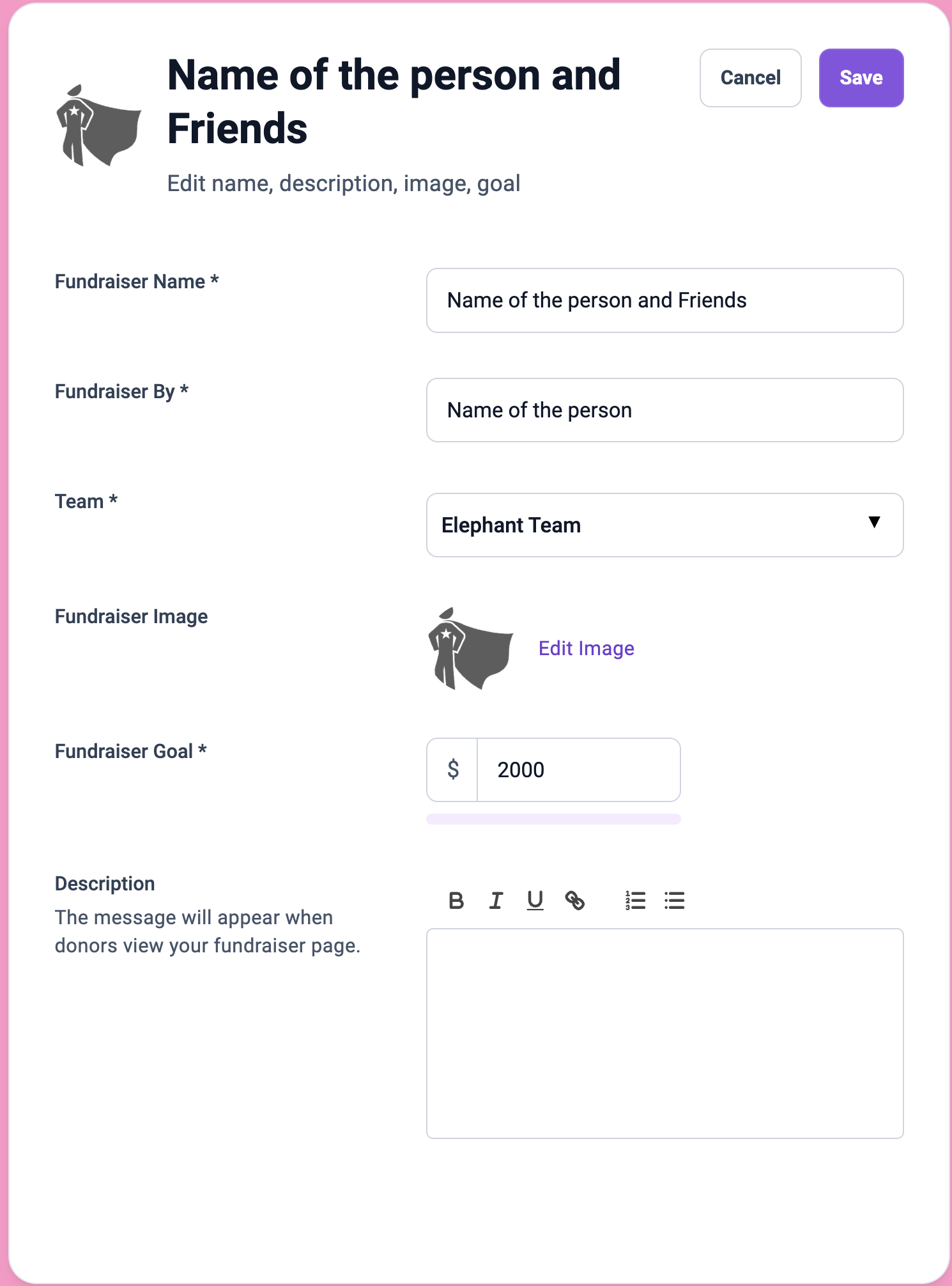
Enable teams to require fundraisers to choose a group when they sign up. Create groups with names and goals or enable the setting that lets supporters create their own teams during registration. You can make Teams the default leaderboard view so donors arriving at a school challenge can compare classroom progress and choose where to give.
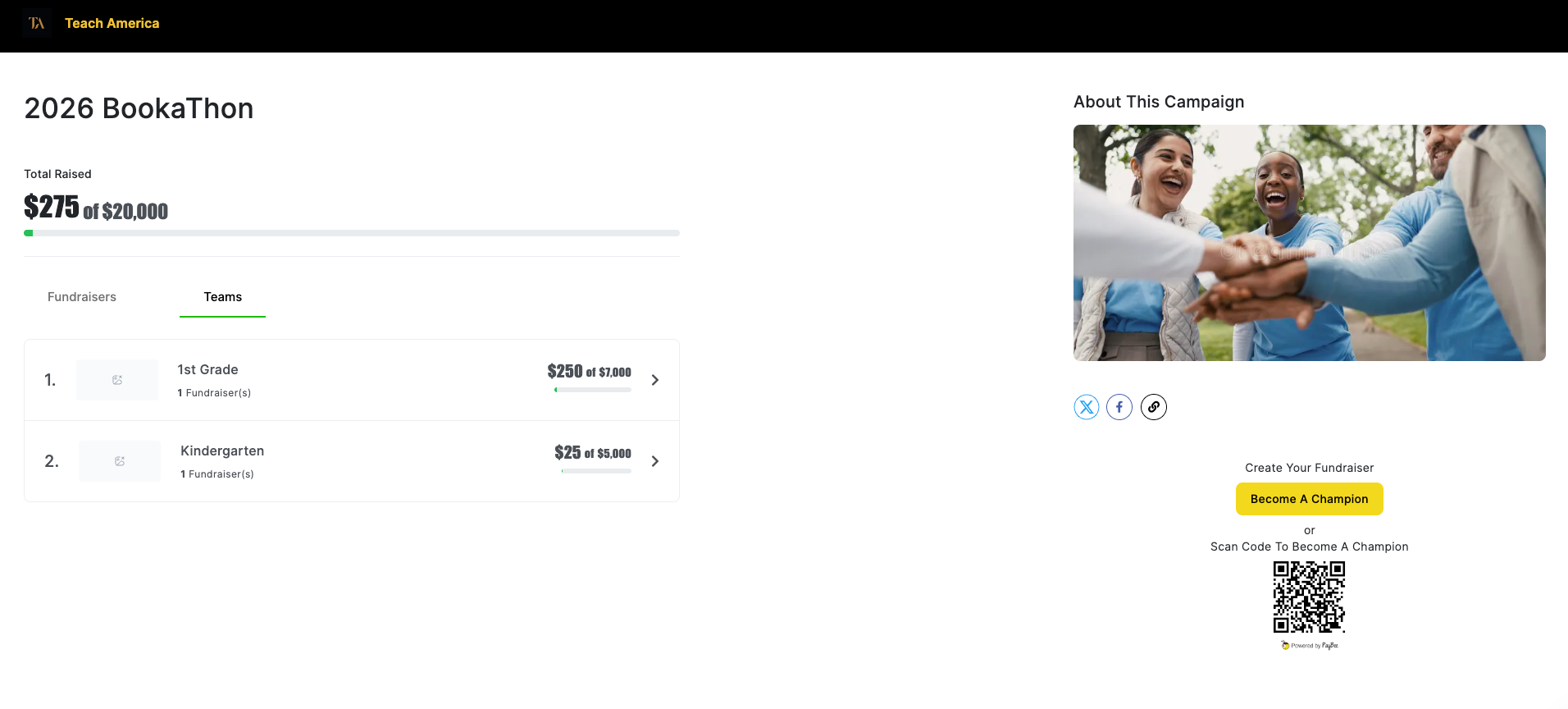
Choose milestone pledges when donations should depend on what someone completes, such as the number of books a student reads. Enabling this setting changes the donor choices to pledges per milestone. Donors select a pledge option and save their payment information. After the event ends and the milestone totals are calculated, PayBee charges donors according to their pledges.
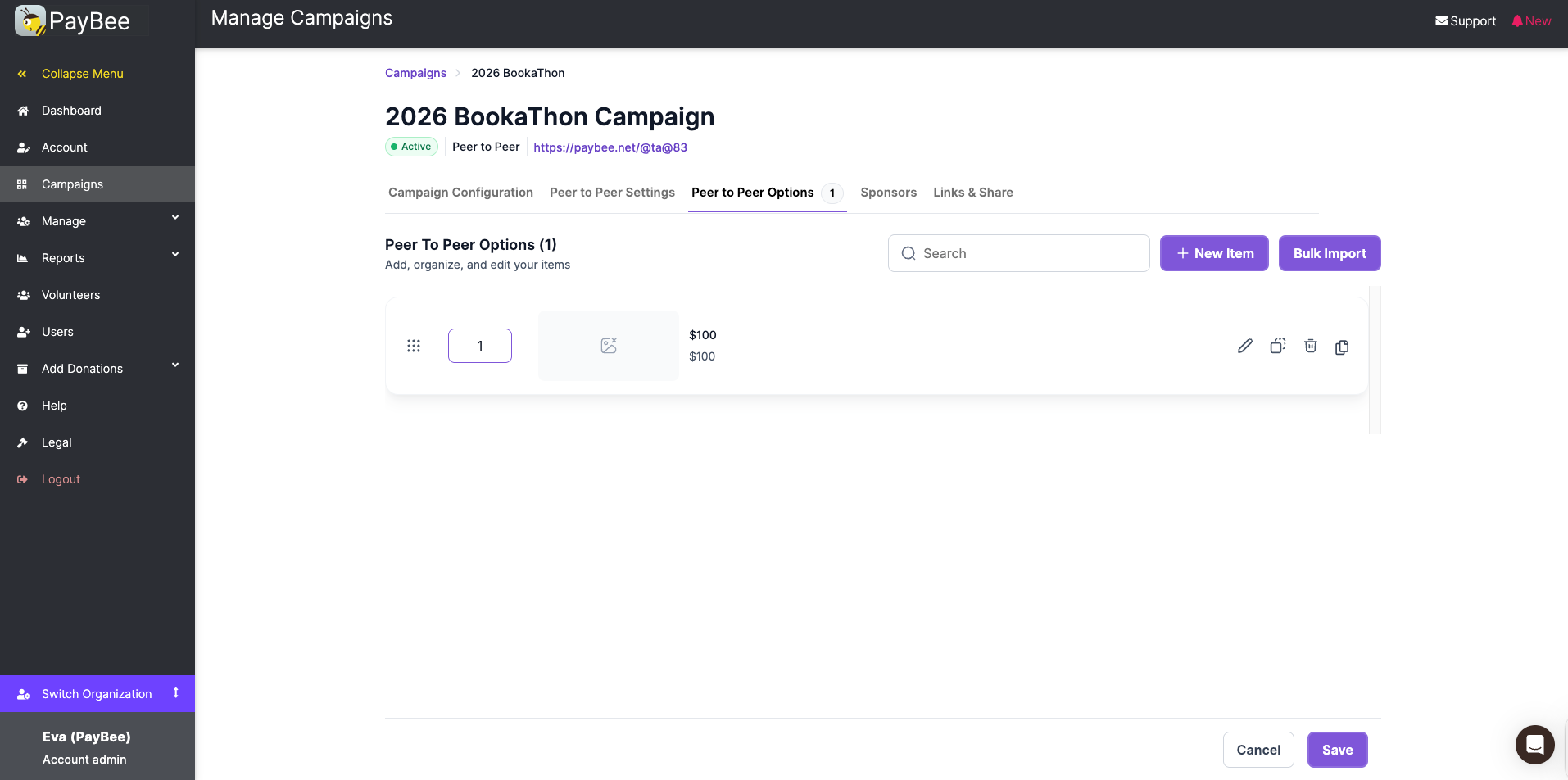
If a donation lands on the wrong fundraiser, your team can move the transaction to the correct fundraiser from the management area. You can edit a fundraiser’s name or goal there, too. These controls help when two teams have similar names or when you need to update a page on behalf of a supporter who has contacted your office.
Put these tools to work for your fundraising team.
| Capability | How PayBee helps |
|---|
Explore how PayBee can support your full fundraising workflow.
If you’re planning a walkathon, school challenge, or giving day, bring your event idea to a PayBee demo. Walk through how a supporter starts a personal fundraiser, what donors see on the leaderboard, and how your team can review gifts once the invitations start going out.
Schedule a PayBee DemoQuestions, answered
Still deciding? See the platform in action or start building today.