
Know which parties still have room
Help hosts prepare for attendees
See how this feature can simplify your next fundraiser.


See how this feature can simplify your next fundraiser.
Prepare a list of events and hosts, set the venue, availability, and questions for each option, and share the appropriate links. Use the campaign’s views to review sign-ups and coordinate reminders.

Go to Campaigns and choose Party Sign-ups. Give the campaign a recognizable name and use the description to explain who runs the experiences and how the proceeds will help. Prepare the list of parties with their hosts, dates, and locations before adding the options. Decide whether you are sharing the campaign at a gala, through a school newsletter, or both, since that may change how you share individual listings.

Add an option for each class, outing, or social. Include its description, images, price, and venue or event link. Set the inventory based on how many people the host can accommodate, and decide if you need questions for each purchased place. Add the host’s name and email and choose whether sign-up notifications are useful. Preview each option as a buyer to catch missing directions or a mismatch between available spots and venue capacity.

Add the campaign to a landing page, share a link to an individual party, or prepare printable sheets for the venue. Review the Parties, Paid, and Pending views regularly while registration is open. Send hosts the relevant access link and agree on whether your organizer or host will remind guests before the event. Use the attendee list to confirm who has signed up before preparing materials or setting up check-in.
Ready to turn these steps into a smoother workflow?
A school or nonprofit can run multiple hosted experiences under one Party Sign-ups campaign. One host might offer a cooking class with twelve places, while another offers a family outing with a different date and registration question. Give each party its own option so the buyer sees the right capacity, cost, and details. Before you promote the campaign, confirm who receives sign-up notices and who sends reminders. The campaign can support a direct link to an individual party as well as a shared campaign page, so the same setup works for broad promotion and targeted outreach.
Bring these capabilities together in one connected platform.
One campaign can have a set of parties that vary in date, price, and audience. Use the option details to tell buyers where and when to attend, what to bring, or which ages are appropriate. Provide enough information for the buyer to decide, then use additional questions for what the host needs to know.

Set an inventory count when the host can take only a certain number of guests. That setting lets the option show as sold out when all places are taken. Use additional fields for answers such as a workshop preference or a contact phone number when a host needs those details for each person attending.

Set the host’s name and email on the party option and choose whether to send an email when someone signs up. The host link can give the host access to the party details, attendees, sharing, and reminders. Check that the correct host has the link and use the party controls if their access needs to end.

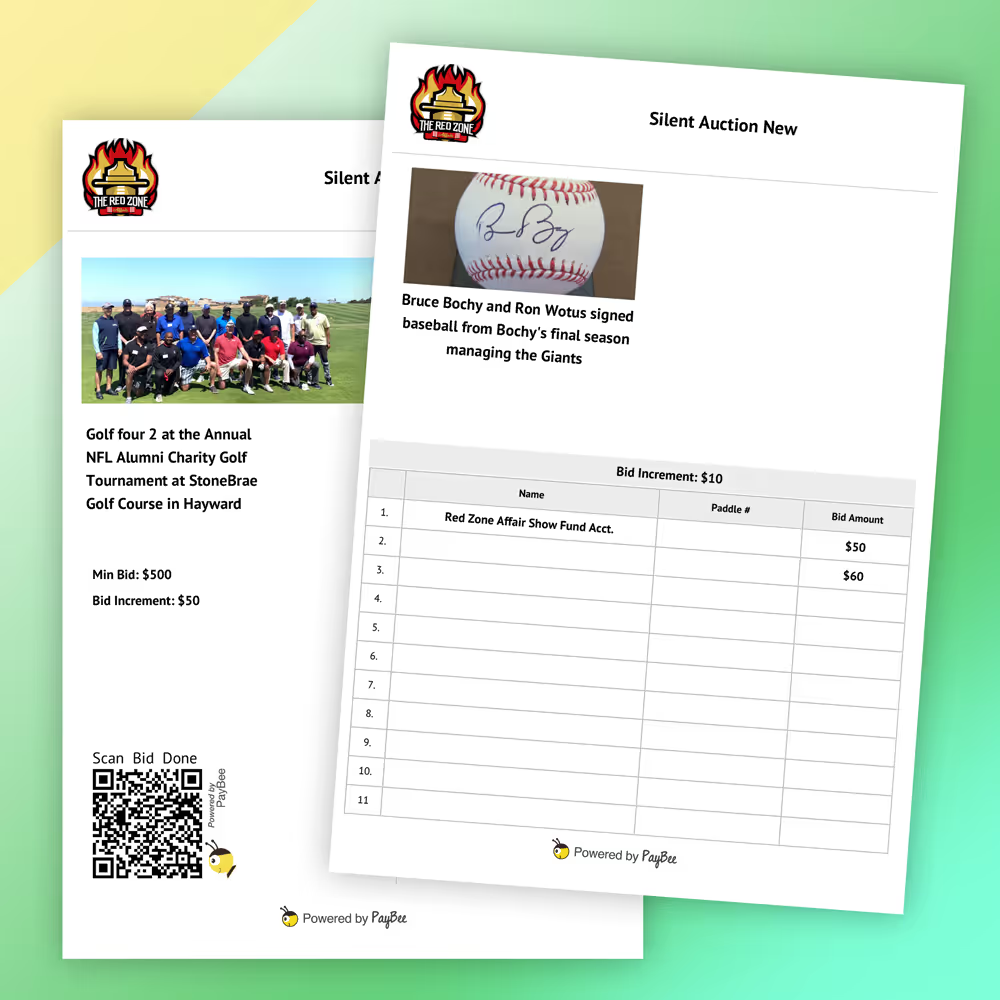
Prepare QR sign-up sheets if guests will open the party on their phones. For a paddle-number sheet, attendees can mark their selections in the room and volunteers enter those places into the correct carts. Decide how the team will verify a written number and follow up with an attendee who has not yet paid.
Put these tools to work for your fundraising team.
| Capability | How PayBee helps |
|---|
Explore how PayBee can support your full fundraising workflow.
Bring two or three sample experiences and the information your hosts need. In a PayBee demo, set up the different options and preview the buyer’s view. Then check how the host can see sign-ups and how a volunteer could capture interest at your gala or school event.
Book a PayBee DemoQuestions, answered
Still deciding? See the platform in action or start building today.