Give Bidders a Clear Next Step
Connect Winning Bids to Checkout
See how this feature can simplify your next fundraiser.


See how this feature can simplify your next fundraiser.
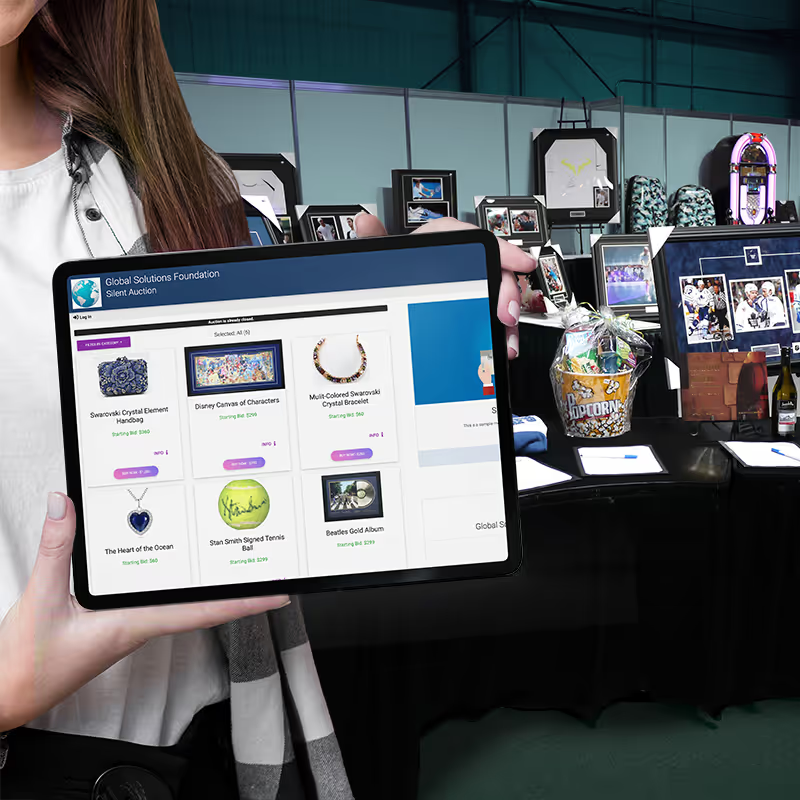
A guest opens your auction or scans a specific item, chooses a bid amount, and confirms it. PayBee sends outbid alerts as appropriate, then notifies the winner and provides a way to pay after the auction closes.
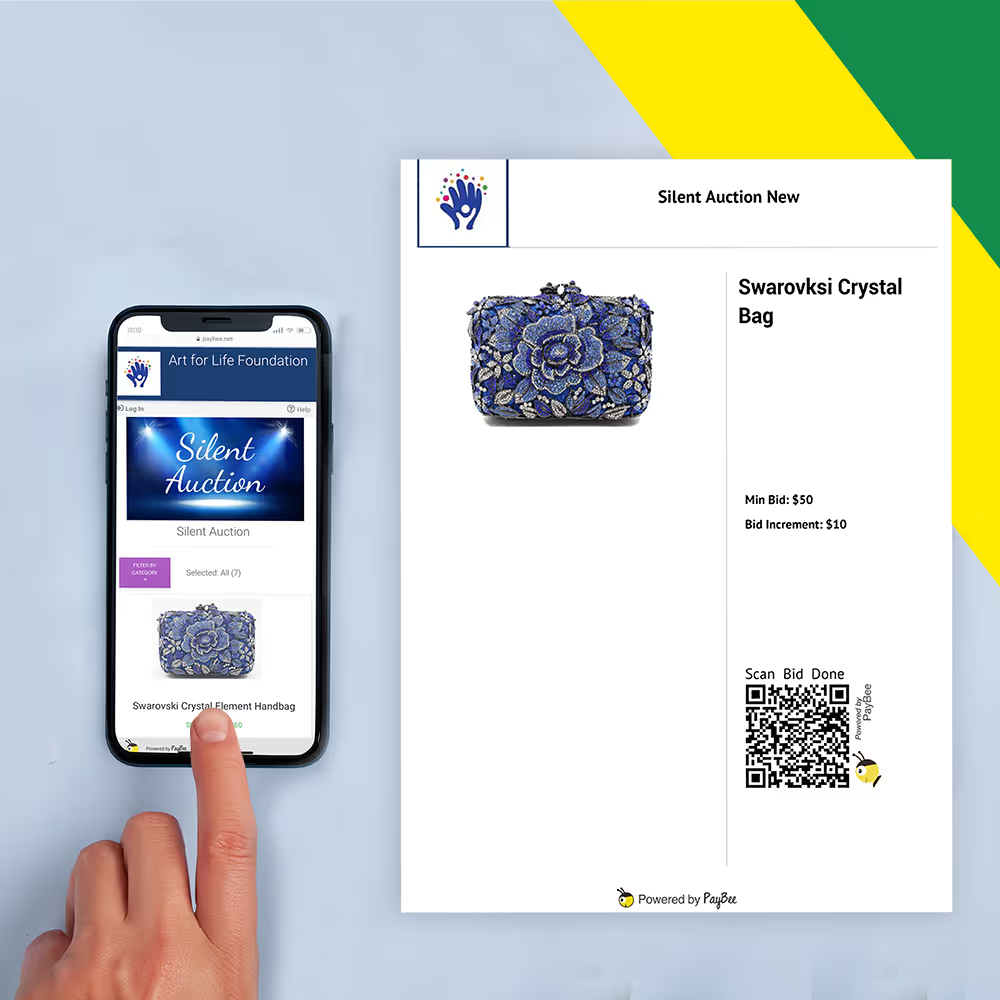
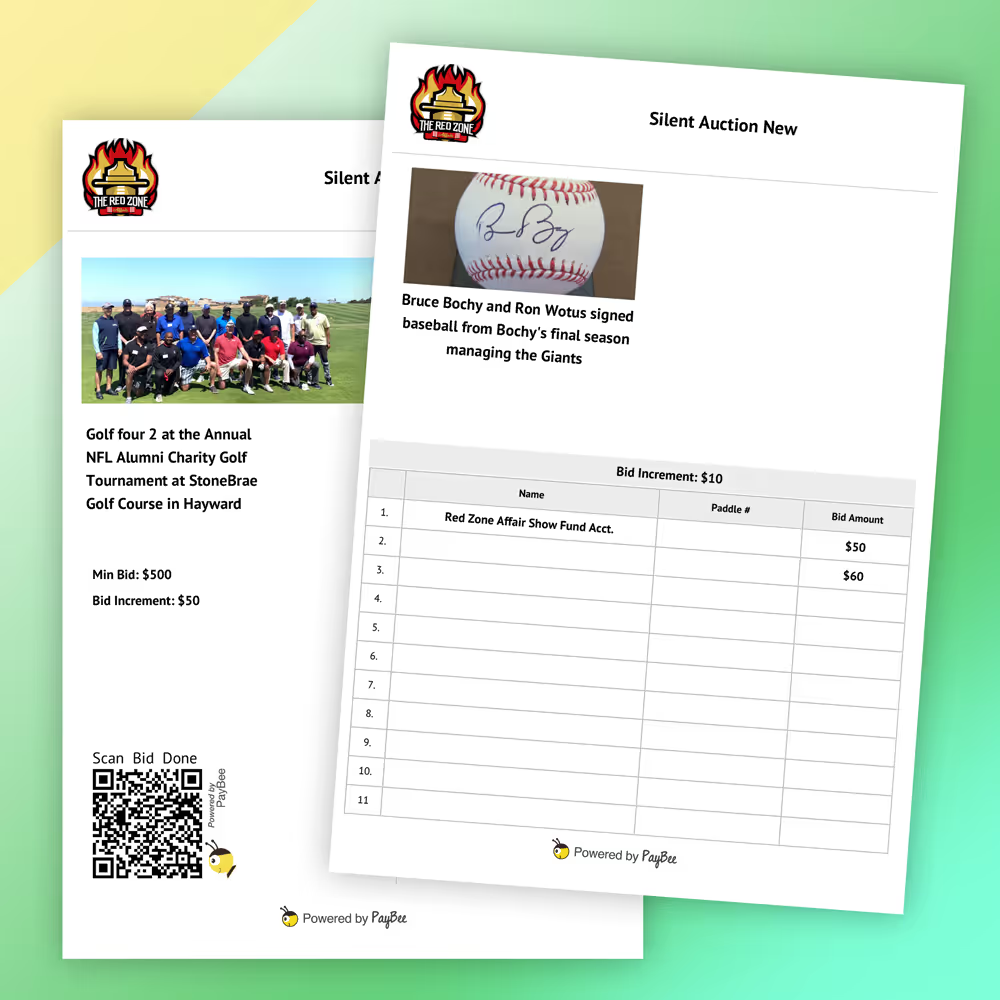
Share the campaign URL in an email or on social media so supporters can open your auction on their phones. At the venue, print a QR bid sheet for each item and place it by the display. A guest interested in a donated weekend stay can scan that item's sheet with their phone camera and open its detail page. Guests who enter through the campaign link can browse the catalog or search for an item by name.
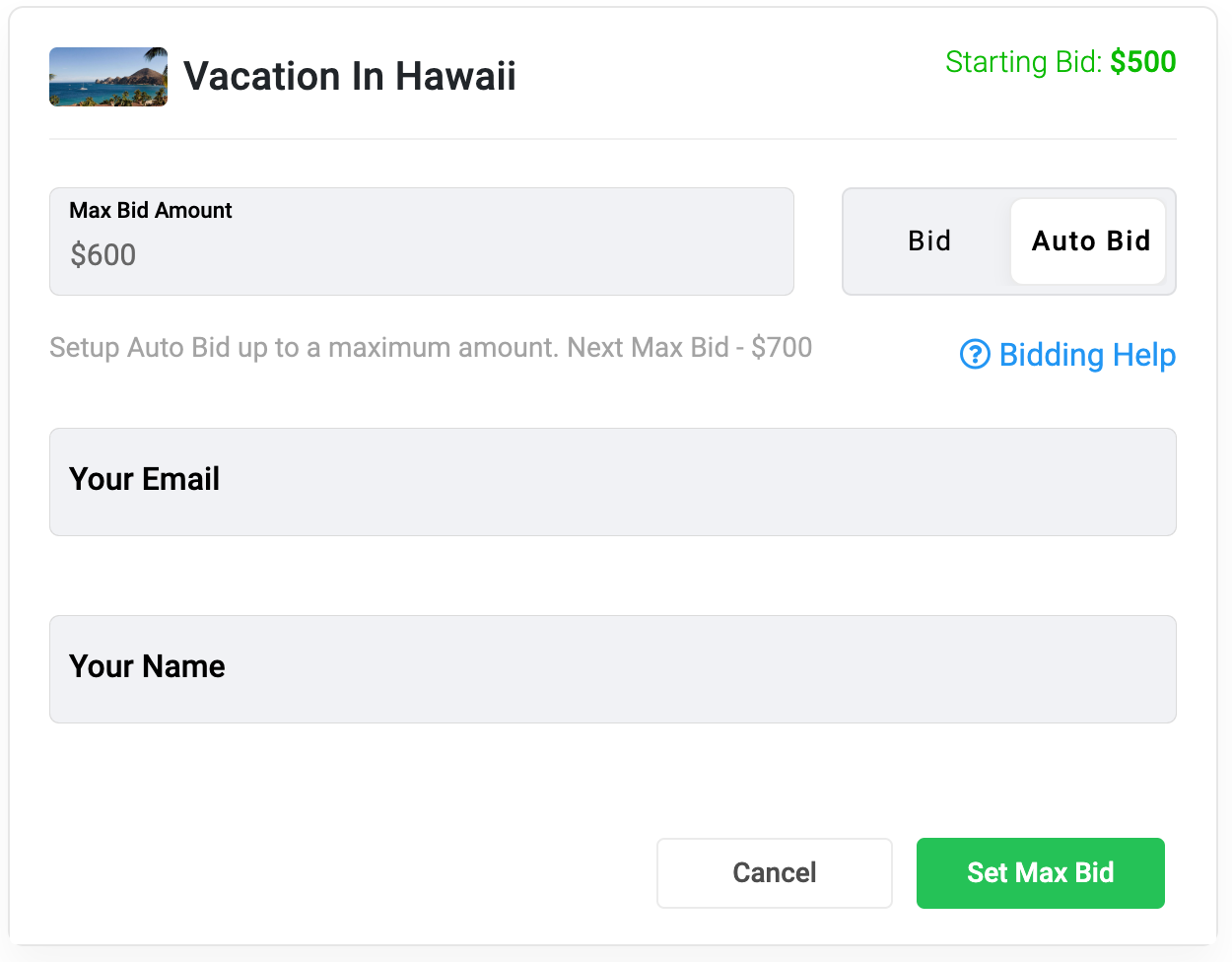
Once bidding is open, the guest taps the item's bid button, enters the details requested by the organizer, and confirms the amount. They can place a one-time bid. If you enable automatic bidding, they can instead set the maximum they are willing to pay and let PayBee bid within that amount. If your auction requires verification, the guest uses a one-time email code. They also save a payment method before bidding if you require one.
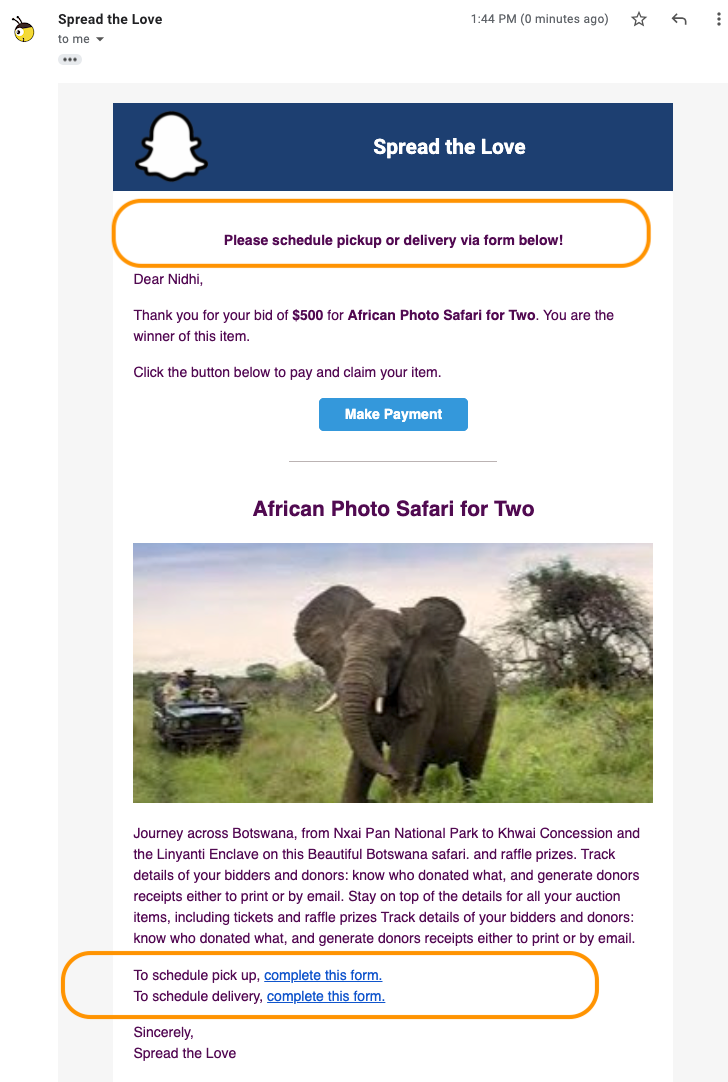
If another bidder moves ahead, PayBee sends an outbid email and can also send a text if the guest shared a phone number. The alert gives the guest a path back to the item while bidding is open. When your team closes the auction, PayBee adds the winning item to the donor's cart and sends a winner notice with a payment link. If your auction required a saved payment method, your team can charge that method after close.
Ready to turn these steps into a smoother workflow?
Mobile bidding uses the same PayBee auction campaign your team manages during the event. In Manage > Auctions, an organizer can check current bids and bidder activity, pause or resume bidding, and download the Bidders & Items report. Pausing stops new bids and gives the team time to review activity. Closing determines the winners and moves their items into their carts. After close, use the pending and completed transactions to see which winners still need to pay and follow up with them.
Bring these capabilities together in one connected platform.
Build each listing with a photo, a short catalog summary, and a fuller description for the detail page. Use categories to group items and mark any standout donations as featured. If a supporter remembers the name of a restaurant package from your event email, they can search for it in the catalog and open the listing to read the details.
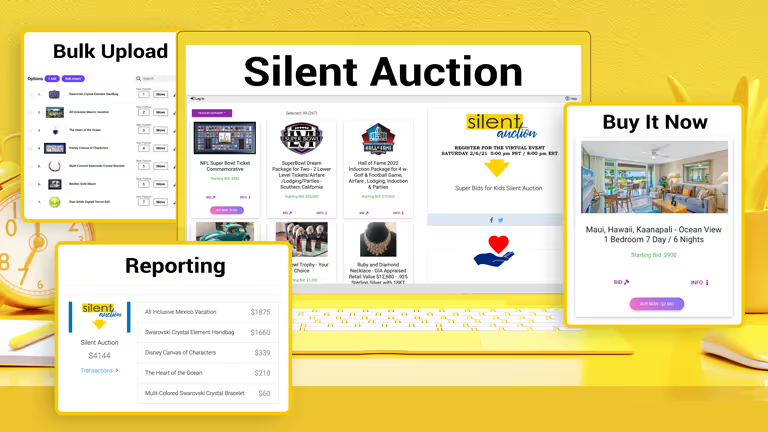
From Manage > Auctions, download the QR bid sheets and print the pages you need for the venue. Each sheet points to its own item. Put it at the display so guests can open that item from their phone camera and place a bid while the auction is active. Supporters away from the venue can use the link you shared online.
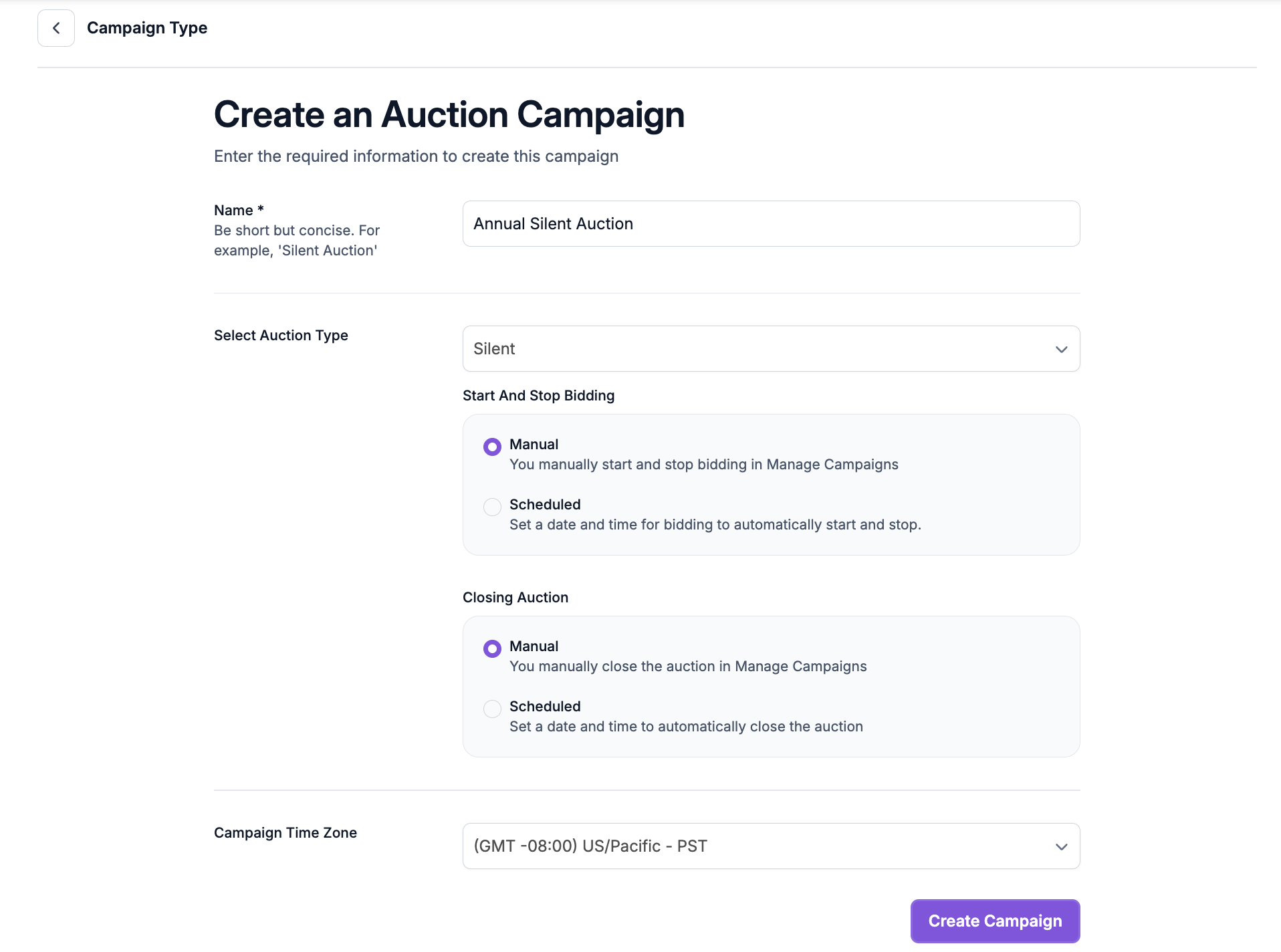
Your auction settings control whether you show the top bidder's name or display a fuller bid history. Pick the settings that suit your audience before sharing the auction. You can also decide whether a supporter needs to verify their email or save a payment method before bidding. Tell guests what to expect in the instructions you send before the event.
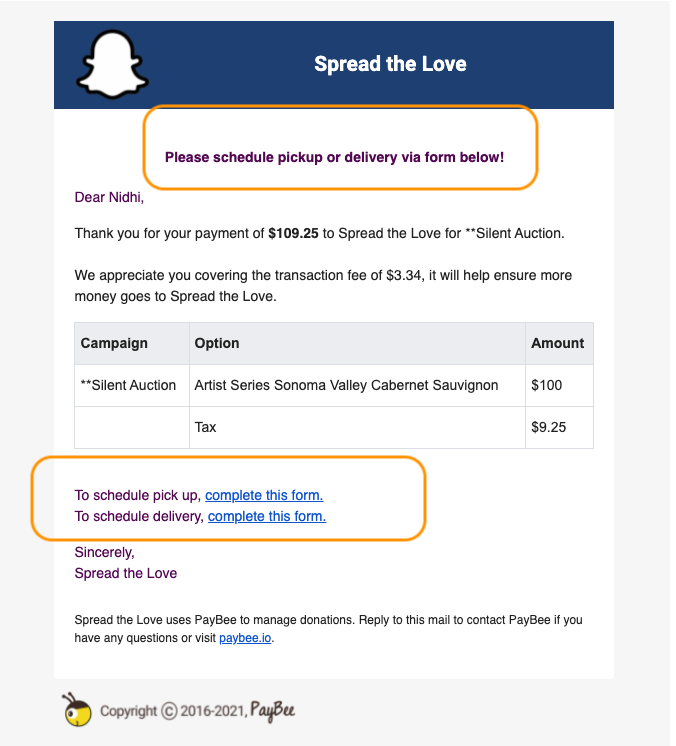
Add pickup or delivery instructions to your auction settings so winners receive them with the relevant emails. If a donated package must be collected at the venue, use those instructions to tell the winner where to go and when to arrive. Your team can review outstanding payments separately in PayBee and follow up with winners whose carts are still pending.
Put these tools to work for your fundraising team.
| Capability | How PayBee helps |
|---|
Explore how PayBee can support your full fundraising workflow.
Bring your event plans to a PayBee demo. Walk through what a guest sees when they scan an item, submit a bid, and receive a payment link. Then see how your team can monitor bidding and follow up with winners during and after the event.
Request a PayBee DemoQuestions, answered
Still deciding? See the platform in action or start building today.