Give Each Person a Job
Follow Winning Items Through Payment
See how this feature can simplify your next fundraiser.


See how this feature can simplify your next fundraiser.
Set up your lots and choose who will run each part of the auction. During the event, record bids and declare or assign the winners. Afterward, reconcile winning items against the payments and pending carts in PayBee.
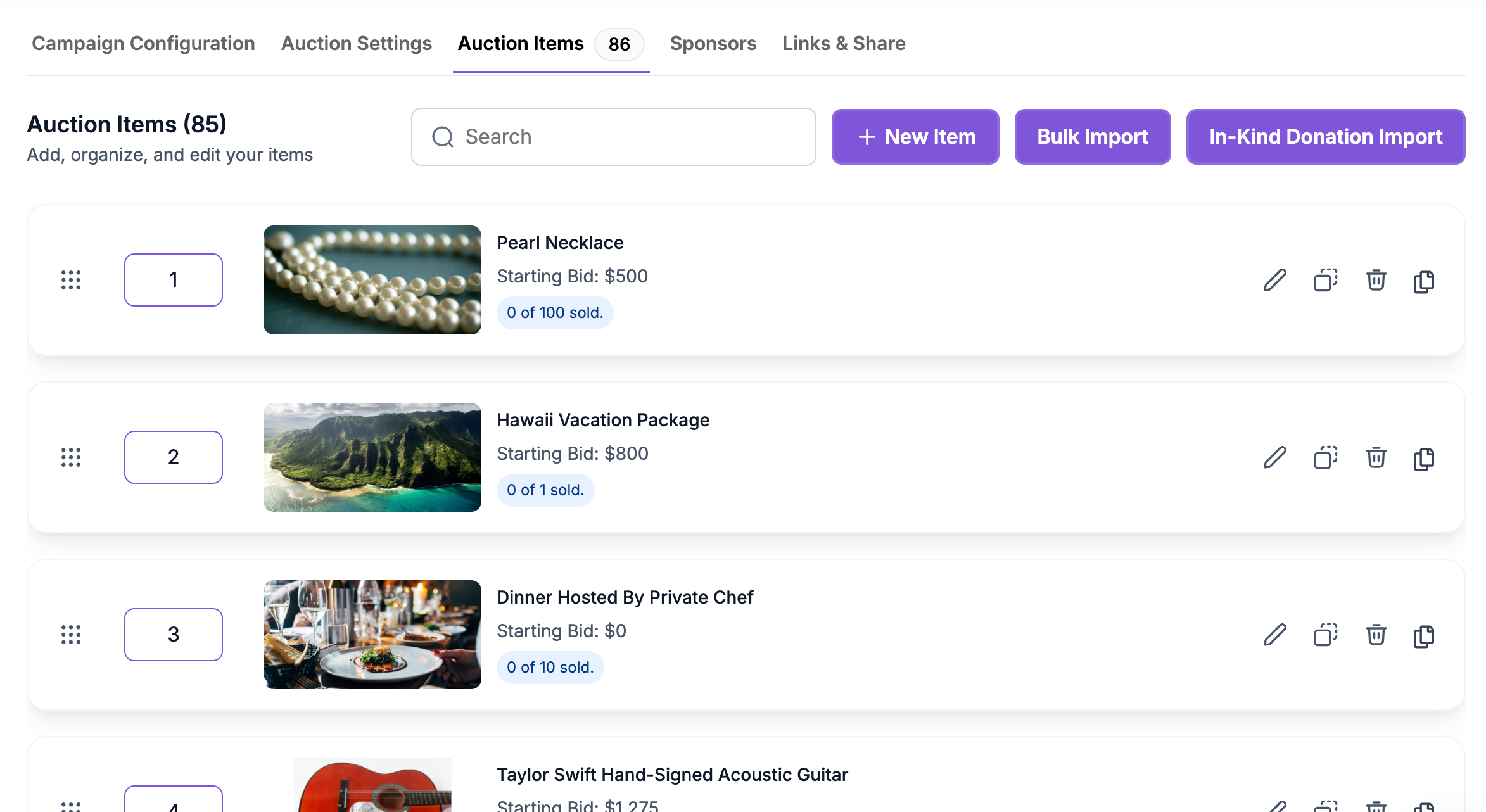
Create an Auction campaign in PayBee and set the auction type to Live. Enter lots one at a time or use the bulk import template for a longer catalog. Give each item a clear name, description, and photo so your crew can find the right lot when the auctioneer calls it. Review the catalog before the event, then agree on the order with your producer and auctioneer. For a hybrid gala, rehearse how to present the first lot to both audiences.
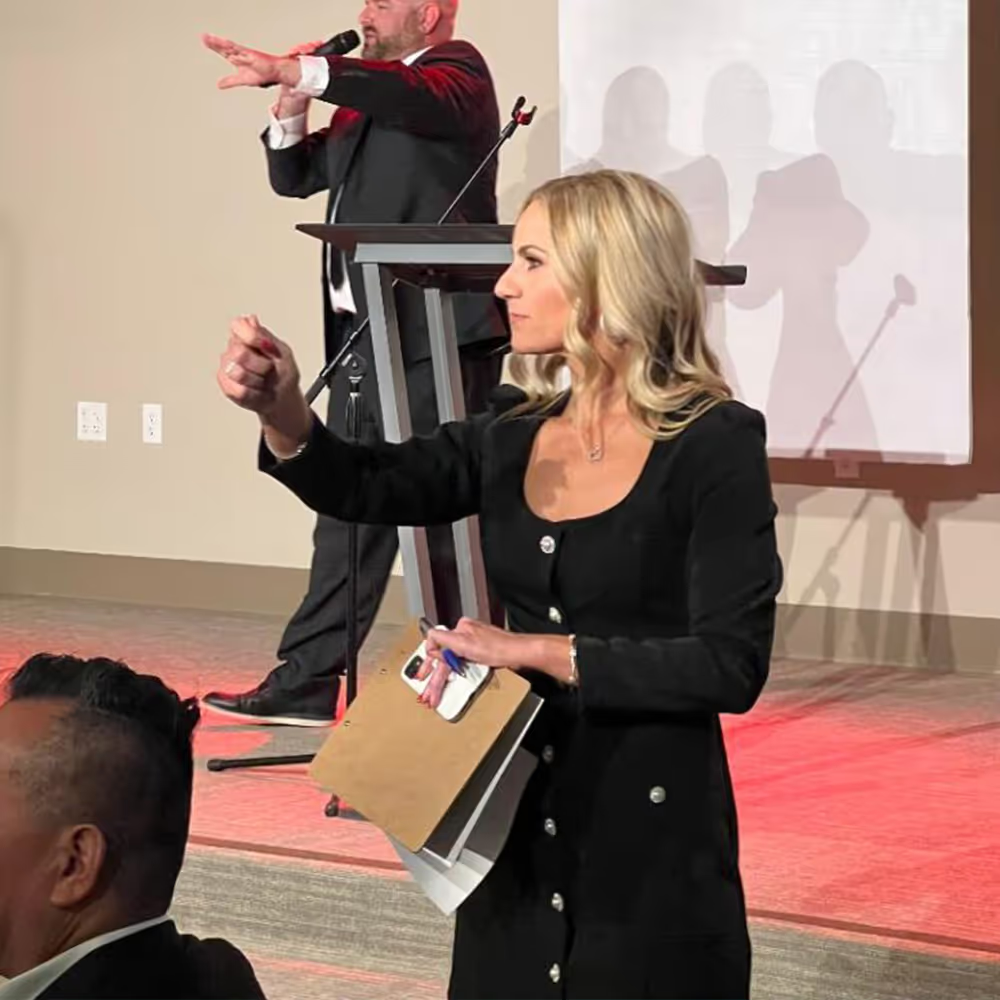
In a hybrid auction, the producer presents the current item in PayBee. Online guests bid from their event screen. In the venue, the auctioneer calls out paddle numbers and the clerk enters those bids. The producer follows incoming activity and can see the highest bidder before acting on the auctioneer’s cue to declare a winner. At an in-person auction where you only record results, a volunteer can add each winning item to the correct guest cart.
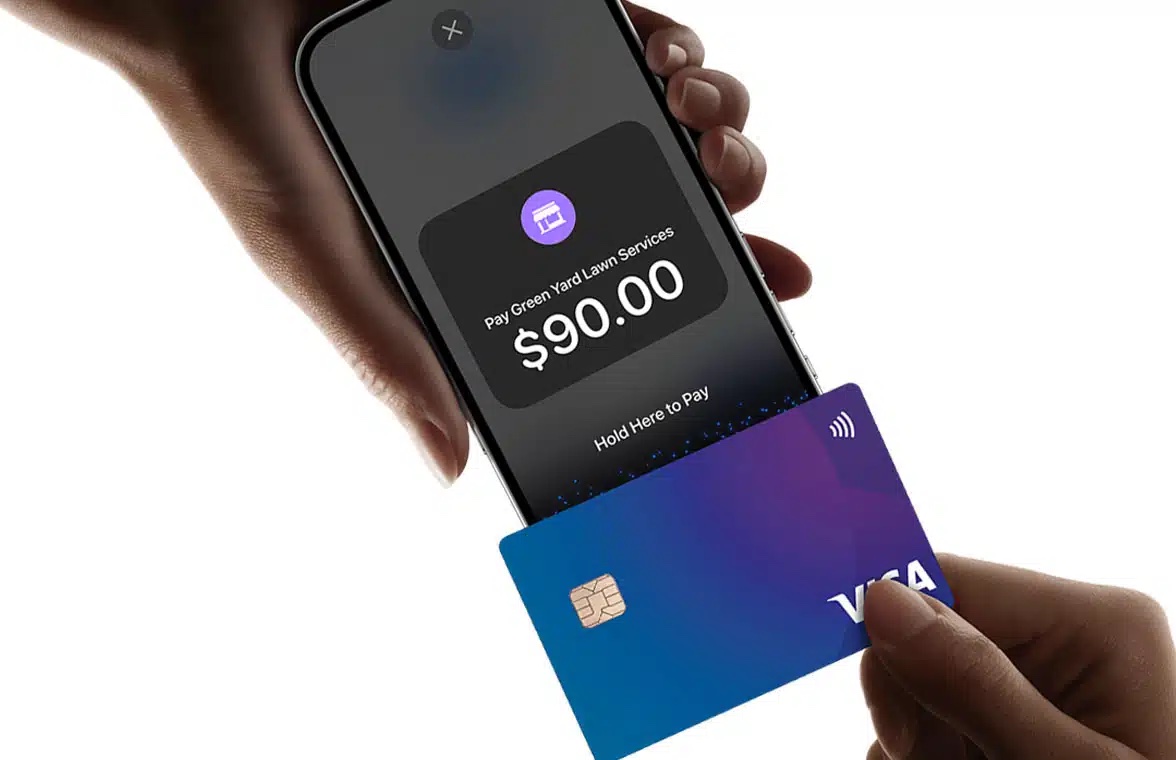
Check that the named winner and amount are correct before collecting payment. At the venue, a volunteer can find the cart by paddle number and review the items with the guest. Online attendees can complete checkout from their event cart. After the event, use the pending report to see which winners still owe a balance and the completed transactions report to see which ones paid. Download the Bidders & Items workbook when you need a fuller record of the auction results.
Ready to turn these steps into a smoother workflow?
A live auction can include a crowded ballroom, guests watching remotely, and a team working behind the scenes. In PayBee’s hybrid workflow, the producer controls the lot shown to attendees, the clerk enters paddle bids, and the auctioneer can follow activity on the teleprompter. Once a winner has been declared or assigned, the team can review the item in the winner’s cart and coordinate payment with the checkout crew. After the last lot, pending and completed transactions give the finance team a place to reconcile the results.
Bring these capabilities together in one connected platform.
In the hybrid workflow, the auctioneer can open the teleprompter view to follow the current lot and activity from both the room and online guests. Have the auctioneer call each paddle number clearly for the clerk and give the producer a definite cue when it is time to declare a winner or move on to the next lot.

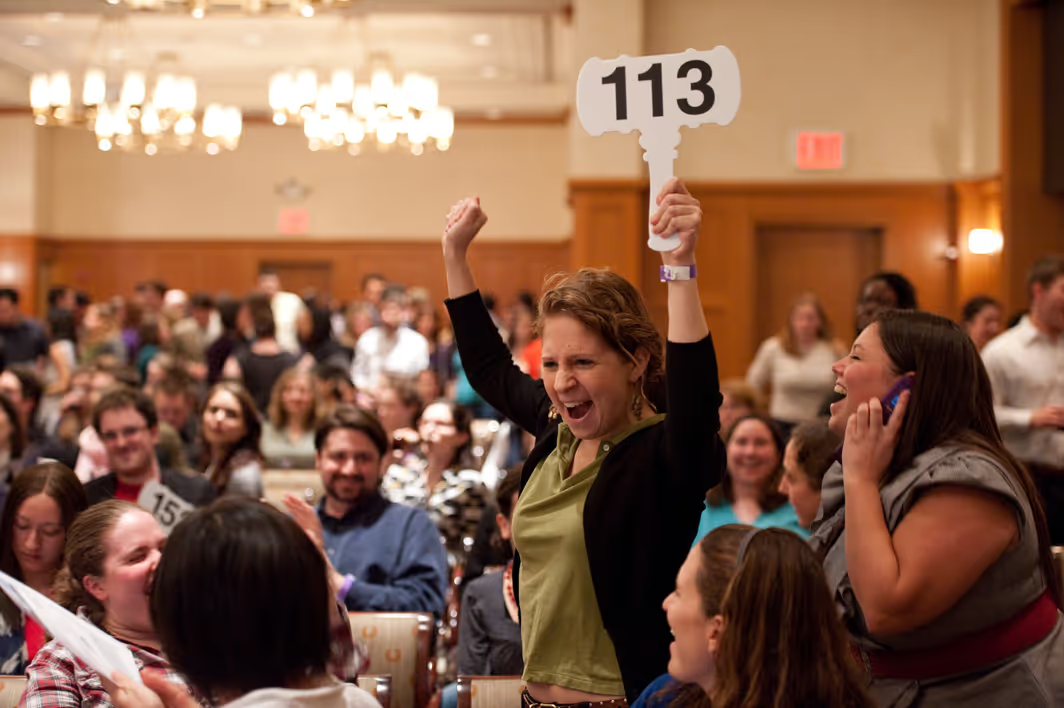
When someone raises a paddle, the clerk enters the number and captures the bid in PayBee. Guests watching remotely use the bid controls on the event screen. Both appear in the producer’s activity view, so the person running the event can track the highest bid. If you use an audience monitor, the room can follow the activity as it happens.

For a virtual or hybrid auction, use the producer dashboard to delete an incorrect bid so the bidder display returns to the correct amount. If your in-person workflow already put an item into the wrong guest cart, remove it there and add it to the correct winner’s cart. Confirm the updated item and amount before asking the guest to pay.
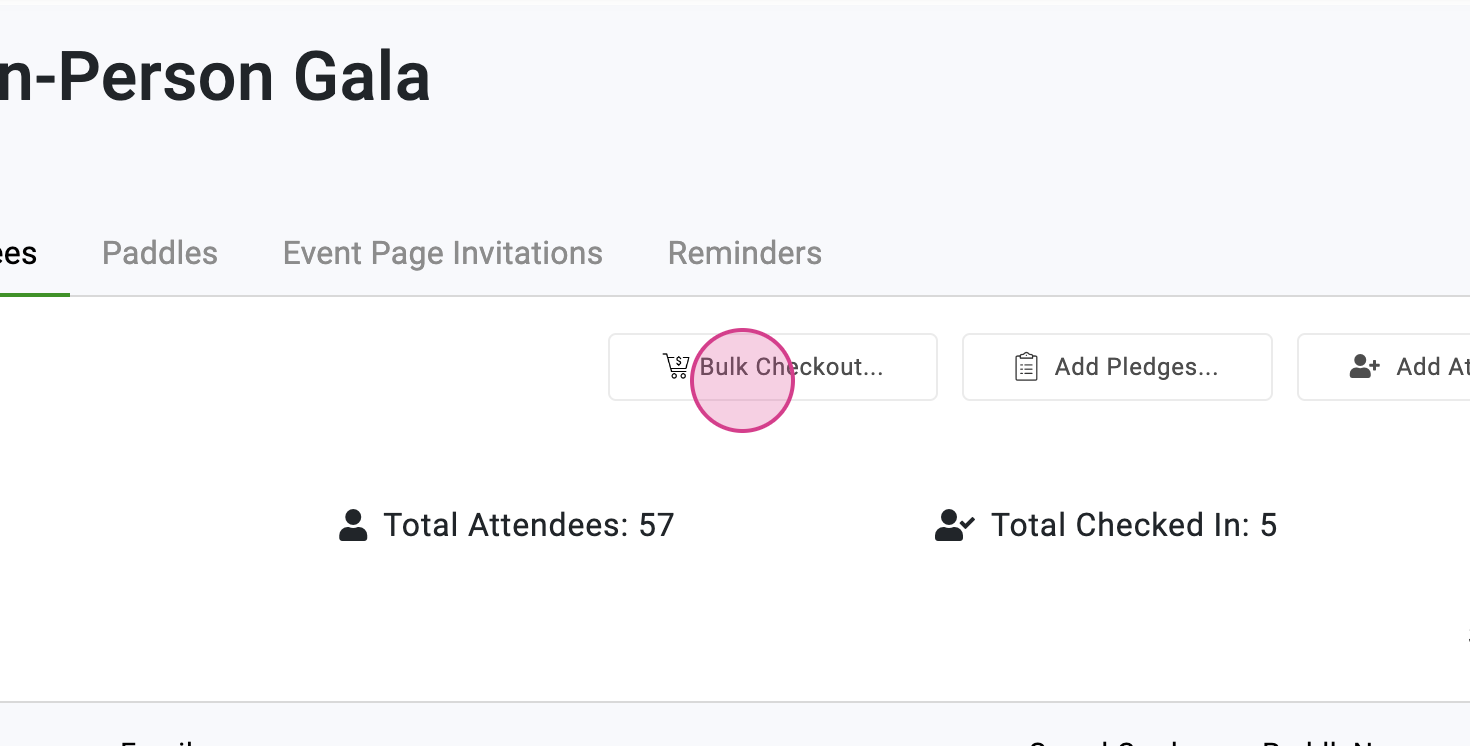
Use PayBee’s pending records to see which winners still need to pay and send reminders when needed. Completed transactions give you a record of successful payments. If the auction chair wants to review the lots and bidders as well, open the auction in Manage > Auctions and download its Bidders & Items workbook for a closer look at the results.

Put these tools to work for your fundraising team.
| Capability | How PayBee helps |
|---|
Explore how PayBee can support your full fundraising workflow.
Bring your lot list and event format to a PayBee demo. Walk through how your auctioneer and producer will coordinate, what the clerk does when a paddle goes up, and how your team will connect each winner to the right cart and follow up on payment.
Request a PayBee DemoQuestions, answered
Still deciding? See the platform in action or start building today.