
Send guests to the right line
See what still needs payment
See how this feature can simplify your next fundraiser.


See how this feature can simplify your next fundraiser.
Connect the right ticket and fundraising campaigns, prepare guest seating and paddles before event day, then use your event’s reporting views to review arrivals, contributions, and carts as the evening progresses.

Create the in-person event and link its ticket campaign. Review the linked campaigns in the event Overview so volunteers see the auction, donation, and event-day purchases they will actually handle. Keep unrelated active campaigns out of their workflow when you only need a specific set. Set up the event page and share the intended registration link with guests. Check the guest view on a second device so staff know what ticket holders receive.

Use the event’s attendee and table views to review names, table assignments, and available seats. Choose a method for assigning bidder numbers if you use paddles for live fundraising. Generate the appropriate cards and paddles and check the printed identifiers against the list your team will use. Brief volunteers on what to do when a household arrives separately, a guest’s email needs updating, or someone asks to move to another table.
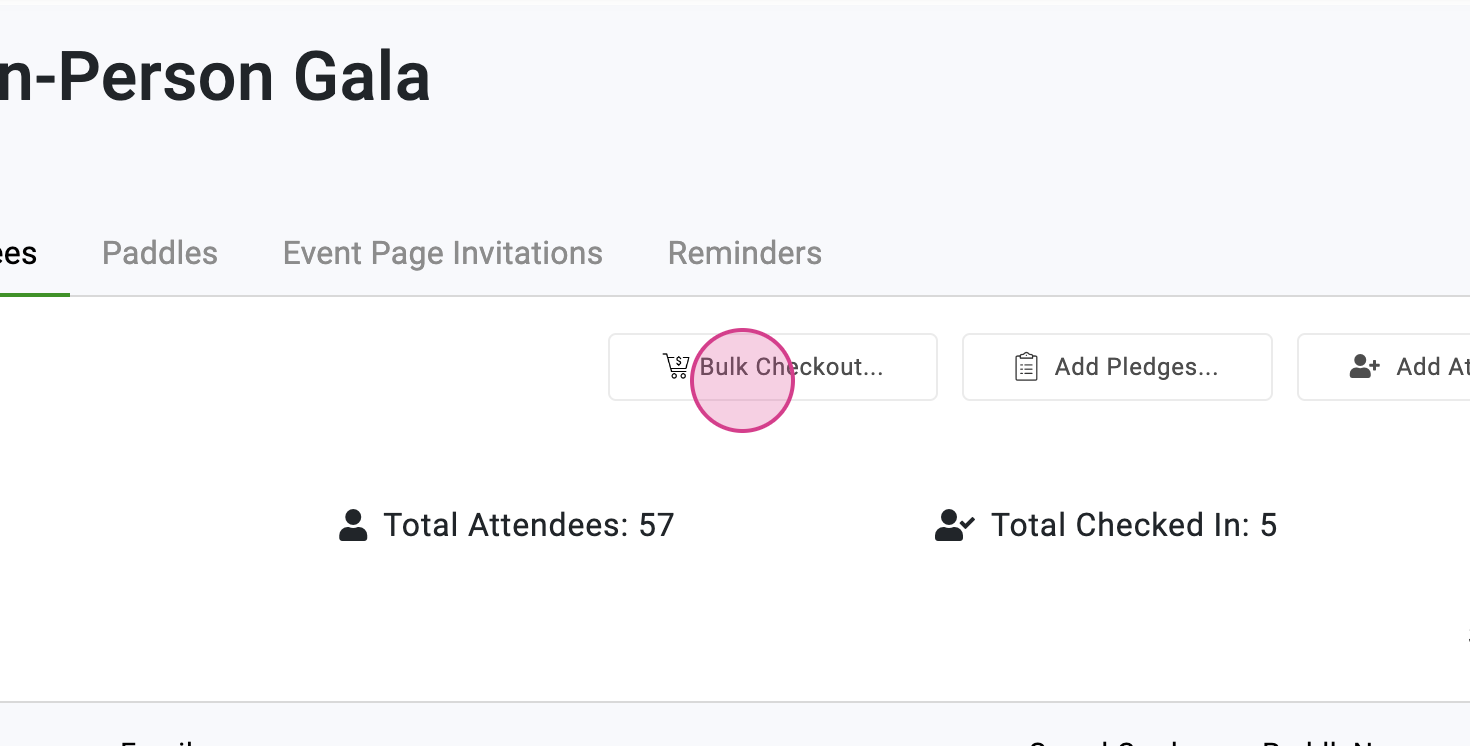
At the doors, have volunteers open the event in the app and confirm registered guests. During the program, record contributions through the relevant event workflow so checkout has the items it needs. Review open carts from the event report by attendee or table when someone needs help. After the event, compare what has been processed with anything still pending and decide who will contact guests or investigate discrepancies.
Ready to turn these steps into a smoother workflow?
An in-person fundraiser has moving parts well before the first guest arrives. Ticket and sponsorship sales help you prepare the guest list. Seating and paddle assignments give check-in staff what they need at the door. Once the program starts, fundraising and checkout teams can use the same event context. In the event report, organizers can review pledges, pending items, and processed donations. If a guest leaves with an open cart, the checkout lead can look up the attendee and confirm what still needs follow-up after the room is clear.
Bring these capabilities together in one connected platform.
The Overview tab lists linked campaigns used in event reports and available to volunteers. Review that list before training the crew and choose specific campaigns if the event needs a narrower set. Use distinct names for similar campaigns so a volunteer knows which auction or donation choice belongs to this event.

Use the table list or visual layout to see assignments and available seats. Prepare paddles and table cards in time to check them before printing the final set. If you reassign a guest, confirm that the paper labels and volunteer instructions reflect the new arrangement and that the table has room.

Decide how the guest handoff will work from check-in through payment. Practice ticket scanning or a name search and check that each team member can open the same event. If the event uses paddles, have volunteers confirm the number with the record before attaching a gift, bid, or purchase to the guest.

Open the report for your in-person event to see the fundraising breakdown and the totals for pending and processed activity. During checkout, open a list of carts by attendee or table. Afterward, assign an owner to unresolved items and compare any follow-up against the transaction record before asking guests to pay.
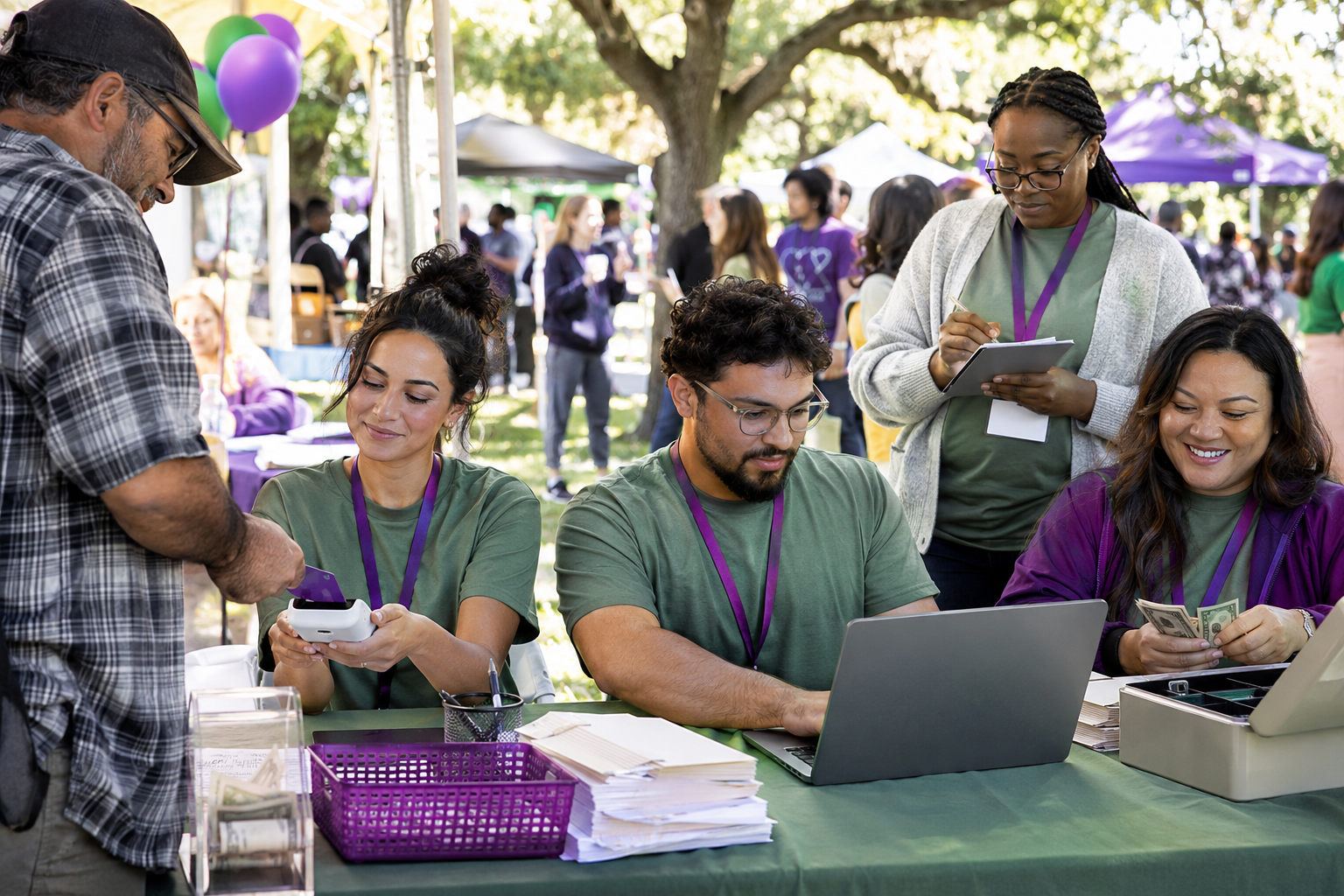
Put these tools to work for your fundraising team.
| Capability | How PayBee helps |
|---|
Explore how PayBee can support your full fundraising workflow.
Talk through your floor plan, fundraising stations, and guest checkout with PayBee. See where a ticket purchase, assigned seat, or paddle number appears during the event. Bring a few examples of the exceptions your volunteers might encounter so your team can plan how to resolve them.
Book a PayBee DemoQuestions, answered
Still deciding? See the platform in action or start building today.