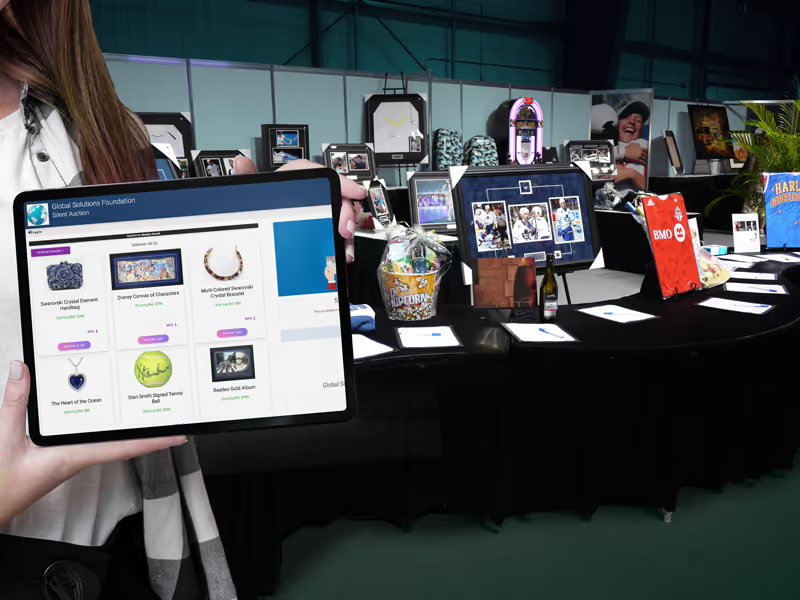
Give staff a clear review list
Build the auction from selected items
See how this feature can simplify your next fundraiser.


See how this feature can simplify your next fundraiser.
Set up an In Kind campaign and decide which item details donors should provide. Review what comes in, then choose which contributions belong in an auction and complete their listing details.

Open Campaigns and start a new In Kind campaign. Give it a name that is clear to your vendors and supporters, confirm the time zone, and add the campaign description and basic donor information fields. Explain the kinds of contributions you are collecting and include the next step after submission. Preview the campaign, then share it through a landing page or a direct link once it is ready for contributors.

Review the settings for item category, description, images, quantity, and any expiration or use restrictions. A certificate may also need a file upload, the donor’s delivery method, and a clear expiration date. Set requirements for details your team cannot resolve separately and keep the other fields optional when appropriate. Try a realistic submission to see if donors understand your prompts without having to contact the auction chair.
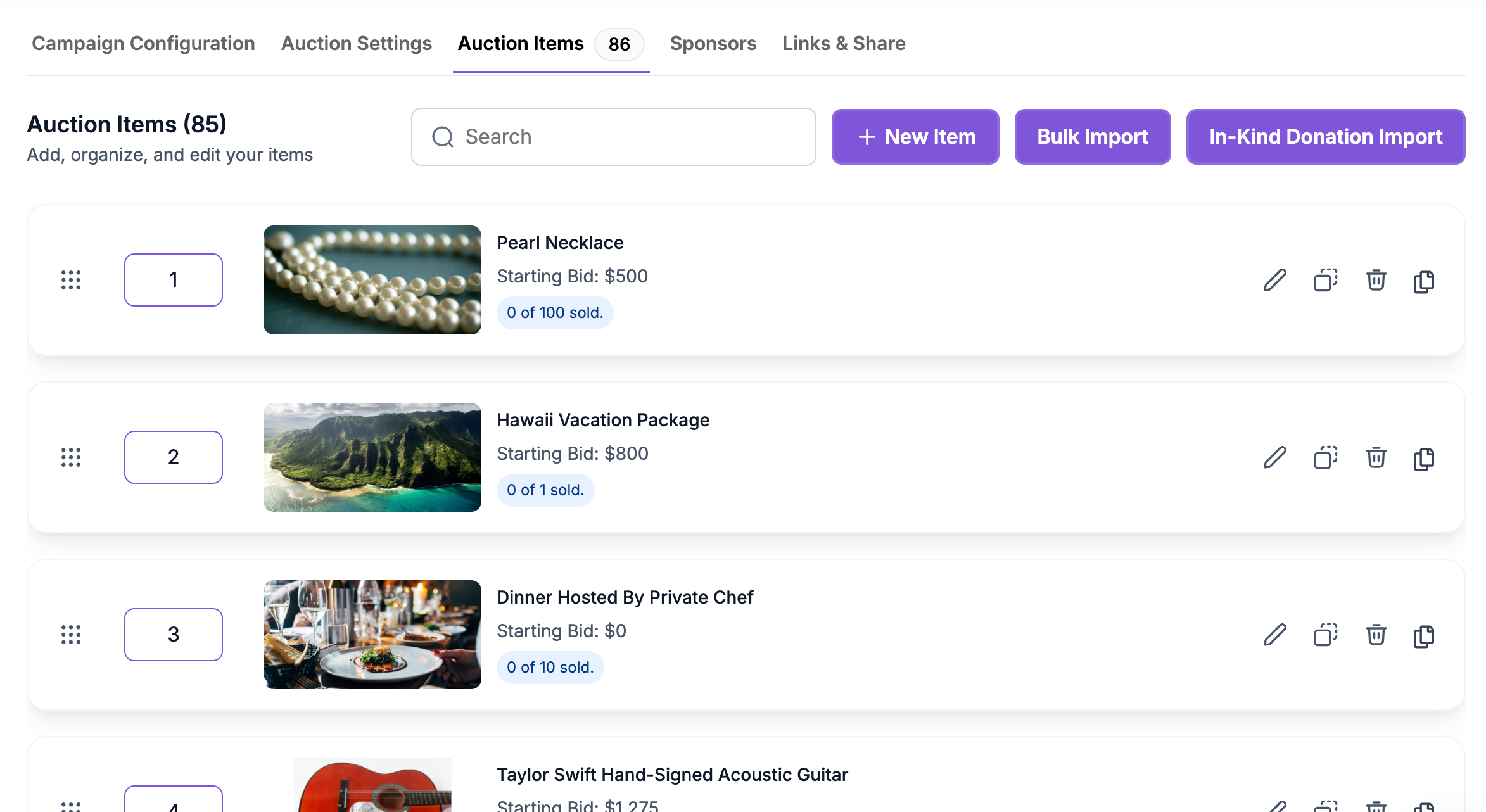
In All Transactions, filter by your in-kind campaign and enable the In-Kind Item column. Open a submission to review the full information. For an auction, open its Auction Items tab and start the In-Kind Donations Import. Choose the relevant campaign and items, then set starting bids, bid increments, and any Buy Now settings you intend to use. After import, review each listing and confirm that any time limits or restrictions are clear.
Ready to turn these steps into a smoother workflow?
When a business offers a gift certificate or a supporter contributes an item, your collection team needs enough information to act on it later. An In Kind campaign lets your nonprofit ask donors about the item, quantity, restrictions, and delivery during submission. Staff can review the details from All Transactions and select which donations to import into an auction. Keep the import decisions and item review separate. The organizer can accept a contribution for program use, designate it for an auction, or ask the donor to clarify how the gift is delivered.
Bring these capabilities together in one connected platform.
Write a short prompt for the goods, services, or certificates your nonprofit can use. Ask for a description and photos that help reviewers understand the offer. If categories are enabled, choose ones that support your catalog or program needs. Keep certificate and physical item questions clear so donors know which details apply.
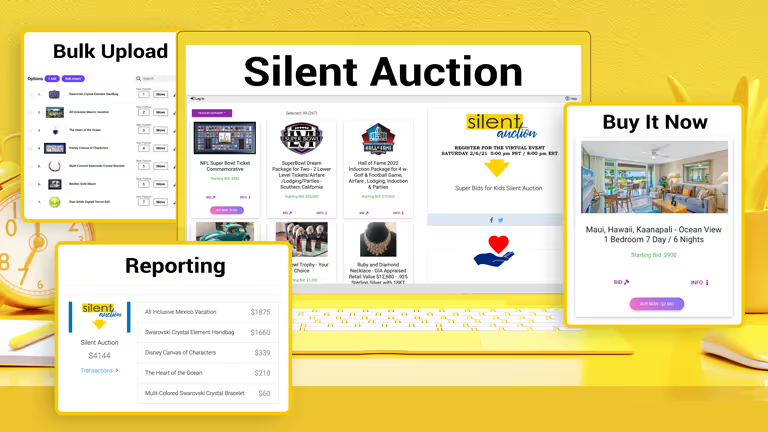
A case of donated supplies and two separate gift certificates may look similar in a short description. Use the quantity field and the item’s restrictions to clarify what can be used. Ask about expiration and delivery when it affects the auction pickup or listing details. Review any unclear answers before promoting an item.
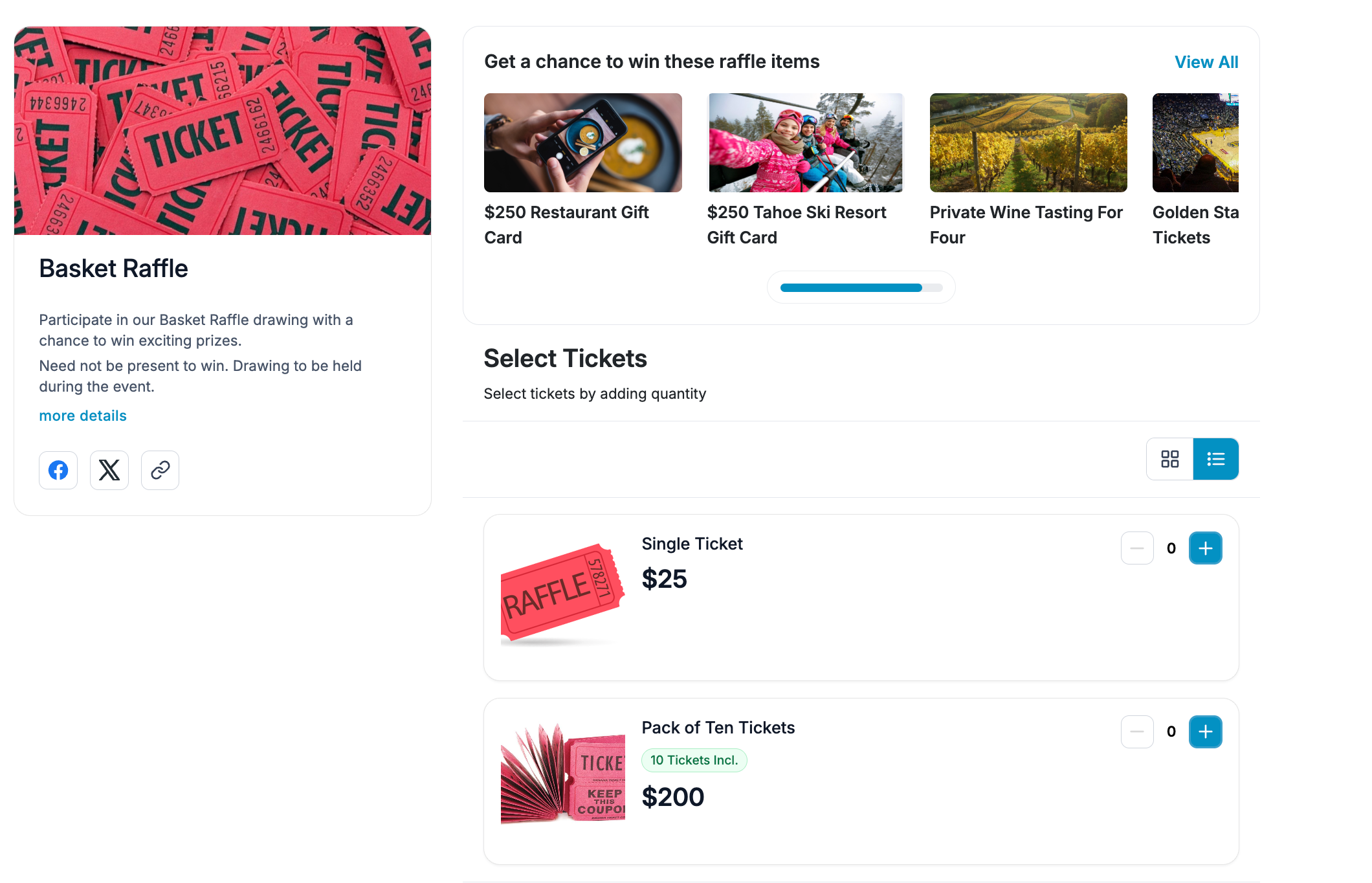
Open All Transactions and choose the specific In Kind campaign. Use Edit Columns to show the In-Kind Item information, then select an item name to open the details. Share the findings with your procurement or event lead so they can confirm whether something is ready for the catalog or needs follow-up.

Use the auction’s In-Kind Donations Import to choose gifts from the relevant campaigns. Set the opening terms for the catalog entry and confirm the import. Once the item appears in the auction, review the public-facing details and confirm that enough information is available for bidding and for the winner to claim or use it.
Put these tools to work for your fundraising team.
| Capability | How PayBee helps |
|---|
Explore how PayBee can support your full fundraising workflow.
Bring examples of the goods, certificates, and services you commonly receive. In a demo, walk through the fields you need at intake, what your report can show, and how approved contributions can move into the auction catalog. Decide who reviews each item before it appears to bidders.
Book a PayBee DemoQuestions, answered
Still deciding? See the platform in action or start building today.