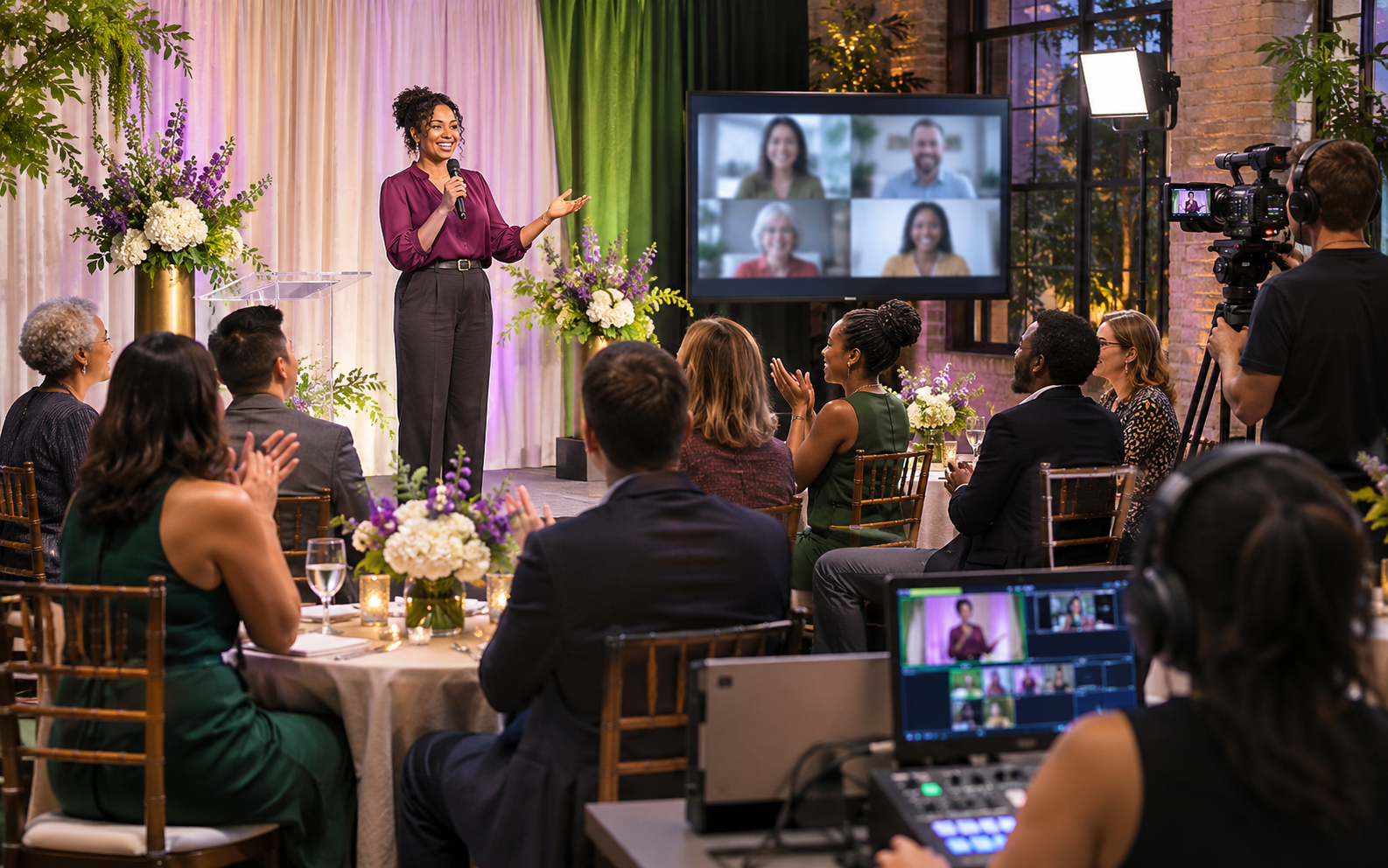
Give each event role clear cues
Capture participation from both audiences
See how this feature can simplify your next fundraiser.


See how this feature can simplify your next fundraiser.
Set up how guests will register in each audience, link the campaigns that will run during the show, and rehearse the cues that connect the auctioneer, clerk, producer, and livestream.

Decide how people will join the program from the venue and remotely. Link your room’s ticket campaign to the in-person portion of the hybrid event. For online viewers, choose between paid virtual tickets and a free registration path, depending on the event plan. Put the relevant choices on your event page and test them with two staff members, one acting as a venue guest and one as a remote supporter.
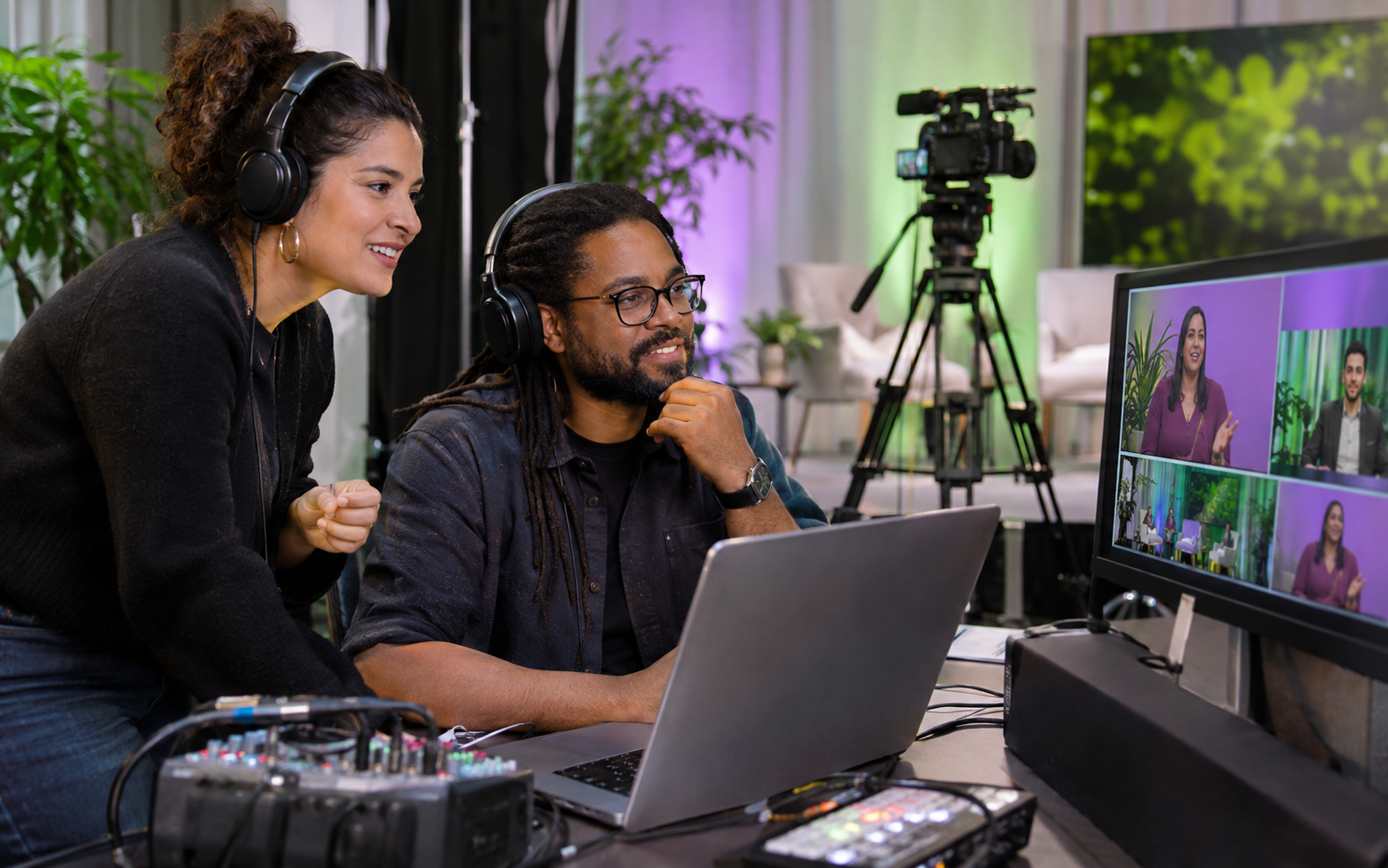
Create campaigns for the fundraising activities you plan to run, such as a live auction or a pledge drive. Prepare paddles for guests in the room where your setup calls for them, and make sure the producer, auctioneer, and clerk know which screen each person will use. Rehearse a campaign change while a test viewer watches the stream. Confirm that changes reach the audience-facing view and that the clerk sees the right giving request.
Before starting the program, verify the stream and the online event view. During the event, the producer selects what to present and the clerk captures bids and pledges from the room while remote supporters participate online. Close any auction segment when your team is ready, then give guests time to check their carts. End the PayBee event before ending the livestream and review balances with staff after the event.
Ready to turn these steps into a smoother workflow?
A hybrid event depends on the handoffs between the venue and the virtual program. The video crew sends a stable stream to the online audience. The organizer puts the correct campaign on screen, the auctioneer gives the next cue, and the clerk enters raises and bids from the room as they happen. Separately, volunteers need a plan for arrivals and guest payments. Assign owners for each task and rehearse the transition between a live auction item and the next giving moment. That is where a shared event setup can reduce confusion.
Bring these capabilities together in one connected platform.
The room and the remote audience can have different ticket and invitation requirements. Use separate ticket campaigns when you sell both types of admission. For a free virtual audience, review the RSVP and join links and share the appropriate one at the right time. Check that each guest type receives clear instructions.

The producer chooses and presents a campaign or lot in the event controls. The auctioneer watches activity in the teleprompter and calls the next cue. The clerk records paddle bids or pledges as they are called from the room. Practice speaking paddle numbers clearly and requesting changes before going live.

Open the Big Screen link if your event uses an Audience Monitor at the venue. Coordinate it with the back end and the clerk so the display can reflect live activity. Test the screen, video stream, and separate viewer view before guests arrive. Give the crew a way to describe any unexpected display behavior.

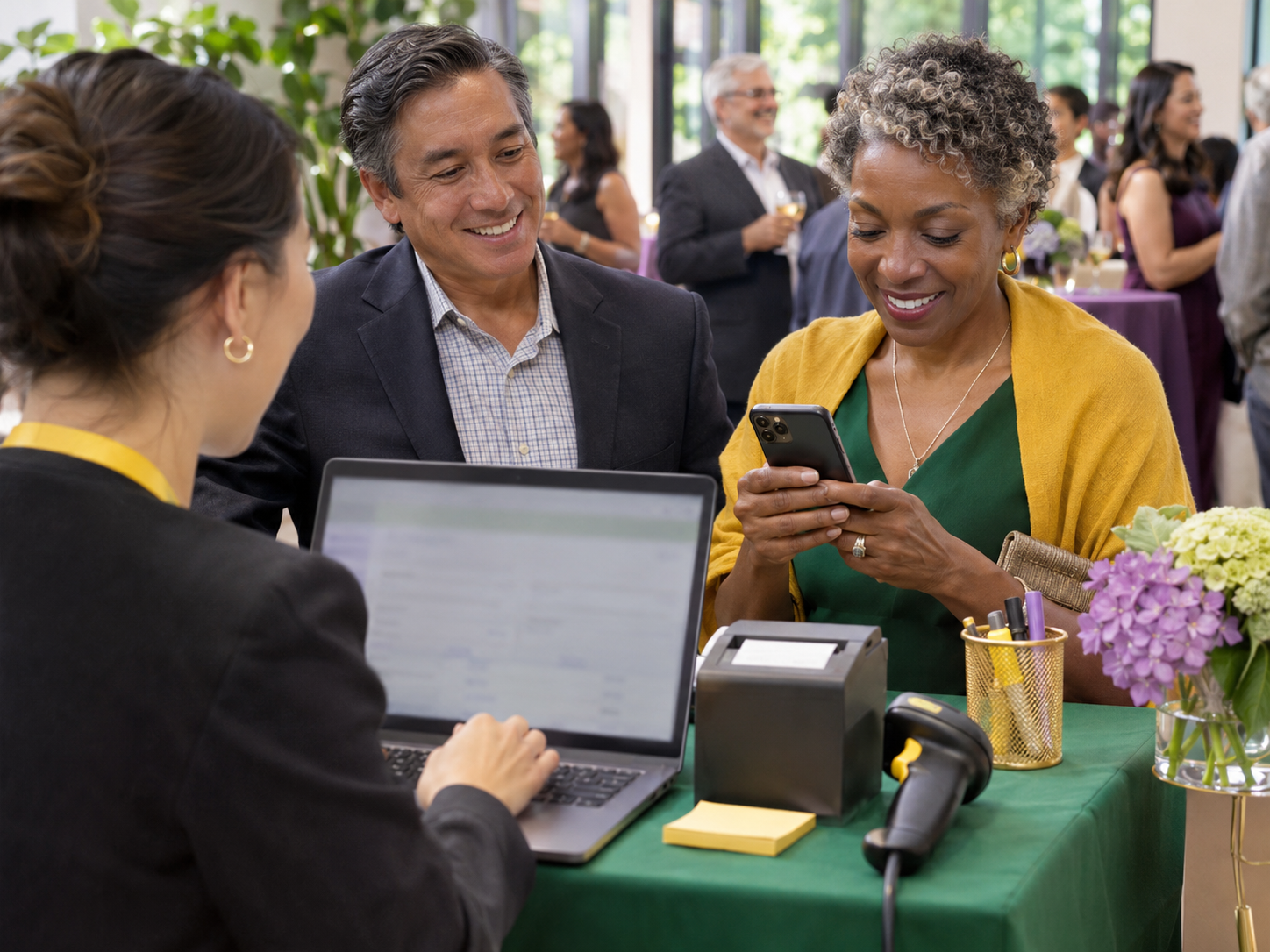
Give the online audience a chance to check their carts as the program wraps. At the venue, direct guests to self-service or volunteer-assisted checkout according to your instructions. When your team ends the event in PayBee, leave time to complete any open guest questions and inspect remaining balances after the show.

Put these tools to work for your fundraising team.
| Capability | How PayBee helps |
|---|
Explore how PayBee can support your full fundraising workflow.
Bring your venue and streaming plans to a PayBee demo. Walk through what each audience sees at registration, during your main fundraising moment, and at checkout. Include the people running the video and calling bids so rehearsal covers the cues that synchronize the room with the online program.
Book a PayBee DemoQuestions, answered
Still deciding? See the platform in action or start building today.