
Set Starting Holes for Your Players
Prepare Cart Signs From Your Records
See how this feature can simplify your next fundraiser.


See how this feature can simplify your next fundraiser.
Create an in-person event, connect the ticket campaign, and enable Golf Pack. Review each golfer’s registration, then create and assign the starting holes and prepare the cart signs.

Create the in-person event and connect the appropriate ticketing campaign. Set up individual and group options for the kind of registration you are selling, then enable the guest questions you need. Before publishing the registration link, check that group purchasers can supply or invite their guests.

Go to Manage > Events and edit the event. Look under the in-person event settings for Golf Pack and enable it. In Manage > Tickets & Guests, select the campaign, open Golf Holes, and add the starting holes your course has designated.

In the campaign’s Guests tab, assign the starting holes and review the golfer and cart details with your tournament lead. The cart sheet is available from the Paddle tab of the In Person Event Report. Check the updated materials for late roster changes before handing them to volunteers.
Ready to turn these steps into a smoother workflow?
A connected in-person ticket campaign brings its guests into the event attendee list. The tournament team can use those records as it arranges groups and enables Golf Pack for starting hole and cart organization. Print a fresh set of materials after you review the assignments.
Bring these capabilities together in one connected platform.
Configure the ticket campaign to collect guest information. Group tickets can accommodate a designated number of guests, and purchasers can complete their names or invite guests if enabled. Follow up for missing names before finalizing assignments with the course team.
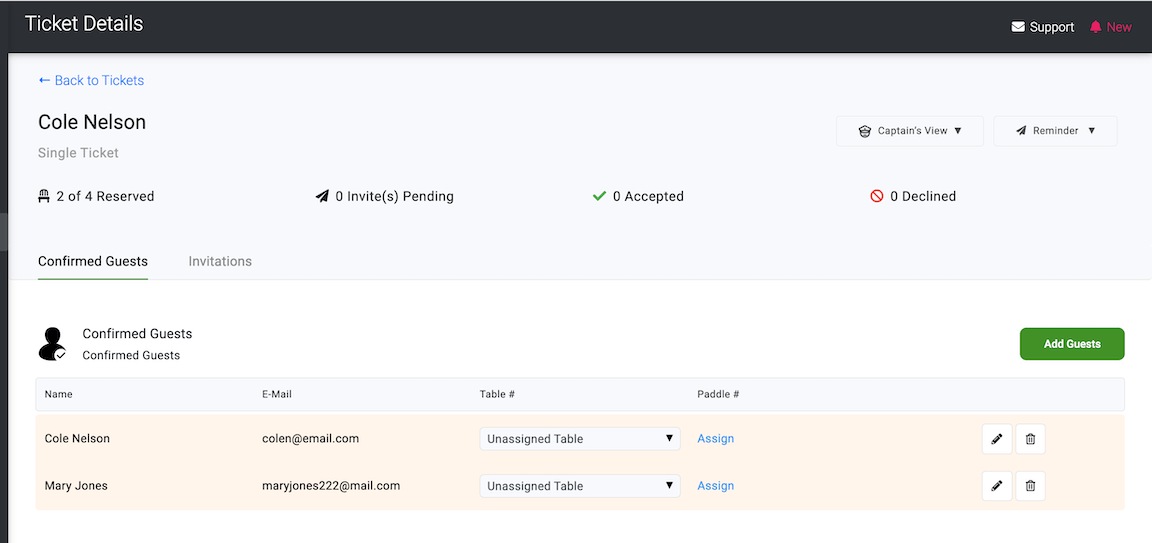
Enable the Golf Pack extension in the in-person event settings. Use the Golf Holes tab in the selected ticket campaign to create the starting holes. Keep hole names consistent with the course’s signs and materials so golfers receive the same directions at check-in.

Assign starting holes in the Guests tab after confirming golfer names. Review the roster before the first group arrives and designate a staff member to handle same-day corrections. Seat and table controls are separate event organization tools and can also support a reception if your event includes one.

The PayBee product update identifies the Paddle tab of the In Person Event Report as the location for the cart sheet. Generate that material after you have reviewed who is playing and the starting assignments. Keep a fresh copy with check-in staff if you anticipate substitutions.

Put these tools to work for your fundraising team.
| Capability | How PayBee helps |
|---|
Explore how PayBee can support your full fundraising workflow.
Bring your golfer categories, group sizes, and course assignment plan. See how PayBee’s ticketing, guest tools, and Golf Pack fit into your check-in workflow.
Request a PayBee DemoQuestions, answered
Still deciding? See the platform in action or start building today.