
Set up field mapping deliberately
Confirm the handoff with a sample
See how this feature can simplify your next fundraiser.


See how this feature can simplify your next fundraiser.
Start with a clear destination and a person who owns it. Choose the connection that fits, map only the data the recipient needs, and check that a sample record reaches the right place.

List the destination and the business action you need. Contact PayBee to request access to the applicable integration settings, then choose a workflow, endpoint, CRM mapping, or export.

Select the campaign or transaction scope that fits your workflow. Work with your destination administrator to match identifiers, protect access details, and choose the fields required for the intended action.

Use a sample or an approved test record and verify that it reaches the correct place. Compare an amount, campaign association, and donor identifier, then document who reviews the result.
Ready to turn these steps into a smoother workflow?
An operations manager may need a spreadsheet, a developer may need an endpoint, and a CRM administrator may need field mapping. ParishSoft teams can use a filtered export when they reconcile contributions on a schedule.
Bring these capabilities together in one connected platform.
Configure a PayBee endpoint for the campaigns you want to include, connect PayBee in Zapier, and choose New Transaction as the trigger. In Zapier, add an action such as creating a spreadsheet row. Review the example data and map the destination fields before enabling your workflow.

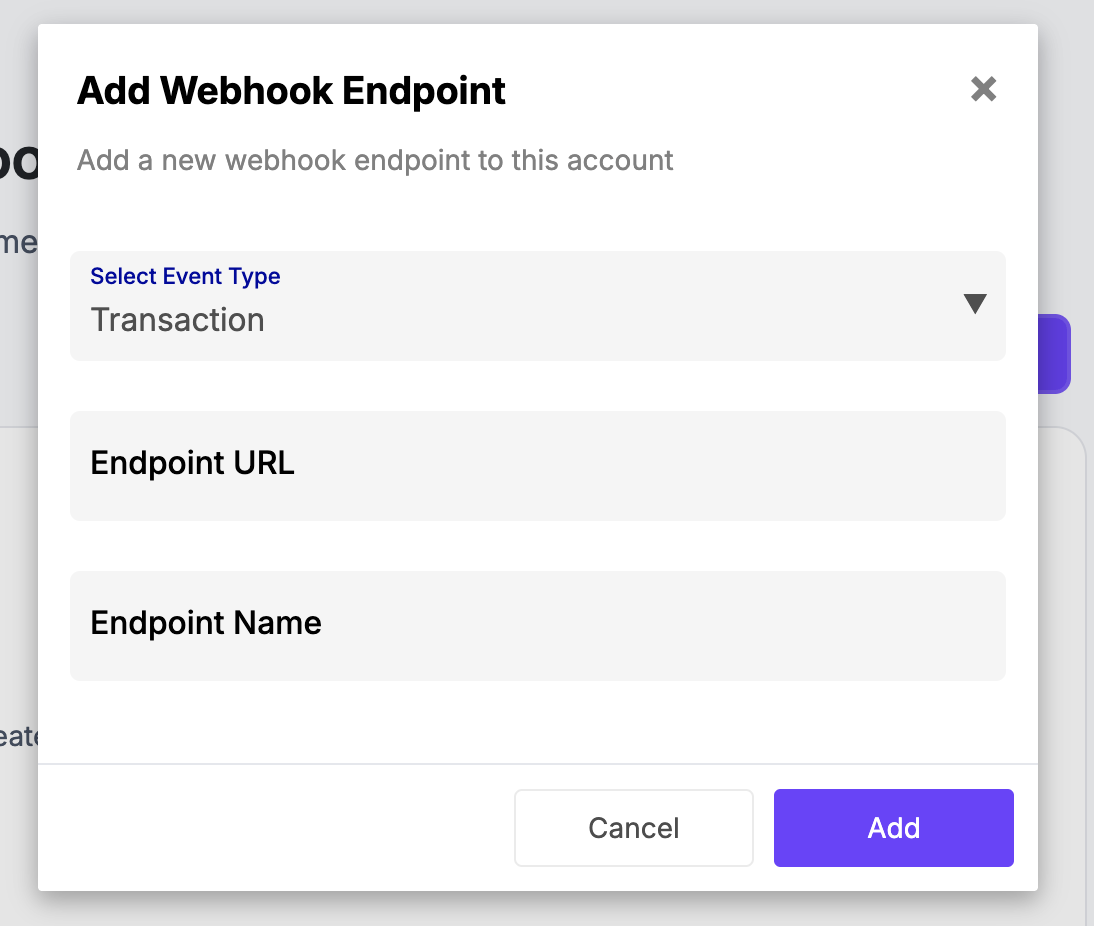
Use Integrations → Webhooks to create a connection with the Transaction event type and a destination URL. Your technical team owns how that endpoint accepts and processes transaction information. Confirm handling of retries, repeat records, and monitoring with PayBee and your receiving team before deployment.
Install and connect the PayBee Salesforce package with your CRM administrator. Review the Contact Matching and Opportunity Mapping preferences, then select which fields populate the corresponding Salesforce records. The current PayBee guide documents NPSP. Ask PayBee about availability if your organization uses Nonprofit Cloud.

Use the ParishSoft organization identifier, the donor’s envelope number, and the campaign’s internal fund identifier to prepare the handoff. In All Transactions, select a date range and report filters, then use ParishSoft Export to prepare the contribution file for import into ParishSoft.

Put these tools to work for your fundraising team.
| Capability | How PayBee helps |
|---|
Explore how PayBee can support your full fundraising workflow.
Bring the destination and the data you want to move. We’ll direct you to the right setup and help identify where to test the handoff.
Book a demoQuestions, answered
Still deciding? See the platform in action or start building today.