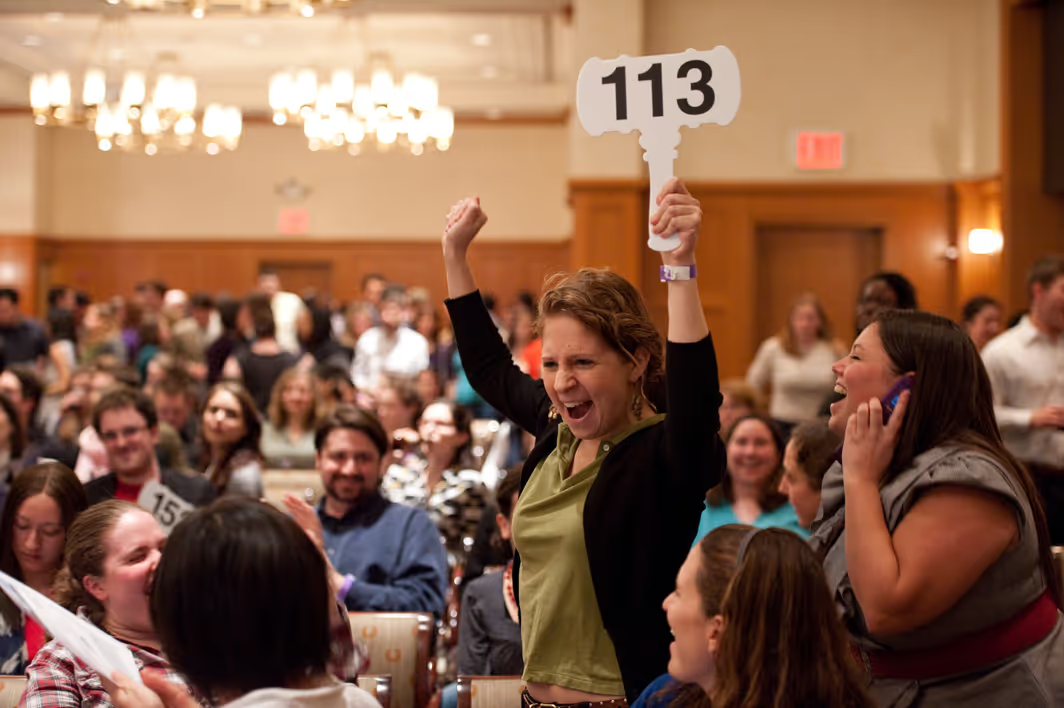
Record several pledges quickly
Follow up on outstanding pledges
See how this feature can simplify your next fundraiser.


See how this feature can simplify your next fundraiser.
Build the giving levels before the event, then choose how your clerk or volunteers will record raised paddles. Once the appeal ends, review donor carts and bring the pending pledges through checkout and into your campaign reporting.
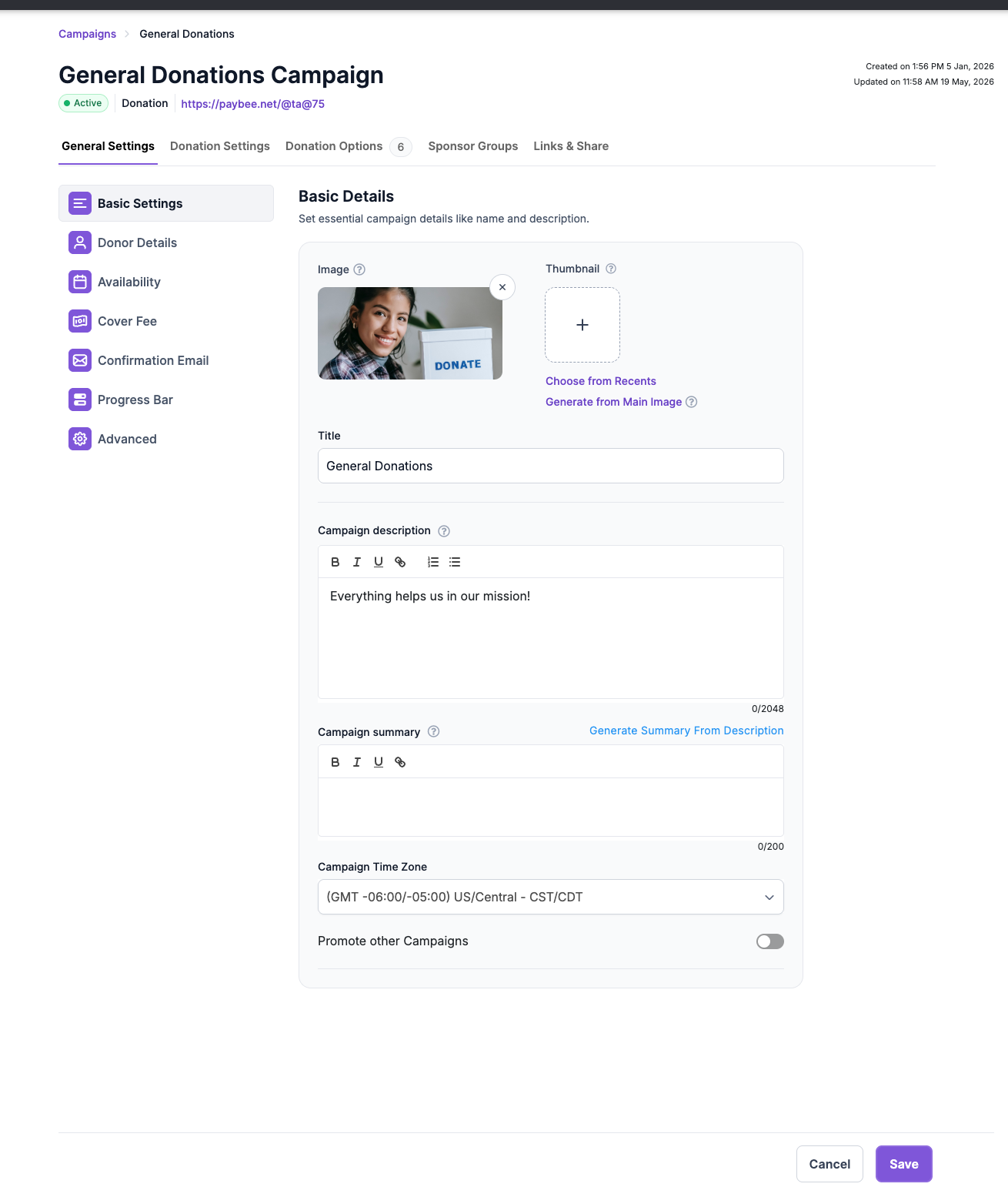
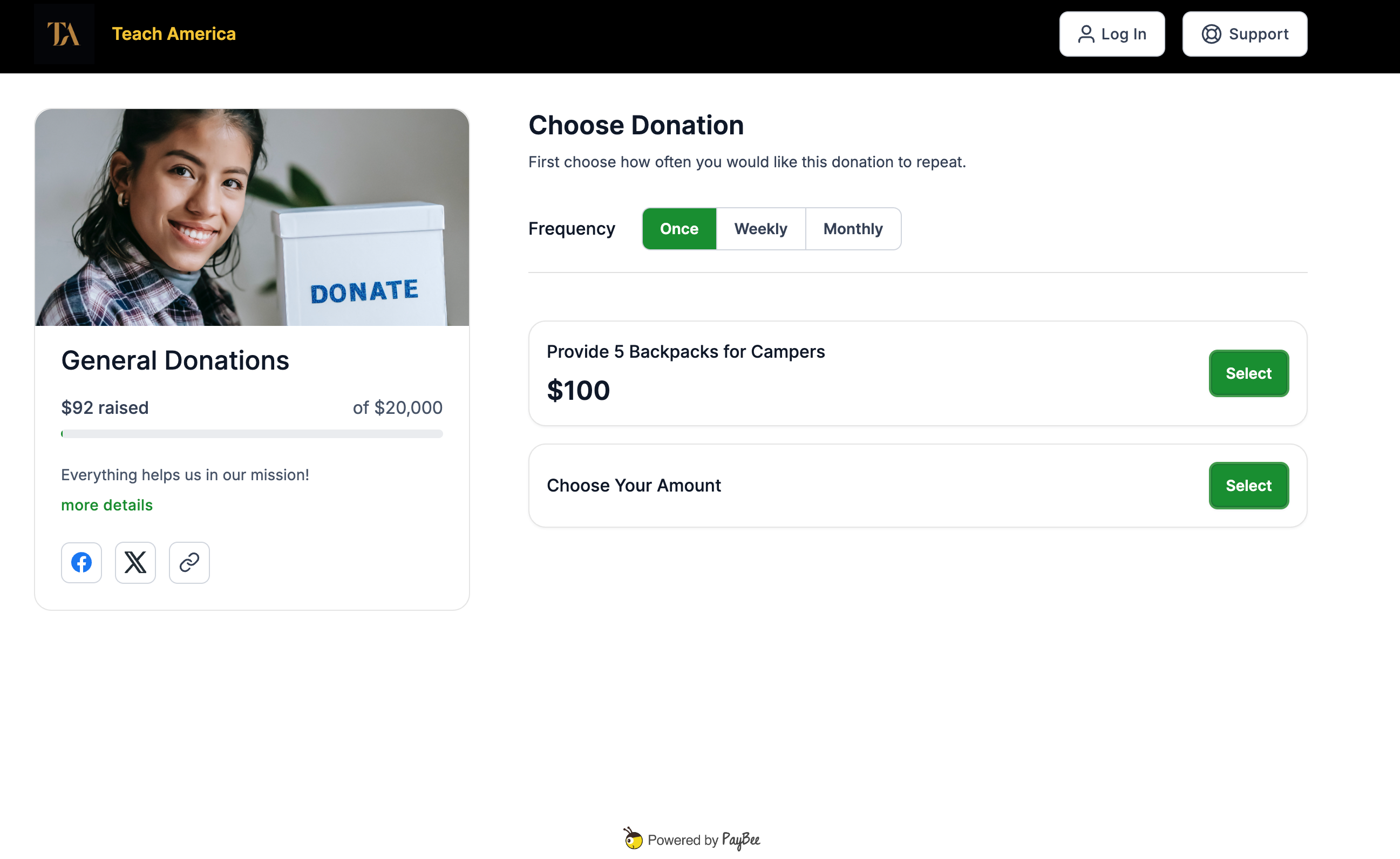
Go to Campaigns, choose New Campaign, and select Donation. Give the campaign a name, an image, and a description of what the appeal will fund. Under Donation Options, name each level and enter its amount. Add levels individually or import them in bulk. A food pantry might use one level to show what a gift would cover for one family. Review the final amounts with the auctioneer so the script matches the campaign.

Ask the auctioneer to read each raised paddle number aloud. For a hybrid appeal or one using the live Audience Monitor, a designated clerk opens Go to Live Activity in the PayBee app. As the producer presents each giving level, the clerk enters the paddle number and taps Bid to record the pledge. Where live display is unnecessary, a volunteer can use Add Bid and Pledge Multiple, select the campaign and level, and save each paddle at that amount before moving on to the next level.

At checkout, scan the paddle or search for its number to open the donor’s cart. Verify the pledge and other items, then choose a payment method to complete checkout. After the event, use the All Pending Report to find unpaid pledges. Open a donor’s cart and send a reminder if payment is still due. In Reports > Campaigns, review the paid and pending transactions so your finance team can see what has been collected.
Ready to turn these steps into a smoother workflow?
During a paddle raise, the auctioneer calls the giving level and reads the raised paddles. The clerk records each pledge, and the producer controls what the audience sees when the event uses live activity. PayBee connects the pledge to the donor’s cart, where checkout staff can review it alongside other items from the event. Afterward, the development team can look at campaign totals and check which transactions have been paid. That gives the team a record of the appeal beyond the numbers shown during the program.
Bring these capabilities together in one connected platform.
Name each Donation Option for something donors can picture, such as equipment for an after-school program. Set the amount and add a short description for people who open the option. If you want online supporters to choose only your preset levels, turn on Hide custom amount in Donation Settings. Otherwise, guests can choose an amount of their own.
When several guests pledge the same amount, open Add Bid and Pledge Multiple in the volunteer app. Pick the campaign and giving level, then save each paddle number separately. Check the list before closing that level. If a paddle was entered by mistake, use the trash icon next to that pledge to remove it.

In a configured hybrid event, the producer selects the pledge campaign from the event playlist and presents a giving level. Online guests can participate from the event, while the clerk captures raised paddles in the room. For a watch party that plays the stream on a shared screen, guests can use the Watch Party link to participate on their phones.

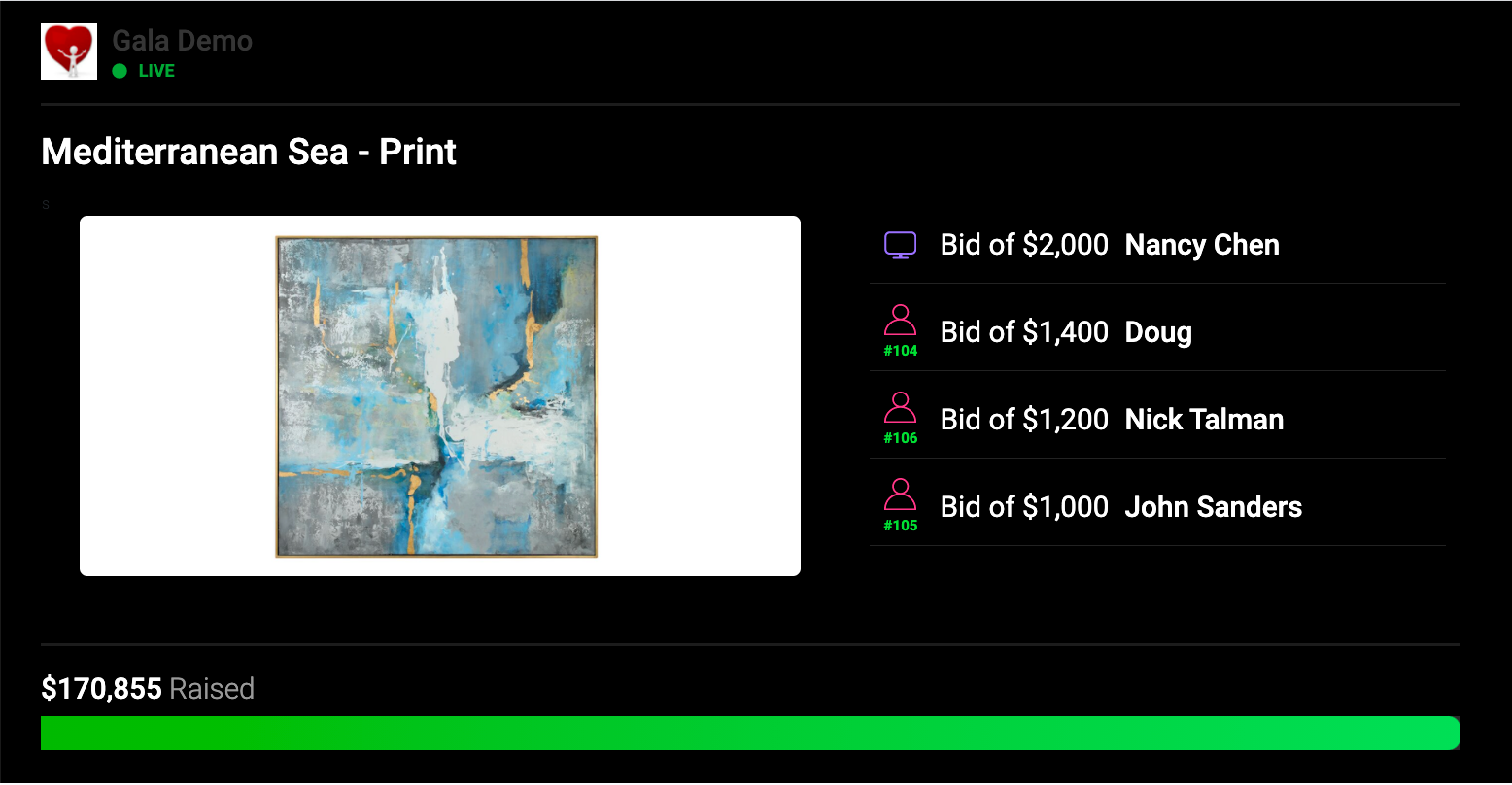
Open the Big Screen link from the event’s links and put it on your venue’s display. During the appeal, the producer presents each level while the clerk captures pledges in Live Activity. With the Audience Monitor configured for your event, guests can follow fundraising activity and see progress toward the goal as pledges come in.
Put these tools to work for your fundraising team.
| Capability | How PayBee helps |
|---|
Explore how PayBee can support your full fundraising workflow.
Bring your event plan and proposed giving levels to a demo. Walk through what the auctioneer calls, what the clerk enters, and what the audience can see. Then follow a sample pledge into checkout and the pending report so your team knows how payment follow-up will work after the appeal.
Book a PayBee DemoQuestions, answered
Still deciding? See the platform in action or start building today.