
Save Cards When Guests Check In
Keep an Alternative at Checkout
See how this feature can simplify your next fundraiser.


See how this feature can simplify your next fundraiser.
Choose the equipment that fits the event, pair each reader with its intended device, and rehearse saving a card and checking out the correct guest cart.

Turn on Bluetooth and location services on the volunteer device and switch on the reader. Open the reader control on the main PayBee volunteer screen. Choose the Bluetooth reader and confirm the connection. If several readers appear, use the device’s serial number to identify the one at your station.

Find and confirm the guest during check-in. Explain that the payment method is for later checkout and follow the PayBee app’s save-card workflow with their permission. Use the reader or the manual entry option described in the volunteer guide. Confirm the card is associated with the intended guest before moving on.

When the guest is ready, open Checkout and find the cart by paddle when applicable. Review the items and amount, and choose the payment method. Follow the app to record the completed payment, then verify the transaction where your team reconciles event payments.
Ready to turn these steps into a smoother workflow?
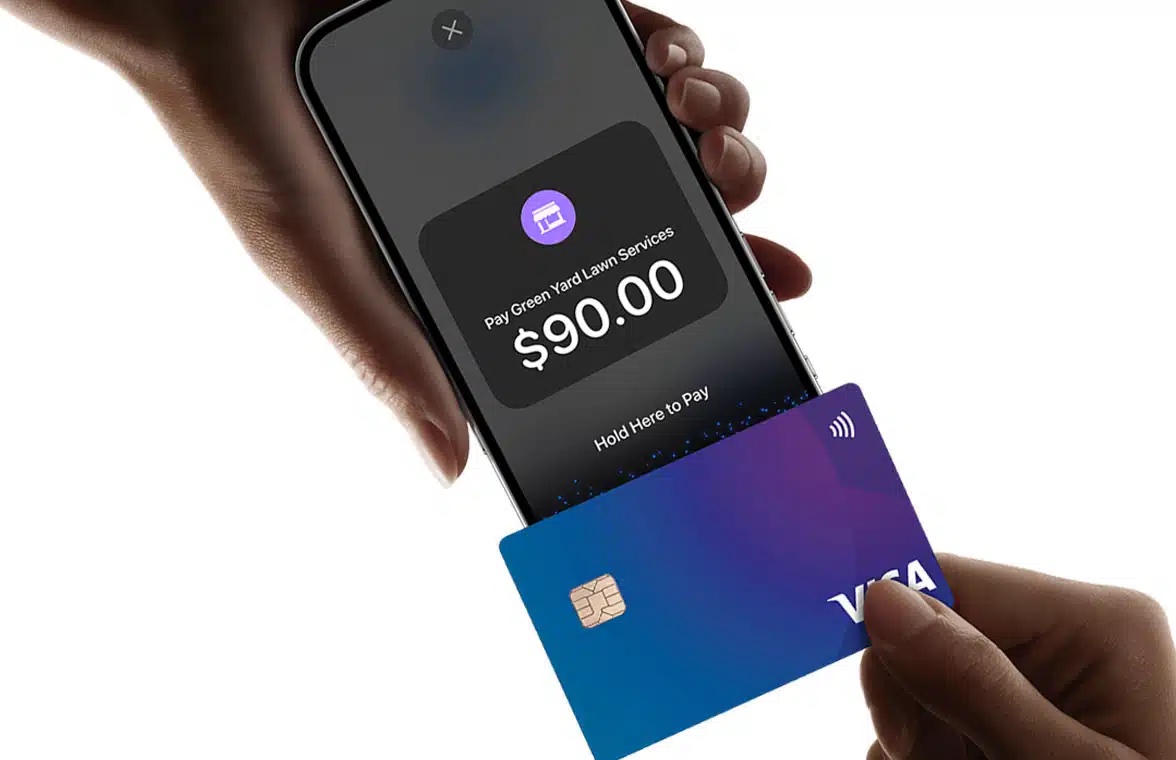
At check-in, volunteers can confirm the guest and save a card for future checkout using the documented pre-swipe workflow. At checkout, review the guest’s actual cart and select the payment method. PayBee’s phone-based Tap to Pay option serves contactless checkout and does not provide card saving at check-in.
Bring these capabilities together in one connected platform.
PayBee documents compatible Bluetooth readers for saving cards at check-in and taking card payments at checkout. If your station uses an eligible phone for Tap to Pay, that phone-only method accepts supported contactless payments at checkout. Choose equipment based on whether you need to save a card earlier.
The reader control in the PayBee volunteer app shows whether the reader is connected. At a multi-station event, compare serial numbers before confirming the device. Pair each reader before guests arrive so volunteers know which display and reader they should watch during checkout.

Use the guest search or applicable check-in scan and confirm the name before saving a payment method. Explain to the guest when it may be used. Follow PayBee’s app prompts and your organization’s consent process, then verify the guest record before moving to the next attendee.

Review the item list and total before checkout, especially if a guest made several purchases. Use All Transactions to look up completed payments after the event. Apply date, campaign, or payment method filters when you need to review a guest’s payment or hand a report to finance.

Put these tools to work for your fundraising team.
| Capability | How PayBee helps |
|---|
Explore how PayBee can support your full fundraising workflow.
Bring the devices and checkout process your volunteers expect to use. Review the difference between pairing a reader, saving a payment method, and completing a cart payment.
Request a PayBee DemoQuestions, answered
Still deciding? See the platform in action or start building today.