
Use the right checkout workflow
Reconcile payments after processing
See how this feature can simplify your next fundraiser.


See how this feature can simplify your next fundraiser.
Identify where the payment method was collected, review the corresponding auction or event records, and run the appropriate Bulk Checkout. Check the paid and pending records afterward to find any carts that remain open.

For a silent auction where bidders had to save payment information, close the auction and go to Manage > Auctions. Select the correct campaign and open Pending. If attendees saved cards for the in-person event instead, navigate from Manage > Events to the In Person Event Report and open Attendees. Confirm which workflow your event used so the finance team starts from the right set of records.
Check the cart totals and item assignments for the supporters you expect to charge. Resolve differences, such as a winning item assigned to the wrong guest, before proceeding. PayBee documents Bulk Checkout for saved methods in both workflows. In the in-person event report, the feature supports processing all eligible carts or a selected group. Follow the choices available in your report and confirm the intended group before checkout.
After processing, return to the auction’s Paid and Pending tabs or the applicable event report. Compare the recorded payments against the carts you expected to settle. Identify open balances and handle them through your normal follow-up workflow. If a supporter pays another way, review their individual cart and record the payment through the appropriate PayBee option. Save the applicable financial export for the people reconciling the fundraiser.
Ready to turn these steps into a smoother workflow?
Bulk Checkout is useful when several guests have eligible saved payment methods and unpaid carts. PayBee has separate entry points for methods saved by silent auction bidders and cards saved for an in-person event. The cart remains the place to review what each person owes. After an administrator runs the correct checkout, paid and pending views help the team confirm recorded payments and decide which balances still need individual attention.
Bring these capabilities together in one connected platform.
If your silent auction required bidders to save payment information, use Pending in Manage > Auctions after the close. Review the winner list and confirm the amounts. Bulk Checkout uses the methods available from that bidding workflow. Review pending transactions again afterward for anyone who still needs help with payment.
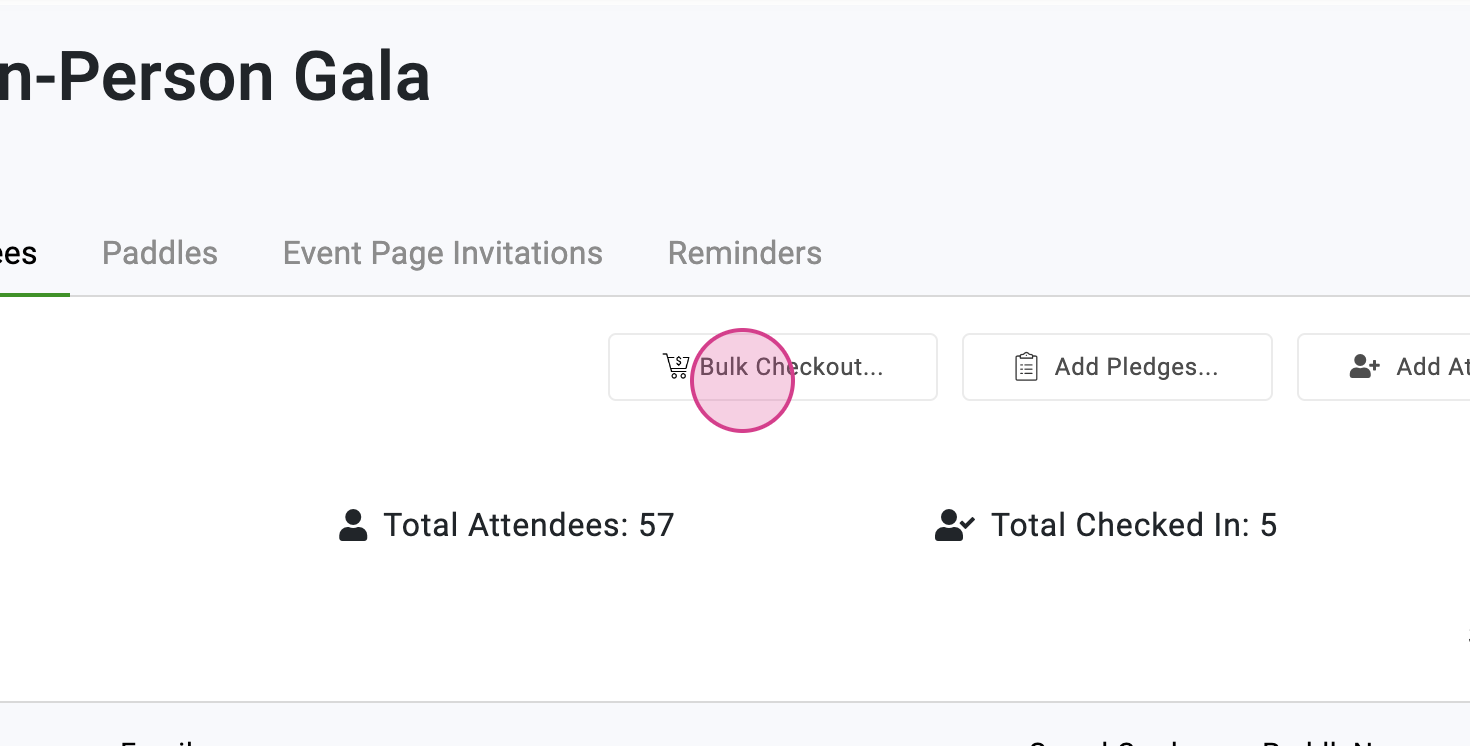
From Manage > Events, open the event’s options and select In Person Event Report. Use the Attendees tab to find Bulk Checkout for cards saved for that event. PayBee documents processing all eligible carts or a selected group from this report. Confirm the event before you review attendees and their carts.
Review each exception your team knows about before using bulk processing. A guest may have won several items or made a paddle pledge that appears in the same cart. Confirm with your finance lead which transactions belong in the group and correct any mistaken entries in the appropriate cart workflow first.

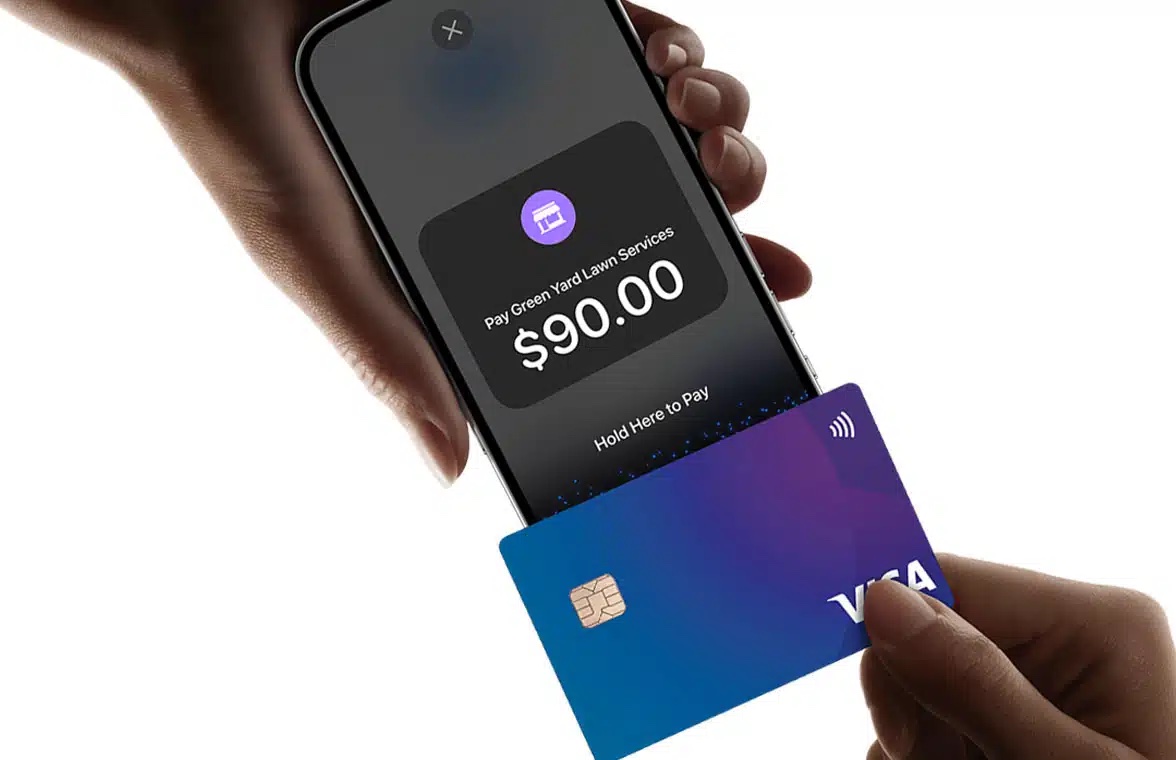
Use the relevant paid and pending views to confirm which payments were recorded. For any remaining balance, locate the cart and review the available payment or reminder options. PayBee’s volunteer checkout also documents card, cash, and check payments. Reconcile those arrangements against the same supporter records.

Put these tools to work for your fundraising team.
| Capability | How PayBee helps |
|---|
Explore how PayBee can support your full fundraising workflow.
Bring examples of how guests will save payment methods and the types of items they will add to their carts. A PayBee demo can help your finance team review the correct checkout path, plan the cart review, and decide which reports to use after the event.
Book a PayBee DemoQuestions, answered
Still deciding? See the platform in action or start building today.