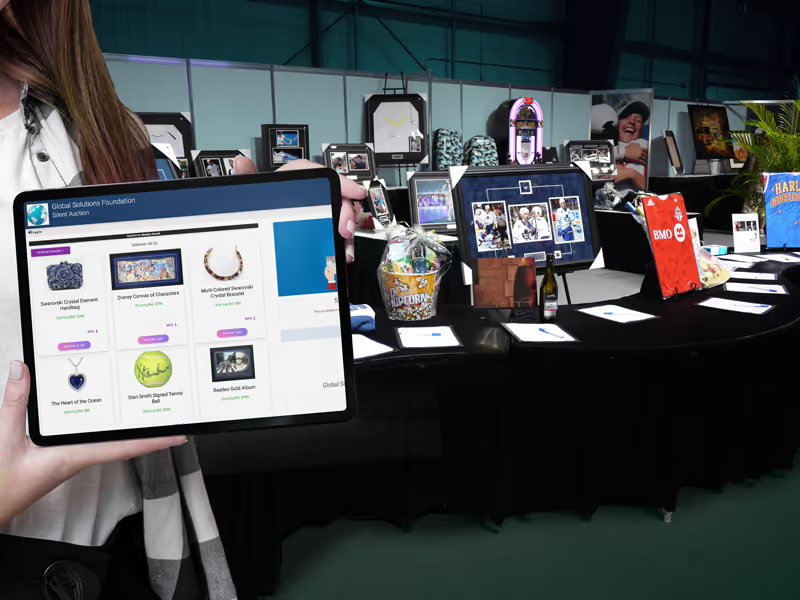
Give Guests a Better View
Keep Bidding on the Auction Page
See how this feature can simplify your next fundraiser.


See how this feature can simplify your next fundraiser.
Prepare the item photos and names in PayBee, copy the Auction Slide Show link, and rehearse on the screen guests will see. Use a separate catalog link or printed code for bidding.
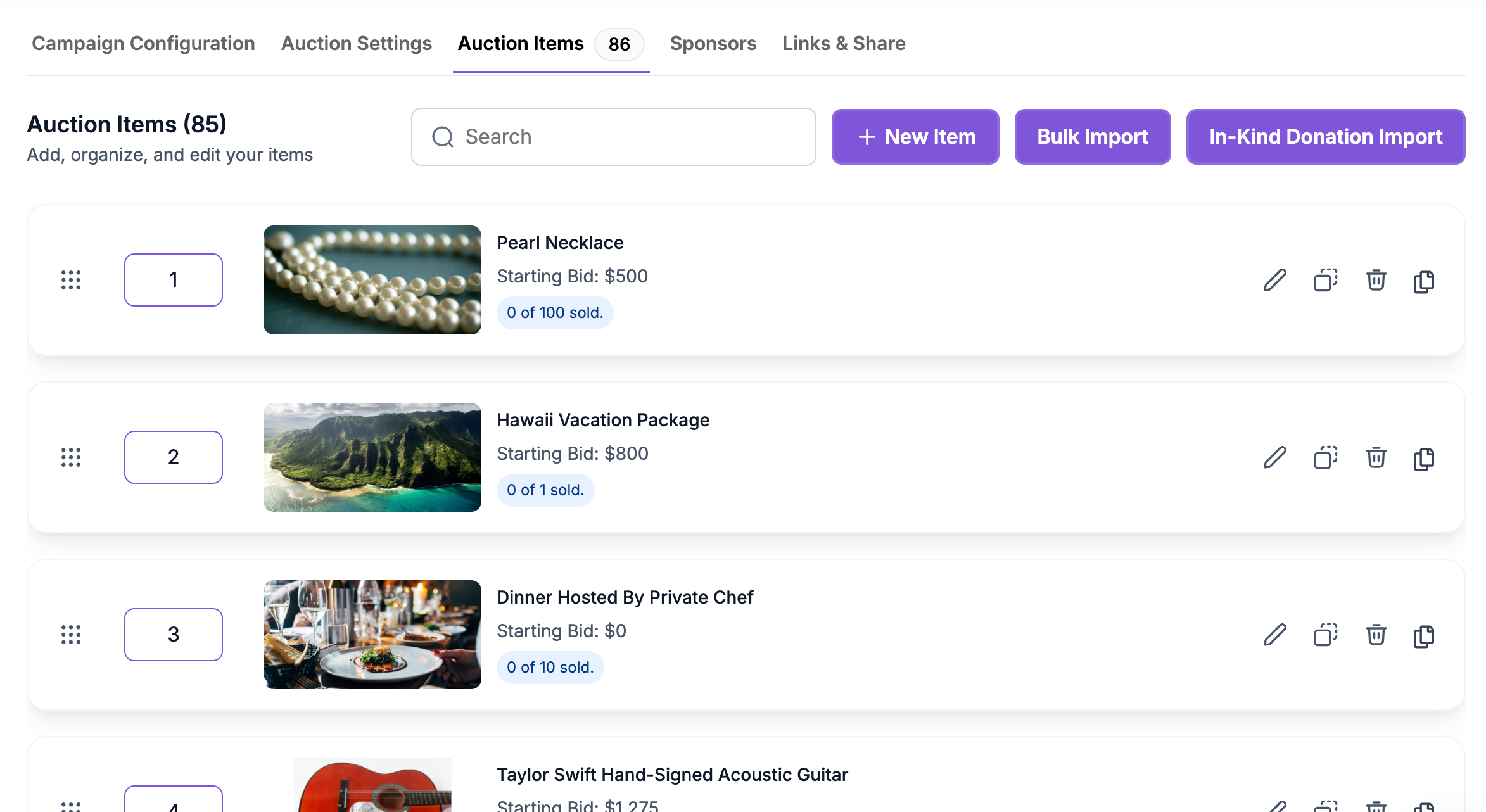
Start with the auction campaign you intend to present. Add the lot names and upload item photos. Use short names that distinguish similar packages and photos that are clear from a distance. Check the catalog for edits and duplicates, then preview it on a phone to make sure the item names guests will search for match the names shown on the screen.

Open Manage > Auctions and select the auction. Copy the link labeled Auction Slide Show and open it in a browser on the computer connected to the display. Rehearse with the venue equipment and network. Check the picture from the back of the room and close unrelated browser tabs before guests arrive.
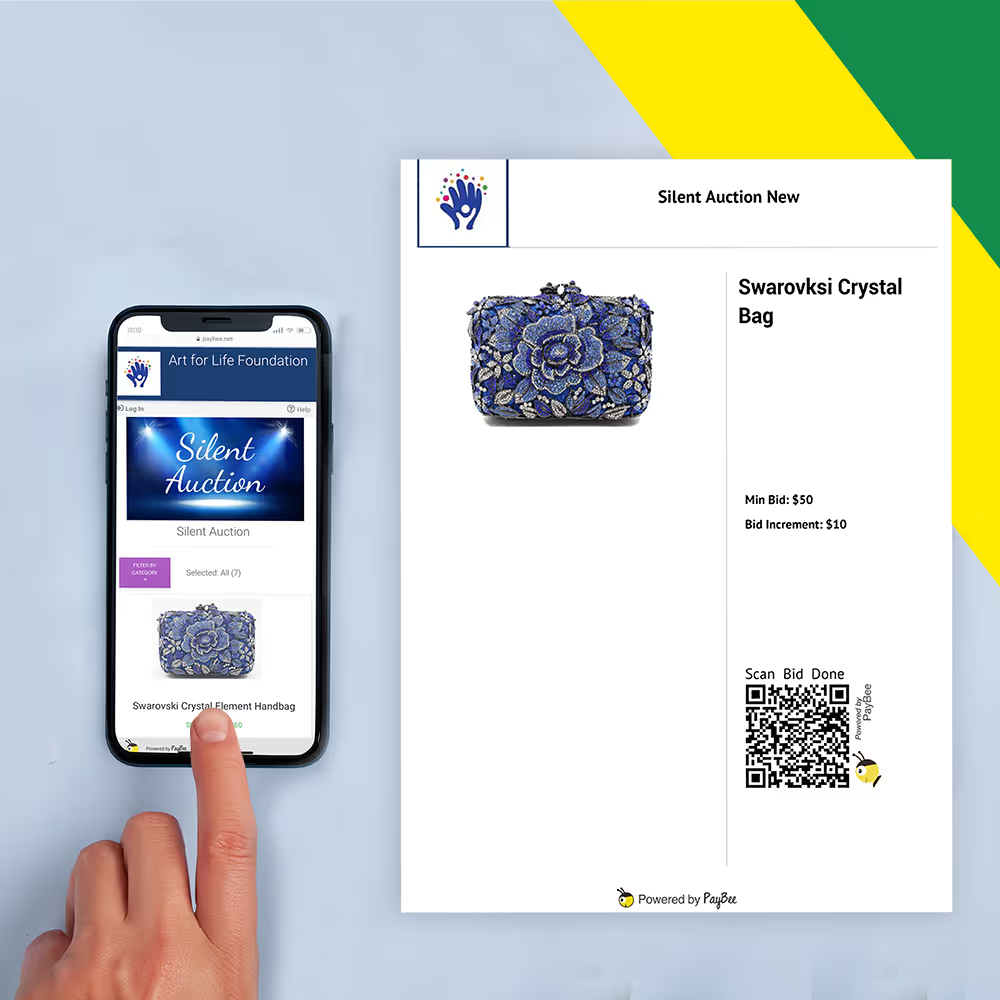
Post the auction campaign QR code at registration or place item QR bid sheets alongside packages. Tell guests that the room screen introduces the lots and their phones open the bidding page. Have the auction chair monitor bidding from Manage > Auctions so the display can stay focused on showing the items.
Ready to turn these steps into a smoother workflow?
The auction campaign is where your team manages the catalog. The slideshow pulls item names and images for the room, while guests use the auction page or item QR codes to see details and place bids. Arrange for someone to manage bidding separately from the display operator.
Bring these capabilities together in one connected platform.
The Auction Slide Show is made from names and images in the auction campaign. Start with a clear main image for each lot and review the presentation as part of catalog quality control. Use the item page for descriptions, restrictions, pickup terms, and other details that need more room.
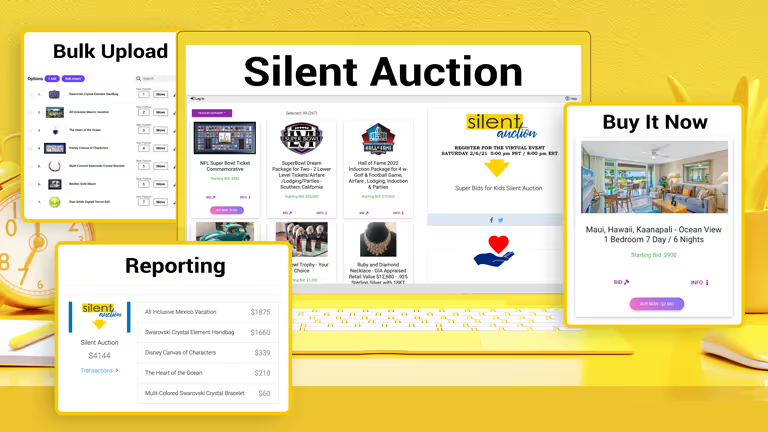
Send the display operator the slideshow URL from Manage > Auctions and label it with the correct auction. Open it on the venue computer, confirm the correct collection of lots, and test the screen sizing before doors open. Keep a browser bookmark or a spare copy of the link for the operator.

The campaign link is the entry point to browse and bid. PayBee also offers an item QR sheet for a table display, which gives guests a direct path to that lot. Pair a short host announcement with printed guidance so guests know how to get from the screen to the catalog.
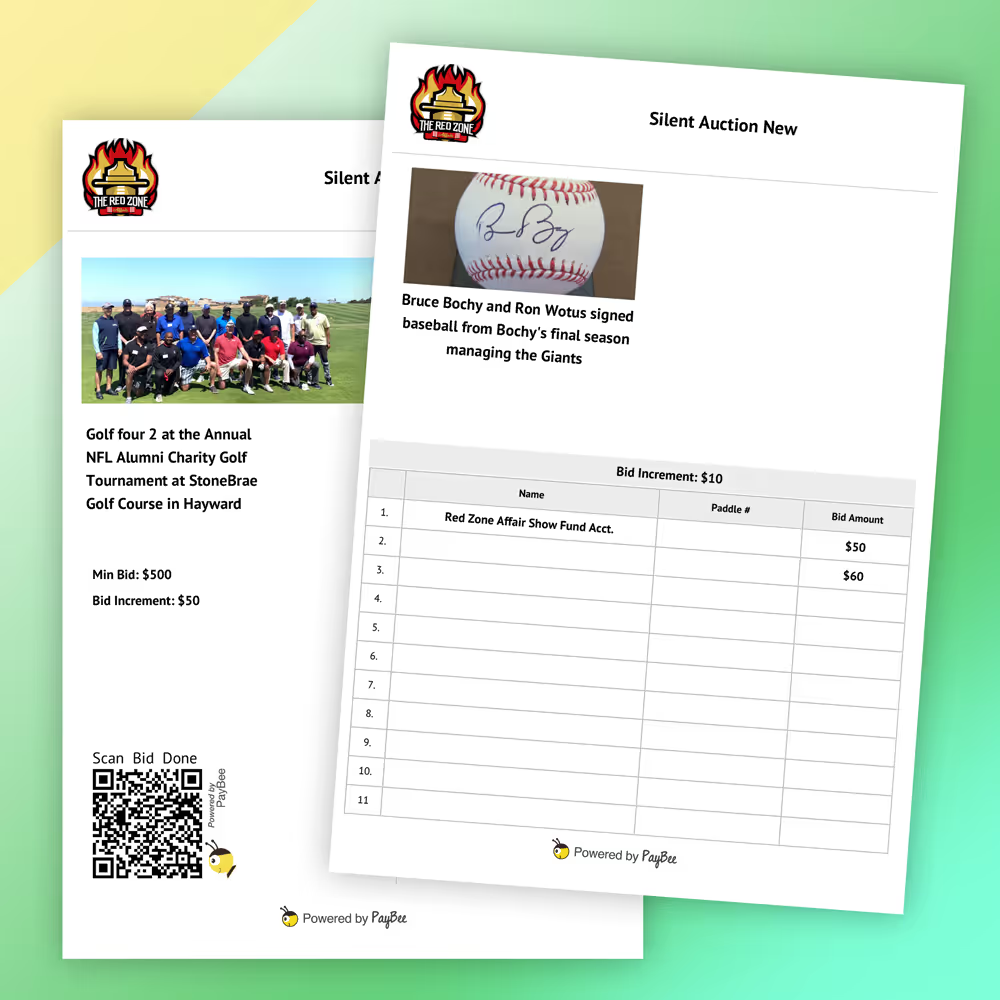
Use Manage > Auctions to monitor bidding and handle the auction close. Review the slideshow before the program resumes if you have changed the catalog or item availability. Keep start and close decisions with the auction lead so the display operator can focus on what guests see.

Put these tools to work for your fundraising team.
| Capability | How PayBee helps |
|---|
Explore how PayBee can support your full fundraising workflow.
Bring a few item photos and the display setup you plan to use. See how to launch the auction slideshow alongside the catalog and printed bidding materials.
Request a PayBee DemoQuestions, answered
Still deciding? See the platform in action or start building today.