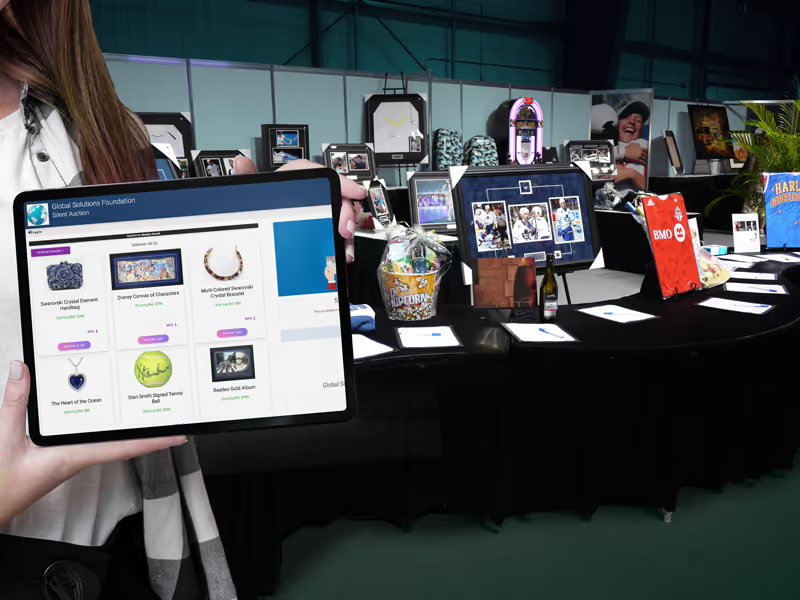
Gather useful donor details
Prepare items for catalog review
See how this feature can simplify your next fundraiser.


See how this feature can simplify your next fundraiser.
Set up a donor-facing campaign with clear submission instructions. Choose the information your team wants to collect, share the form with item donors, and direct responses to the people reviewing your auction inventory.

From Campaigns, create a new Ticketing campaign for the documented procurement form. Give it a name that clearly asks for donated auction items. In the campaign description, tell businesses and supporters what your committee is looking for, when offers are due, and how they can contact you. Keep this campaign separate from guest registration so each person using the form can tell which action they are taking.

Under the form’s general settings, enable phone and address collection as well as the additional information fields your team needs. In the ticketing settings for this documented form, turn on electronic tickets and turn off guest information collection. Add an option named Donate an Item. Preview the form and confirm its selections and messages make sense for someone offering an item to your auction.

Save the campaign and add it to your event page, link to it from your website, or share it by email. Download the campaign QR code to include on printed materials if useful. Assign a committee member to check submissions, confirm the details the auction needs, and coordinate pickup or delivery. Use an In-Kind campaign when your intake plan depends on documented item-specific fields and auction import.
Ready to turn these steps into a smoother workflow?
Start with the information your committee actually needs to act on an offer. The documented Ticketing-based procurement form offers a shareable intake path with an option to donate an item and configurable donor details. If your process requires an item description, images, restrictions, or certificate upload, use the dedicated In-Kind campaign. Review its submissions in reports and import selected items to an auction. This gives staff time to verify the catalog details before bidders see them.
Bring these capabilities together in one connected platform.
Use the campaign description to explain which goods, services, or experiences your auction accepts. Include a deadline and an email for questions. Configure contact fields that help the committee connect with the donor about delivery or restrictions. The Donate an Item option gives the donor a clear action to take.

Copy the campaign link and include it in the item request your team sends to businesses. Add the form to your event page or website where supporters look for ways to help. A downloaded QR code gives people another way to reach the form from printed materials.

PayBee’s In-Kind campaign can ask for images, description, quantity, expiration date, restrictions, and delivery instructions. It can also request a donated certificate upload. Decide which fields are useful and which should be required before you ask donors to submit an offer to the organization.
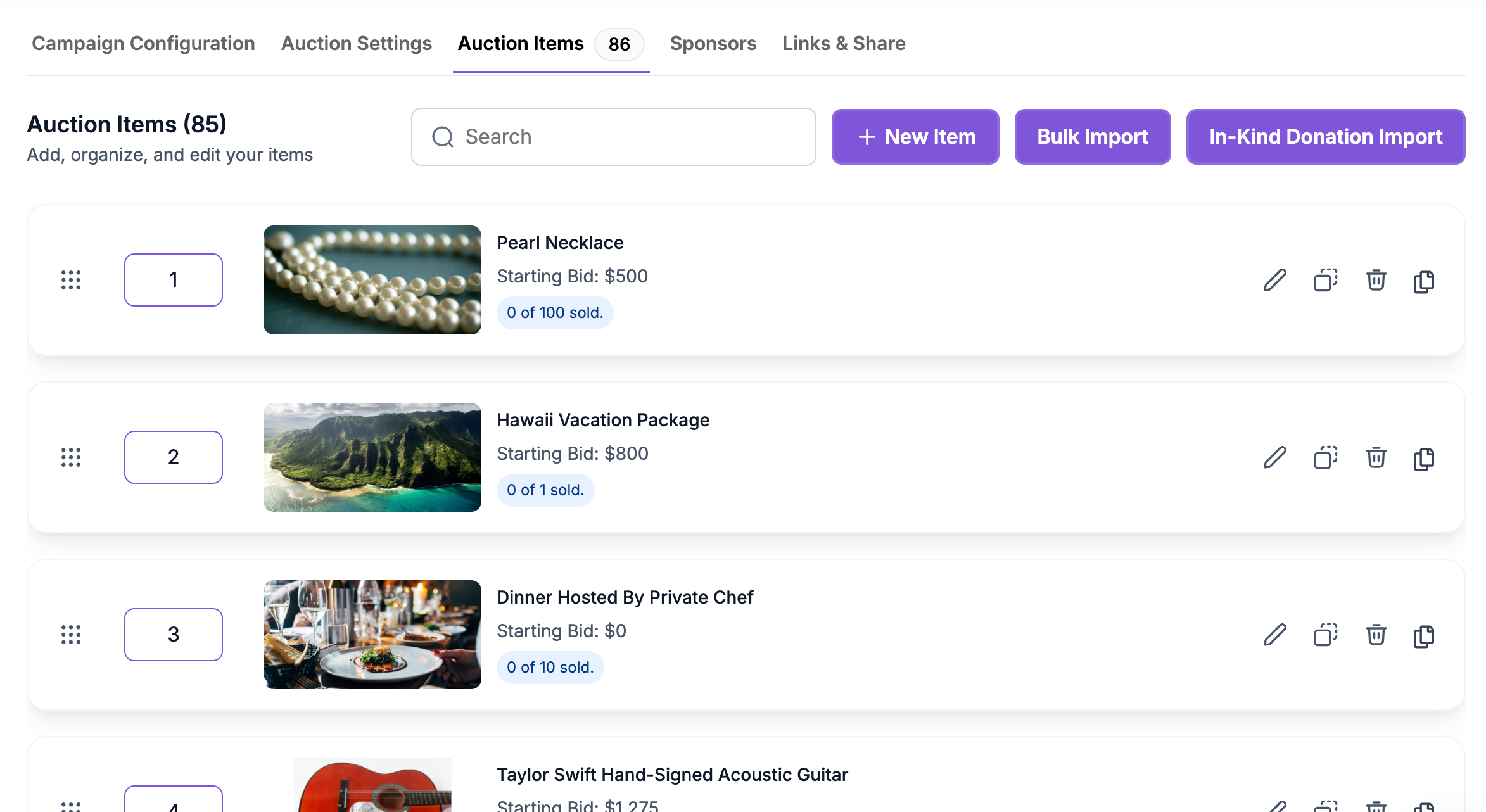
Filter All Transactions for the In-Kind campaign and include the In-Kind Item column to inspect submission details. From the auction’s Auction Items tab, select In-Kind Donations Import, choose the source campaign and items, and set bidding details. Staff can edit the imported entries after confirming the selection.

Put these tools to work for your fundraising team.
| Capability | How PayBee helps |
|---|
Explore how PayBee can support your full fundraising workflow.
Bring the item questions your committee asks today and a sample of your outreach. A PayBee demo can walk through the procurement form and the In-Kind option so you can decide how to gather information and prepare catalog entries before auction night.
Book a PayBee DemoQuestions, answered
Still deciding? See the platform in action or start building today.