Separate Bids From Cash Collected
Focus Follow-Up on Open Balances
See how this feature can simplify your next fundraiser.


See how this feature can simplify your next fundraiser.
Start with the selected auction, download the bidder and item workbook, and compare the winners with completed transactions and pending carts.

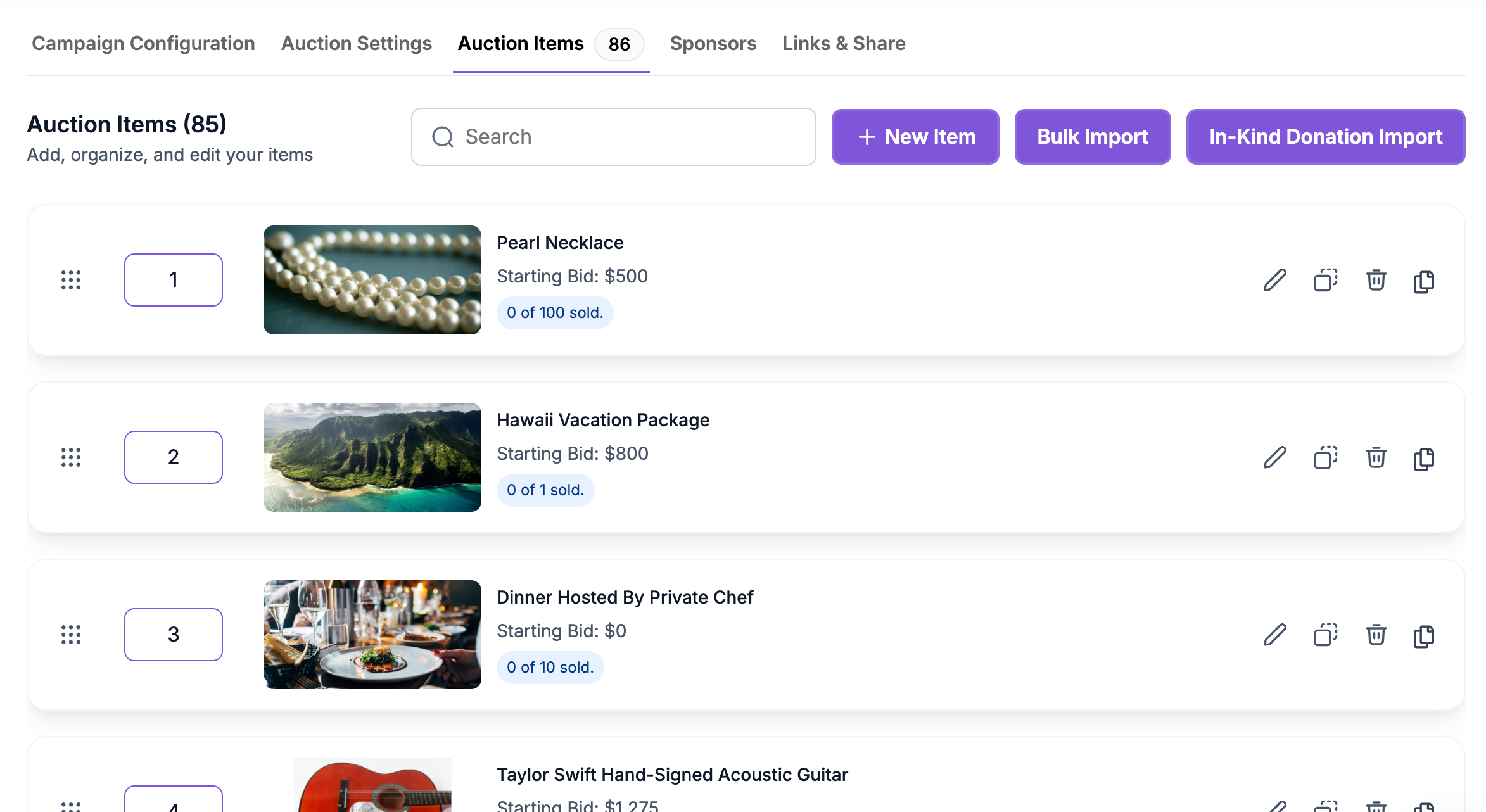
In Manage > Auctions, select the correct campaign and review the bid activity and item list. During bidding, inspect any reported errors before the auction closes. Pause bidding if the team needs time to review results, then make the decision to end the auction separately when the lead confirms that the records are ready.

Open Downloads and choose Bidders & Items (Excel). The workbook includes bidding and item information that the auction chair can share with finance, including top bidders and winners when the auction is closed. Export a fresh copy after any edits you made before ending the auction so the handoff reflects the final records.
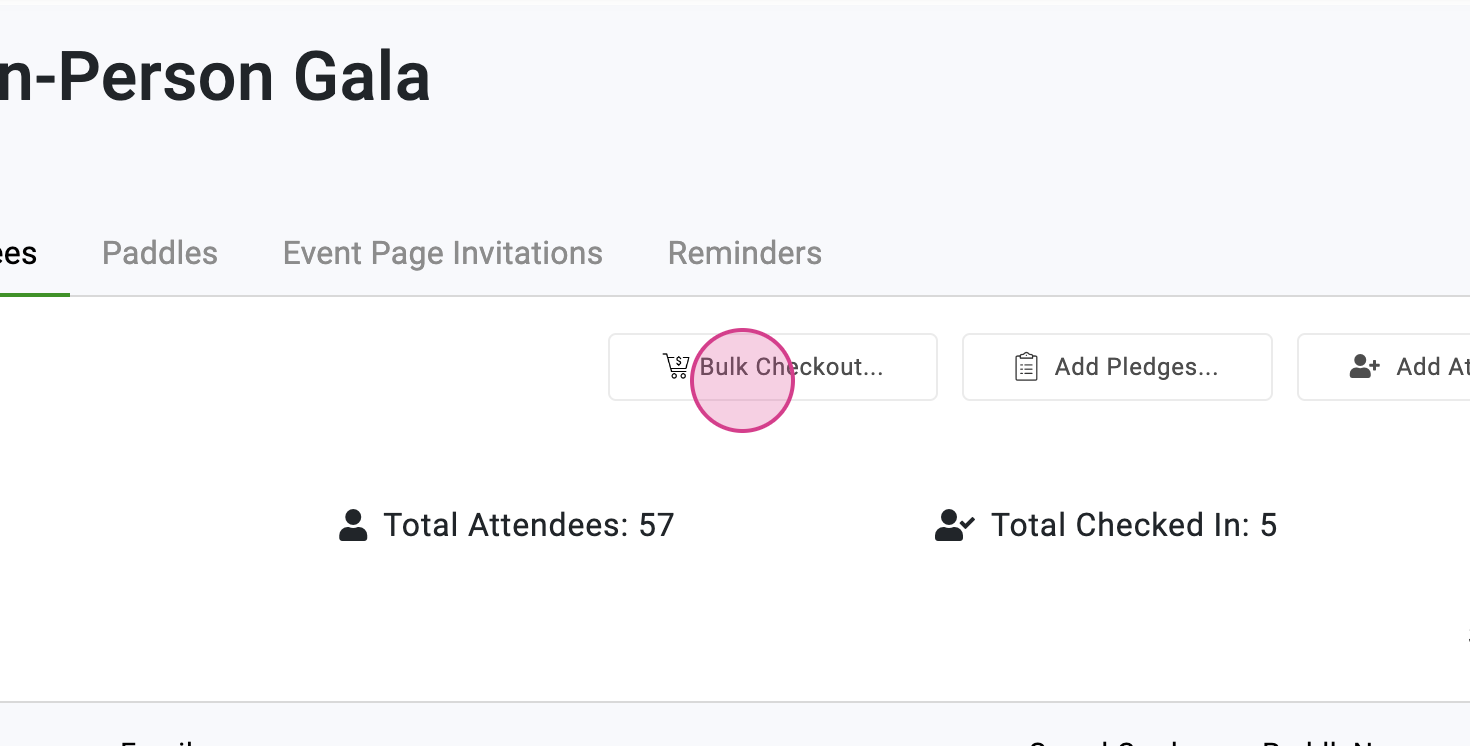
After close, compare the winner records with completed payments and pending carts. Look at the item and cart details before following up, especially when someone won several lots. Use completed transactions for payment reconciliation and pending carts to decide which winners still need a reminder or staff assistance.
Ready to turn these steps into a smoother workflow?
The auction workspace shows bidding activity and provides the Bidders & Items export. PayBee’s completed and pending transaction views answer a different question about what has or has not been paid. Agree on the campaign, report date, and handoff from the auction chair to finance before you start reconciling.
Bring these capabilities together in one connected platform.
Open the auction manager for a view of bid activity while the auction is running. The PayBee guide describes downloading the Top Bidders sheet and totaling current bids for a working estimate. Treat that estimate as bidding activity until winners are declared and payments are received.
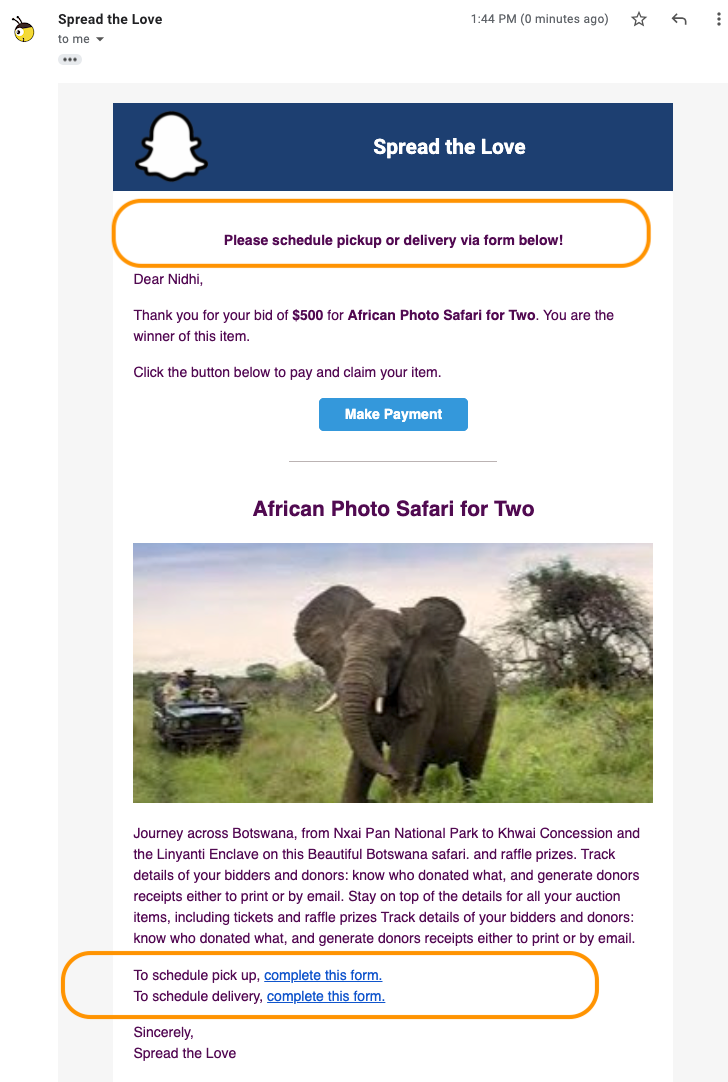
When the auction closes, the winning items are added to the winners’ carts and PayBee sends winner notices. If your item was available in more than one quantity, the top bidders for that item can be declared winners. Review the item and cart together when verifying how many purchases a guest needs to settle.
The Excel file can help the auction chair review which items drew interest and who won. Keep a copy from after the close for the event record. Use the relevant transaction report for payment and reconciliation questions, and share exports only with staff who need the bidder and financial information.

Review pending carts and send reminders to winners with open balances. Where the team receives a cash or check payment, record it in the corresponding PayBee workflow and confirm the completed entry. Keep an eye on guest carts with several items so that follow-up reflects the actual balance.
Put these tools to work for your fundraising team.
| Capability | How PayBee helps |
|---|
Explore how PayBee can support your full fundraising workflow.
Bring the report your auction chair needs and the details finance uses to close an event. See how the bidder export, pending carts, and completed payments fit together.
Request a PayBee DemoQuestions, answered
Still deciding? See the platform in action or start building today.